How to Enable or Disable Deep Sleep Mode on Samsung Galaxy Fit 3
If you're looking to optimize your sleep tracking with the Samsung Galaxy Fit 3, enabling Deep Sleep Mode can be incredibly beneficial. This guide will walk you through the simple steps to turn this feature on or off, ensuring you make the most out of your wearable device.
Access the Settings on Samsung Galaxy Fit 3
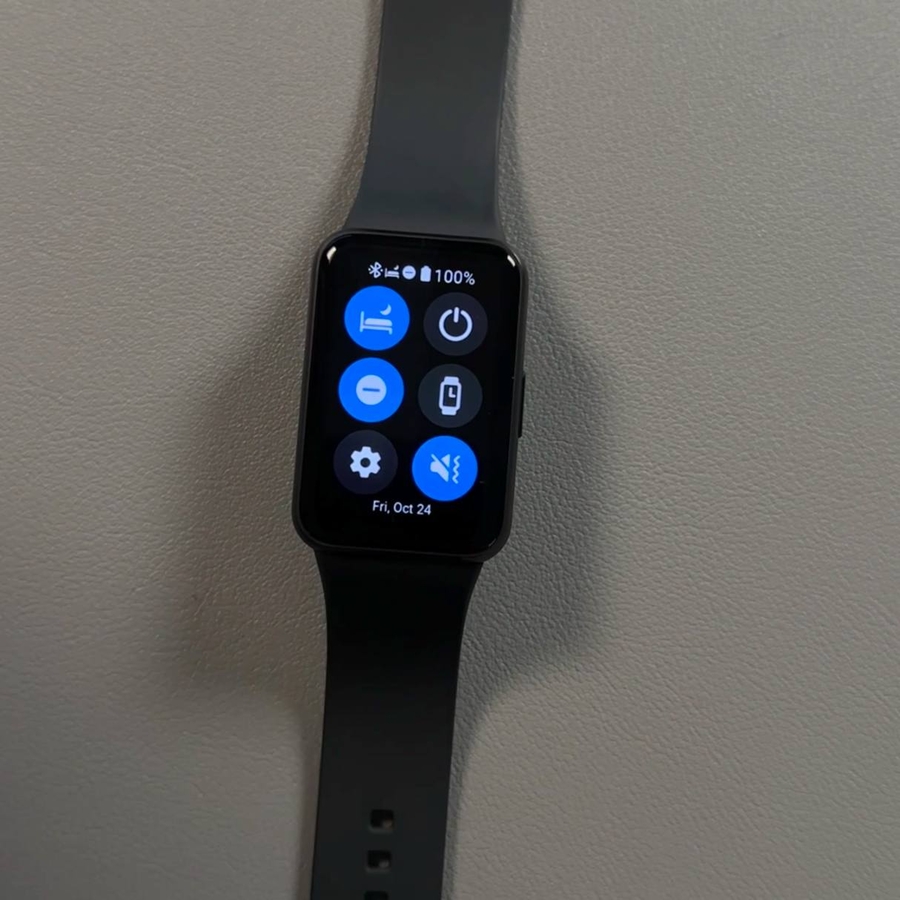
To begin, swipe down from the top of your Samsung Galaxy Fit 3's screen. Look for the gear-shaped icon that represents the Settings tab and tap on it to open the settings menu.

Navigate to the Mode Section
Within the Settings, scroll to find the Mode section. Tap on it to proceed to the modes available on your device.

Enable or Disable Sleep Mode
Locate the Sleep Mode tab in the Mode section and tap on it. To enable Sleep Mode, press the "Turn On" button. Conversely, to deactivate it, simply press "Turn Off". When enabled, Sleep Mode may also activate on your paired Galaxy phone if synchronization is on.


Set Up Automatic Activation
To automate Sleep Mode activation based on your schedule, go to the Sleep Mode tab and find the "Set on Phone" option. Tap it, and you will be redirected to your Galaxy Wearable app. There, find the Scheduled Activation option and press it to turn it on or off. You can set specific days such as Monday, Tuesday, and Wednesday for activation, and even configure the start and end times, for instance, from 9:00 a.m. to 11:00 a.m. Once done, tap the "Done" button to save your schedule.