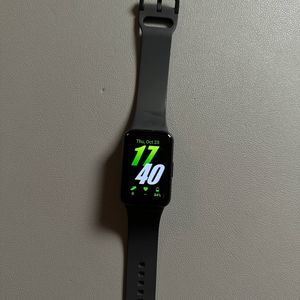
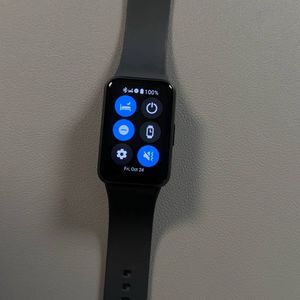
Using Spotify Controls on Samsung Galaxy Fit 3
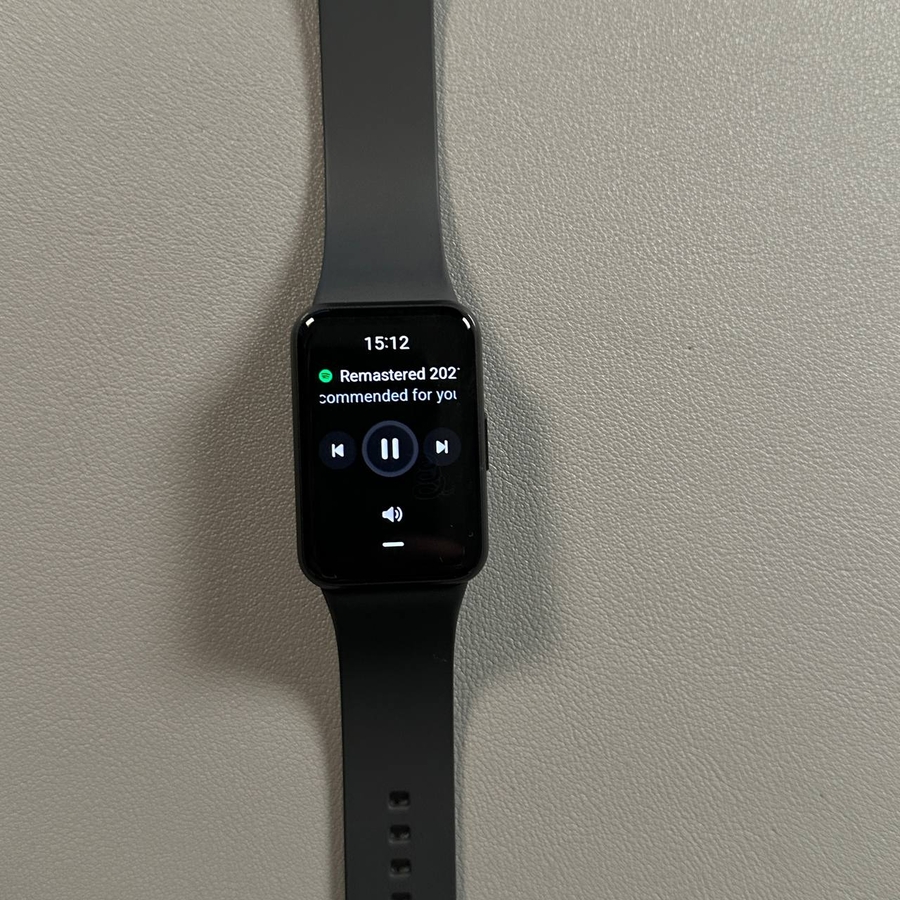
The Samsung Galaxy Fit 3 is a versatile fitness tracker that also allows you to control your favorite music streaming application, Spotify. Although you cannot launch Spotify directly from this device, managing playback is simple. Follow this guide to effortlessly navigate through your music while on the go, ensuring you stay within Bluetooth range of your smartphone for a seamless experience.
Access the Media Controller
To begin, wake up your Samsung Galaxy Fit 3 by tapping the screen. Once the device is active, swipe downwards to reveal the application list. In this menu, you will find an option labeled 'Media Controller.' Tap on it to open the media controls screen.


Control Playback and Volume
With the media controller open, you can now manage playback for your music. Use the visible buttons to play or pause your current track. The volume can be adjusted by tapping on the volume control and sliding your finger up or down to increase or decrease the sound level, respectively.


Skip Tracks
If you desire to change tracks, the Samsung Galaxy Fit 3 allows you to skip forward to the next song or return to the previous one. By tapping the respective forward or backward buttons, you can easily navigate through your playlists without accessing your smartphone.

Stay Within Bluetooth Range
Please keep in mind that for controlling Spotify on your Samsung Galaxy Fit 3, your paired smartphone must be within Bluetooth range. This ensures that media controls function smoothly and you experience seamless music playback.