How to Pair Marshall Motif II ANC with a Smartphone App
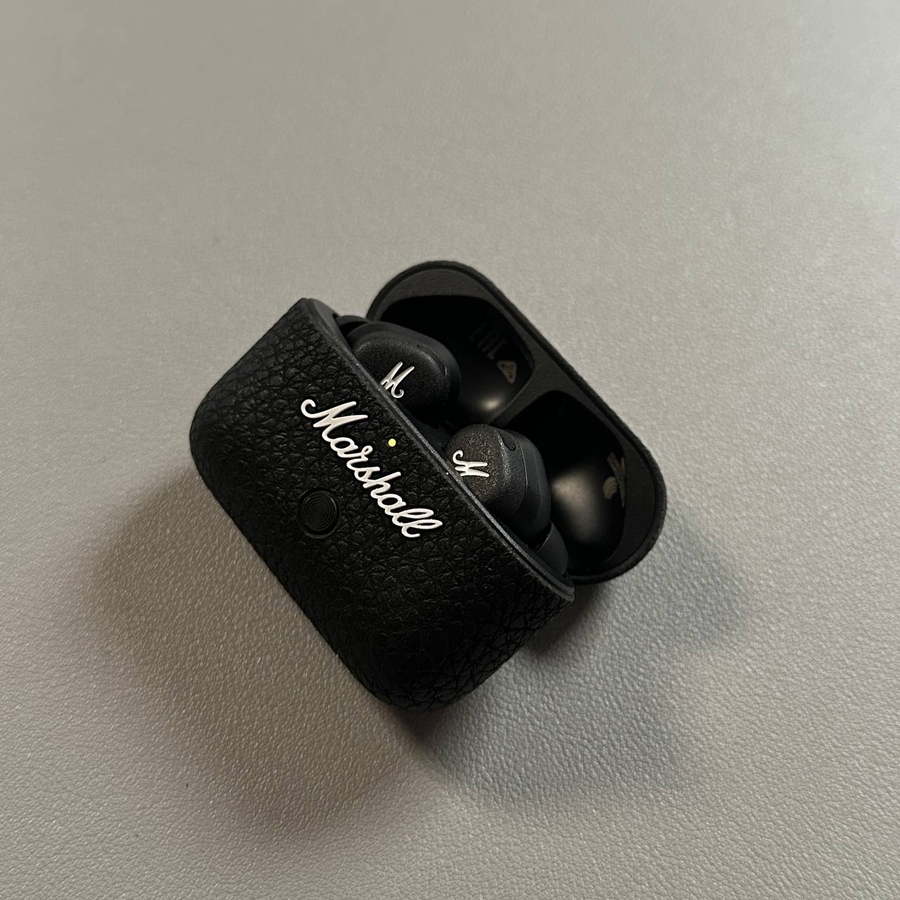
Welcome to this step-by-step guide on pairing your Marshall Motif II ANC headphones with the dedicated smartphone app. This guide will help you ensure a seamless connection between your headphones and your phone, enhancing your listening experience. Let's dive into the setup process.
Step 1: Ensure Bluetooth is Enabled and Device is Connected
To begin, unlock your smartphone and ensure that Bluetooth is enabled. You can do this by swiping down on your home screen to access the quick settings menu and tapping the Bluetooth icon if it's not already activated. Next, pair your Marshall Motif II ANC headphones with your phone via Bluetooth. You should see the device name appear in the list of available connections; simply select it to pair.

Step 2: Install and Open the Marshall Bluetooth App
Next, download the Marshall Bluetooth app from your device's app store if you haven't already. Once installed, open the app by tapping on its icon. The app allows you to customize and manage your headphone settings comprehensively.

Step 3: Agree to Terms and Configure Settings
Upon launching the Marshall Bluetooth app, you will be prompted to agree to the terms and conditions. Carefully review these instructions and tap the "Agree" button to proceed. You can also choose to skip any introductory setups or tutorials if you wish to jump directly into pairing your headphones.
Step 4: Add Your Device within the App
Within the app, tap on the option to add a new device. Make sure your Marshall Motif II ANC headphones are still turned on and connected via Bluetooth. The app will automatically detect your headphones, allowing you to select and add them to the app for personalized control and settings management.

Step 5: Finalize Pairing and Enjoy
Once your device is added, the app will finalize the pairing process. You may now access various settings and features exclusive to the Marshall app that enhance your listening experience. Give yourself some time to explore these features at your convenience.