Marshall Motif II ANC: How to Check for Updates
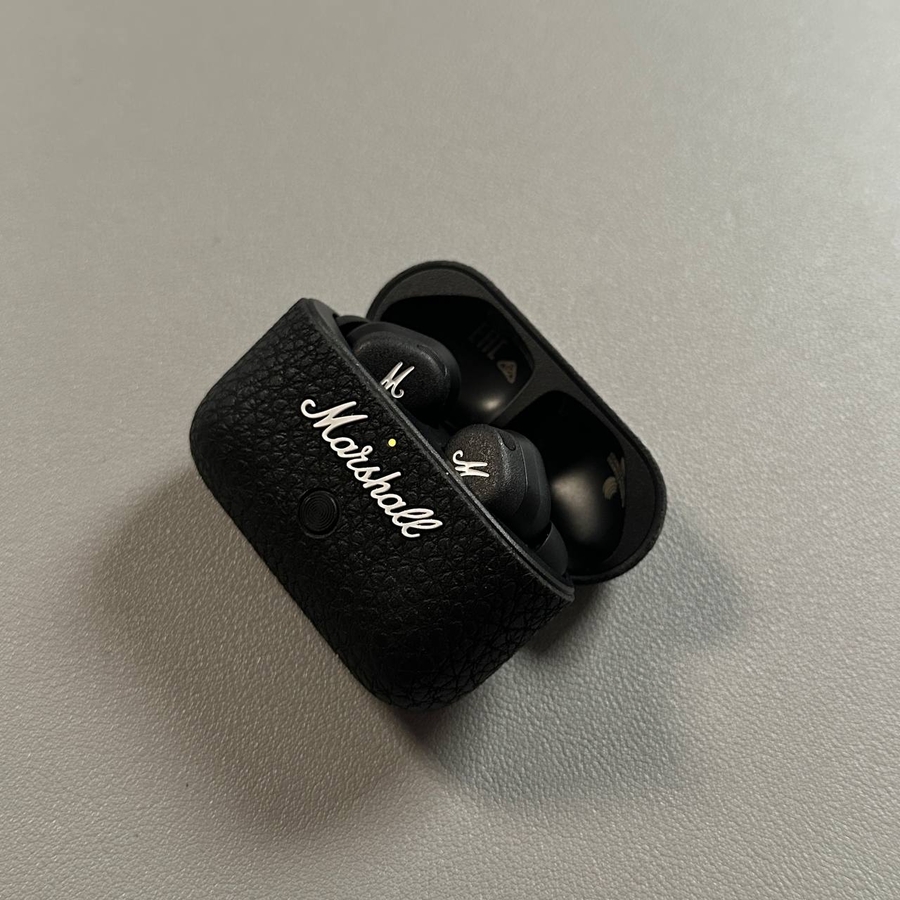
Welcome to this comprehensive guide where we will walk you through the simple steps needed to check for software updates on your Marshall Motif II ANC earbuds. Keeping your earbuds updated ensures you have access to the latest features and improvements. Let's dive in!
Step 1: Open the Marshall Bluetooth App
To begin, unlock your smartphone and locate the Marshall Bluetooth app. This app is crucial as it enables you to manage your earbuds conveniently. Open it by tapping on its icon which you can usually find on your home screen or within your app drawer.

Step 2: Main Menu
Once you have successfully opened the app, observe the bottom part, and look for the update notification. Then, scroll down within the main menu. You will see various options but aim for the "About" section, which is typically found towards the end of the list. Tap on it to proceed.


Step 3: Check for Software Updates
Now that you're in the "About" section, look towards the bottom where you'll find information about the current software version installed on your earbuds. If there is an update available, you should see an option to install a new version. Don't hesitate to download it, ensuring your earbuds are always up-to-date.


And that's it! You've successfully learned how to check for updates on your Marshall Motif II ANC earbuds.