How to Add and Manage Siri on Marshall Motif II ANC Earbuds
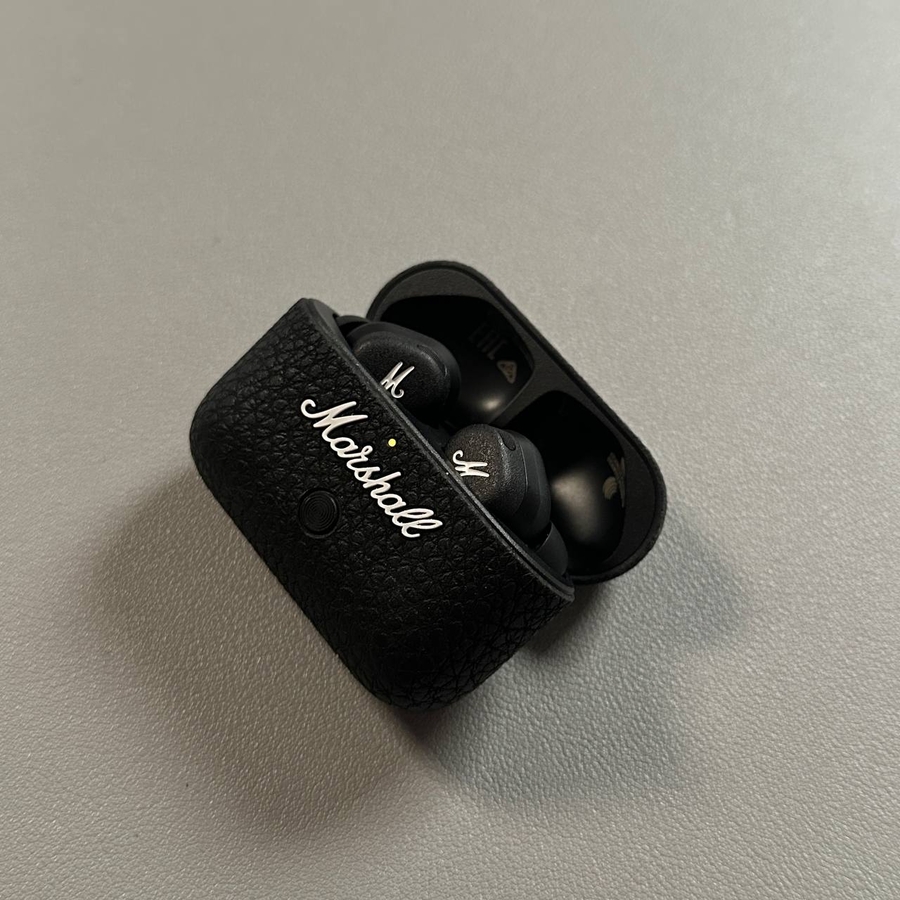
Welcome to this guide! We're excited to help you set up Siri on your Marshall Motif II ANC earbuds. This will allow you to activate and use Siri with just a simple touch, enhancing your listening experience significantly. Let's walk through the process step-by-step.
Step 1: Open the App
First, make sure that your smartphone is unlocked and you have the Marshall Bluetooth app installed. Open the app to access its main interface. You can find the app icon on your home screen or within your app drawer, usually depicting the Marshall logo.

Step 2: Navigate to Touch Controls
Once you're in the app, scroll through the menu options until you find 'Touch Controls'. This section is where you'll adjust the settings for your earbuds. Tap on 'Touch Controls' to proceed.

Step 3: Select and Edit Earbud Settings
Scroll further down the 'Touch Controls' page until you reach the available settings for your earbuds. You'll need to decide which earbud you want to use to launch Siri. For this guide, we'll choose the left earbud, but you can choose the right earbud if that's more convenient for you.

Step 4: Enable Voice Assistant
Tap on the option to set up the voice assistant for the selected earbud. From the menu that appears, select 'Voice Assistant'. Once you've done this, pressing and holding the selected earbud will activate Siri.


Final Step: Testing Your New Setup
Now, it's time to test if Siri is working correctly. Press and hold the earbud you have set to use for Siri, and you should see Siri wake up, ready to assist you with your commands. Congratulations, you have successfully added and managed Siri on your Marshall Motif II ANC earbuds!
We hope you found this guide helpful.