Cherry MX 10.0N - Corded MX Low Profile Keyboard Manual
- 1 Overview
- 2 Before you begin
- 3 For your safety
- 4 Connecting keyboard
- 5 Adjusting the angle of the keyboard
- 6 Calling up additional functions
- 7 Changing the light effects
- 8 Resetting the keyboard to its original delivery state
- 9 Cleaning the keyboard
- 10 If the keyboard is not working
- 11 Device disposal
- 12 Technical data
- 13 CONTACT
- 14 References
- 15 Download manual
- 16 In Other Languages
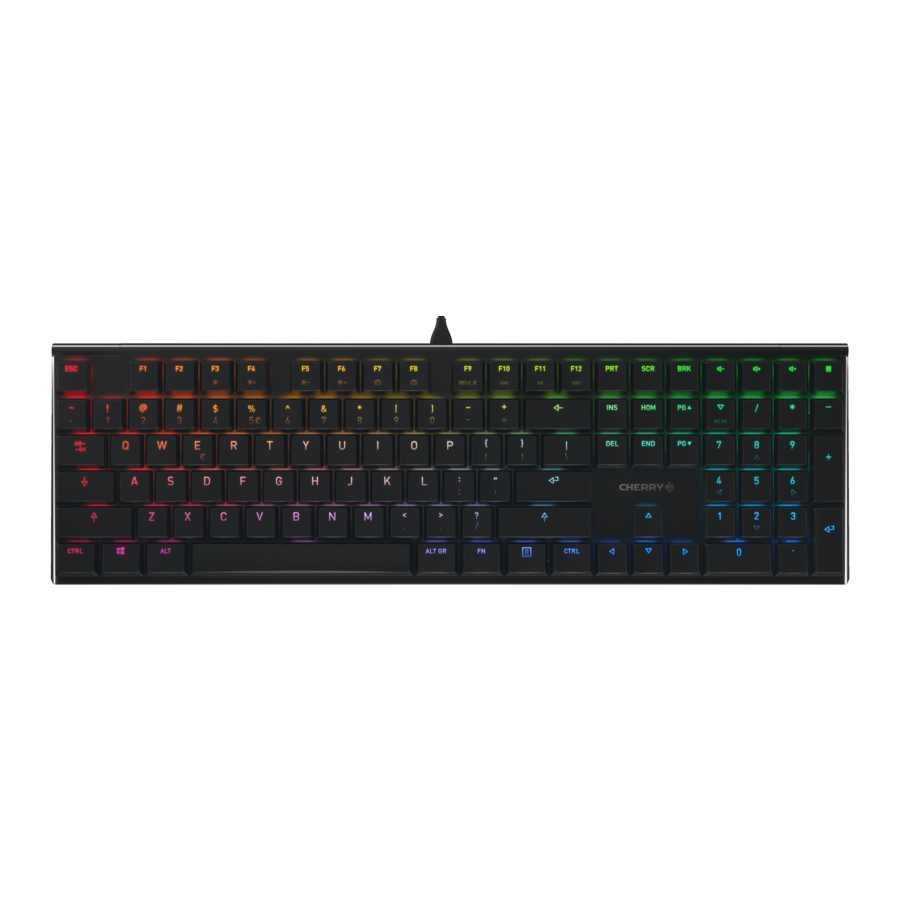
Overview
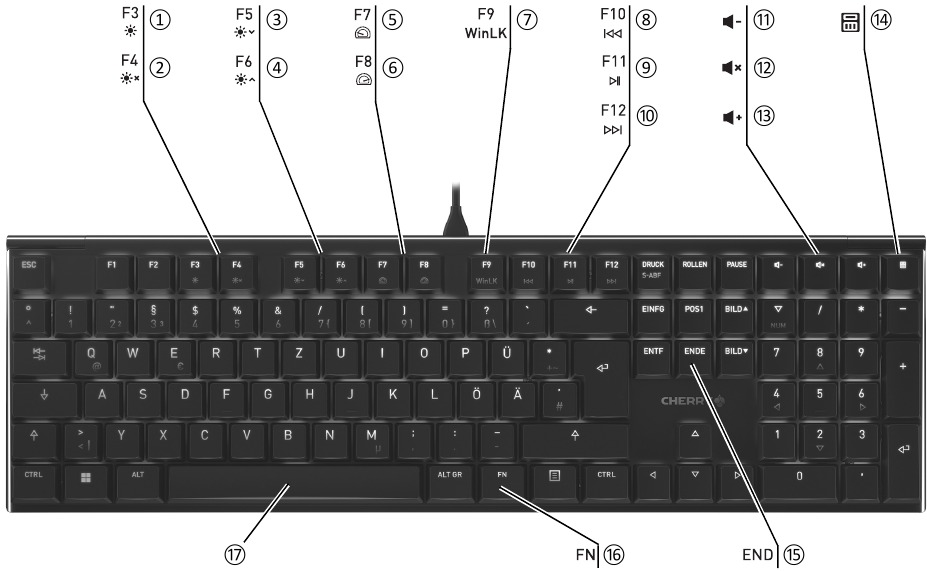
- Change light effect
- Backlighting on/off (When you switch backlighting on again, the keys are lit with the most recently set brightness.)
- Backlighting darker
- Backlighting brighter
- Light effect slower
- Light effect faster
- Win Lock = lock/unlock the following keys and key combinations: Windows key, menu key, ALT + F4, ALT + Tab, ALT GR + Tab, CTRL + ALT + DEL
- Previous title
- Play/pause
- Next title
- Volume down
- Sound on/off
- Volume up
- Calculator
- FN key + END = start/end setting mode for single key illumination
- FN key for sub-function of the F keys
- FN key + spacebar = setting mode for single colour light effect
Before you begin
 Every device is different! ("Every device is different!")
The operating instructions contain information on effective and reliable use.
- Read the operating instructions carefully.
- Keep the operating instructions and pass them on to other users.
The CHERRY MX 10.0N is a keyboard for operating computers.
For information on other products, downloads and much more, visit us at www.cherry.de.
For your safety
Risk of choking from swallowing small parts
- Keep the device out of the reach of children under 3 years.
RSI stands for "Repetitive Strain Injury"
RSI arises due to small movements continuously repeated over a long period of time.
- Set up your workspace ergonomically.
- Select a comfortable inclination of the keyboard by turning the aluminium profile behind the F keys.
- Take several short breaks, with stretching exercises if necessary.
- Change your posture often.
Connecting keyboard
- Connect the keyboard to the USB port of the PC/ laptop.
The keyboard is ready to use without installing any software.
Adjusting the angle of the keyboard
- Turn the round aluminium profile behind the F keys until the feet lock into the preferred position.
Calling up additional functions
The symbols for the additional functions are on the F3 to F12 keys.
- To call up the function press the FN key and the appropriate key.
Example:
To switch backlighting on or off, press the FN key and F4 (![]() ).
). - To constantly activate the FN key, press the CTRL and FN keys at the same time.
 ).
).Changing the light effects
Changing the colour of the light effects
- Press the FN key and the F3 key (
![]() ) repeatedly until a single-colour light effect appears.
) repeatedly until a single-colour light effect appears. - Press the FN key and the spacebar.
The keys light up in different colours. - Press the key with the desired colour.
All single-colour effects now light up in that colour.
Setting colours for single key illumination
- Switch to single key illumination mode by pressing the FN key and the F3 key (
![]() ) repeatedly until the backlighting glows white and the WASD and cursor keys glow red (factory setting).
) repeatedly until the backlighting glows white and the WASD and cursor keys glow red (factory setting). - Press the FN key and the END key simultaneously.
- Press the key whose illumination you want to change until it lights up in the desired colour.
- Change the colour of other keys if necessary.
- Save the settings by pressing the FN key and the END key.
Resetting the keyboard to its original delivery state
- Press and hold the FN key and PAUSE key for 5 seconds.
The original delivery state is restored.
Cleaning the keyboard
- Switch off the PC/laptop or pull out the keyboard plug.
NOTE! Aggressive cleaning agents and liquids can damage the keyboard
- Do not use solvents such as gasoline or alcohol and scouring agents or scouring sponges for cleaning.
- Prevent liquids from entering the keyboard.
- Do not remove the key caps of the keyboard.
- Lean the keyboard with a slightly damp cloth and some mild cleaning agent (e.g. dishwashing liquid).
- Dry off the keyboard with a soft, lint-free cloth.
If the keyboard is not working
- Use another USB port on the PC/laptop.
- To make sure that the keyboard is not defective, test it if possible with another PC/laptop.
- Set the option "USB Keyboard Support" or "USB Legacy Mode" to "enabled" in the BIOS of the PC.
Device disposal
- Do not dispose of devices with this symbol in household waste.
- Dispose of the devices in accordance with statutory regulations – at your local dealer or at municipal recycling centres.
![]()

Technical data
| Designation | Value |
| Supply voltage | 5.0 V/DC ±5% SELV |
| Current consumption | Max. 500 mA |
| Storage temperature | -20°C... +60°C |
| Operating temperature | 0°C... +50°C |
CONTACT
For Europe
Cherry Europe GmbH
Cherrystraße 2
91275 Auerbach/OPf.
Germany
Internet: www.cherry.de
For USA
Cherry Americas, LLC
5732 95th Avenue
Suite 850
Kenosha, WI 53144
USA
Tel.: +1 262 942 6508
Email: sales@cherryamericas.com
Internet: www.cherryamericas.com

References
![www.cherry.de]() CHERRY Deutschland - Mäuse, Tastaturen und Eingabegeräte für Profis
CHERRY Deutschland - Mäuse, Tastaturen und Eingabegeräte für Profis![www.cherryamericas.com]() CHERRY - mice and keyboards for professionals
CHERRY - mice and keyboards for professionals

Download manual
Here you can download full pdf version of manual, it may contain additional safety instructions, warranty information, FCC rules, etc.
Download Cherry MX 10.0N - Corded MX Low Profile Keyboard Manual


