Cherry MX BOARD 9.0 - RGB Illuminated Gaming Keyboard Manual
- 1 Overview
- 2 Before you begin...
- 3 For your safety
- 4 Connecting keyboard
- 5 Adjusting the angle of the keyboard
- 6 Volume
- 7 Changing the keyboard illumination
- 8 Changing the light effect
- 9 Storing and recalling keyboard macros
- 10 Cleaning the keyboard
- 11 Updating the software and firmware
- 12 If the keyboard is not working
- 13 Performance Key Kit
- 14 Disposal
- 15 Technical data
- 16 Contact
- 17 References
- 18 Download manual
- 19 In Other Languages
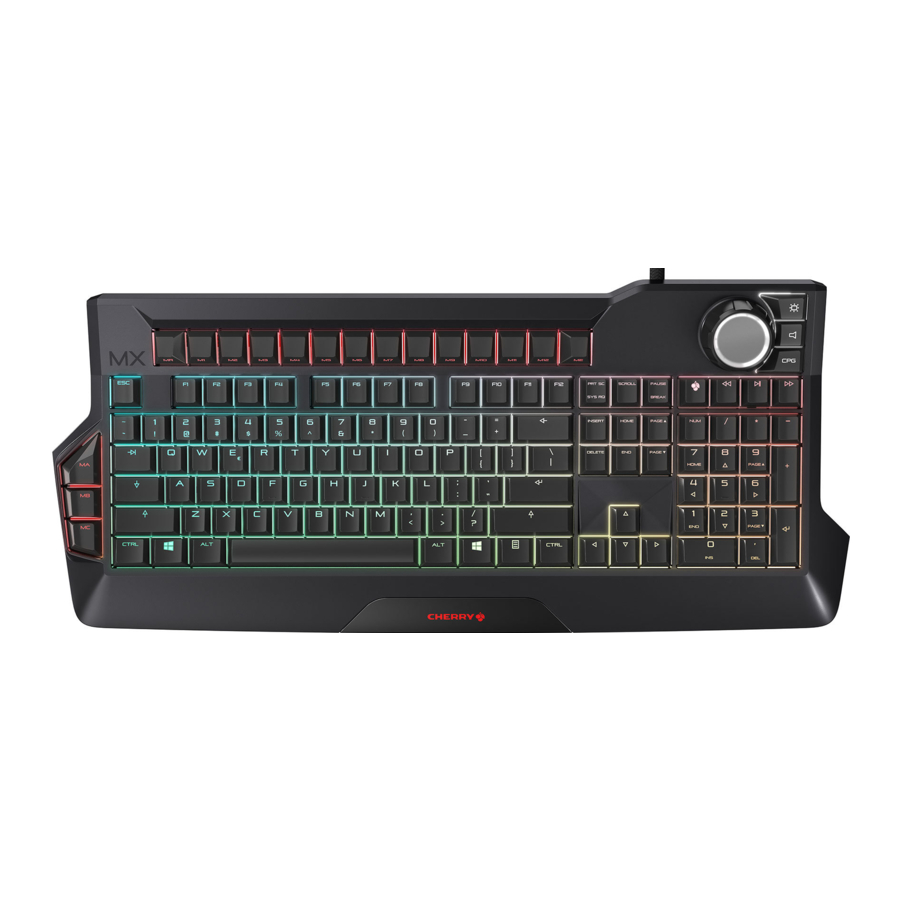
Overview

- Macro keys
- Gaming mode = lock/unlock the following keys and key combinations: Windows key, ALT + F4, ALT + Tab, CTRL + ALT + DEL
- Previous title
- Play/pause
- Next title
- Jog dial/push button
- Illumination
- Sound
- Light effects
Before you begin...
|
The operating instructions contain information on effective and reliable use.
|
The CHERRY MX BOARD 9.0 is a keyboard for operating PCs and laptops, and was developed especially for gaming.
For information on other products, downloads and much more, visit us at www.cherry-world.com or www.cherry.cn.
For your safety
RSI stands for "Repetitive Strain Injury"
RSI arises due to small movements continuously repeated over a long period of time.
- Set up your workspace ergonomically.
- Position the keyboard and mouse in such a manner that your upper arms and wrists are outstretched and to the sides of your body.
- Select a comfortable keyboard angle using the screw-in feet on the back.
- Take several short breaks, with stretching exercises if necessary.
- Change your posture often.
Connecting keyboard
The keyboard is ready to use without any software installation. You should check for firmware updates from time to time (see "Updating the software and firmware").
NOTE: Damage to USB ports on the computer/laptop
If the keyboard is only connected with a USB plug, the USB port of the computer or laptop can be damaged or switched off due to overloading.
- Connect the keyboard with both plugs directly to the high-powered USB sockets of your computer or laptop. (Do not use external hubs or extension leads.)
Adjusting the angle of the keyboard
The screw-in feet mean that the keyboard angle can be continuously adjusted.
NOTE: You will damage the feet if you unscrew them completely.
- Do not unscrew the feet by more than 1.3 cm from the housing, when you feel resistance.
- Unscrew or tighten the feet evenly on both sides until the angle is correct.
Volume
Adjusting the volume
- Press the
![]() key next to the jog dial.
key next to the jog dial. - Turn the jog dial.
The volume changes.
 key next to the jog dial.
Sound on/off
- Press the
![]() key next to the jog dial.
key next to the jog dial. - Press the jog dial.
The sound is switched on or off.
Changing the keyboard illumination
The brightness and color of the Ambilight can be changed or deactivated.
Special light effects can be selected for the keys. See "Changing the light effect".
Changing the brightness of the keyboard illumination
You can adjust the brightness of the keys and the Ambilight in 10 speeds using the Standard, Breath, WASD, Wave and Snake effects.
- To change the brightness, press the illumination key (
![]() ) beside the jog dial.
) beside the jog dial. - Turn the jog dial.
The keyboard illumination changes.
 ) beside the jog dial.
The setting is stored in the keyboard.
Turning the keyboard illumination on and off
You can switch the backlighting of the keys and Ambilight on and off in three versions:
- The keyboard backlighting is fully on.
- The macro keys, the jog dial with the adjacent selection keys and the Ambilight light up. The remaining keypad is off.
- The keyboard backlighting is fully off.
- Press the illumination key (
![]() ) next to the jog dial.
) next to the jog dial. - Press the jog dial.
The keyboard illumination changes.
The setting is stored in the keyboard.
Changing the color of the keyboard illumination
You can choose between 8 colours.
The color of the Ambilight, the jog dial and the keys beside the jog dial is always white.
The status keys (NUM, shift and SCROLL) and the CHERRY key ( ) light up red when active. If you select red for the key illumination, the status keys and CHERRY key light up white when active.
With the WASD, Wave and Reactive light effects, only the colours of the macro keys can be selected.
- To change the color, simultaneously press the illumination key (
![]() ) and the corresponding key from the table.
) and the corresponding key from the table.
Example:
For the keys to light up blue, simultaneously press the illumination key (![]() ) and the B key.
) and the B key.
The keys light up blue.
The setting is stored in the keyboard.
The keys have the following functions:
| Key | Colour |
| R | Red |
| B | Blue |
| Y | Yellow |
| G | Green |
| C | Cyan |
| P | Pink |
| W | White |
| O | Orange |
Changing the light effect
As well as constant backlighting of all keys (see "Changing the colour of the keyboard illumination"), you can choose 5 different light effects:
| Name | Effect |
| Breath | The illumination changes smoothly between bright and dim. |
| WASD | The "W", "A", "S", "D" and arrow keys beside the numerical block light up red. The other keys light up white. |
| Wave (Rainbow) | The keys light up from left to right in the colors of the rainbow. This effect looks best at a slow speed. |
| Snake | Three keys in a row light up from one side to the other, from the top row to the bottom, giving the effect of a slithering snake. The set color remains the same. |
| Reactive | Keys you press carry on flashing in different colours. |
The light effects do not affect the macro keys. You can adjust the brightness (see "Changing the brightness of the keyboard illumination") and speed (see "Changing the speed of the light effect") for some effects.
Selecting an effect
- Press the CPG key next to the jog dial.
- Press the jog dial until the effect you want appears.
The effects come in the following sequence: Standard, Breath, WASD, Wave, Snake and Reactive.
The setting is stored in the keyboard.
Changing the speed of the light effect
You can adjust the speed for the Breath, WASD and Wave effects.
- Press the CPG key next to the jog dial.
- Turn the jog dial.
There are 10 speeds for each light effect.
The setting is stored in the keyboard.
Storing and recalling keyboard macros
Without having to install any software, you can use the macro recorder function to store keyboard macros of up to 128 strokes. These can be recalled using 15 macro keys.
There are 12 macro keys on the top edge of the keyboard (M1 to M12). There are three fast-access macro keys on the left side of the keyboard (MA to MC).
|
These pauses are repeated when the macro is recalled. |
Recording a macro
- Press the MR key.
The MR key flashes and the recording starts. - Enter the required key combination. (The sequence is later played back at the speed it was recorded.)
When you program macros, the keyboard illumination goes out. However, the keys you press light up (reactive mode).- To break off the recording: Press the ME key.
- Press the macro key you want to assign the recording to (e.g. M1).
The key flashes twice.
The setting is stored in the keyboard.
Recalling a macro
 Key input during playback
|
- Press the assigned macro key (e.g. M1).
The recording is played back. During the playback, the macro key lights up in different colours.
Deleting a macro
- Press the MR key.
The MR key flashes and the recording starts. - Press the macro key you want to delete (e.g. M1).
The key flashes twice.
The setting is stored in the keyboard.
Cleaning the keyboard
- Switch off the PC/laptop or pull out the USB plugs.
NOTE! Aggressive cleaning agents and liquids can damage the keyboard- Do not use solvents such as gasoline or alcohol and scouring agents or scouring sponges for cleaning.
- Prevent liquids from entering the keyboard.
- Do not remove the keycaps of the keyboard.
- Clean the keyboard with a slightly damp cloth and some mild cleaning agent (e.g. dishwashing liquid).
- Dry off the keyboard with a soft, lint-free cloth.
Updating the software and firmware
| When updating the firmware, the settings of the keyboard are reset to default values and the macros are deleted.
|
- Always use the latest software.
- Load the software as a free download from: www.cherry-world.com or www.cherry.cn.
- Run the *.exe file.
- Follow the instructions on the screen.
| If a firmware update is interrupted or fails, the keyboard will not work.
|
If the keyboard is not working
- Make sure that the Win-Key lock is not activated (see Gaming mode).
- Update the firmware (see "Updating the software and firmware").
- Use other USB ports on the PC/laptop.
- To make sure that the keyboard is not defective, test it if possible with another PC/laptop.
- Set the option "USB Keyboard Support" or "USB Legacy Mode" to "enabled" in the BIOS of the PC.
Performance Key Kit
The Performance Key Kit can be supplied as an accessory. It is available from specialist dealers or at www.cherry-world.com or www.cherry.cn.
The Performance Key Kit contains key caps for the W, A, S, and D keys as well as the 4 navigation keys.
The performance keys provide you with the following advantages:
- Special key profile with a structured surface for improved grip.
- Pre-travel reduced from 2 mm to 1.6 mm for faster response.
- The pre-travel can also be reduced to as little as 1.1 mm using the included spacer discs.
Disposal

- Dispose of the device in accordance with the legal regulations.
Technical data
| Designation | Value |
| Power supply | 2 x USB |
| Supply voltage | 5.0 V/DC ±5% SELV |
| Current consumption | Max. 1000 mA |
| Storage temperature | -20°C... +60°C |
| Operating temperature | 0°C... +50°C |
Contact
For Europe:
Cherry GmbH
Cherrystraße
91275 Auerbach/OPf.
Germany
Internet: www.cherry-world.com or www.cherry.cn
For USA:
Cherry Americas, LLC
5732 95th Avenue
Suite 850
Kenosha, WI 53144
USA
Tel.: +1 262 942 6508
Email: sales@cherryamericas.com
Internet: www.cherry-world.com or www.cherry.cn
References


Download manual
Here you can download full pdf version of manual, it may contain additional safety instructions, warranty information, FCC rules, etc.
Download Cherry MX BOARD 9.0 - RGB Illuminated Gaming Keyboard Manual


