Gigaset A130/A230 - Telephone Manual
- 1 The handset at a glance
- 2 The base station at a glance
- 3 ECO DECT
- 4 Safety precautions
- 5 First steps
- 6 Making calls
- 7 Using the directory and lists
- 8 Network mailbox
- 9 Locating a handset (Paging)
- 10 Registering handsets manually
- 11 De-registering handsets
- 12 Using multiple handsets
- 13 Setting the alarm clock
- 14 Phone settings
- 15 Operating the base station on the PABX/router
- 16 Entering letters/characters
- 17 Specifications
- 18 Questions and answers
- 19 Contact with liquid
- 20 Customer Service & Assistance
- 21 Authorisation
- 22 Environment
- 23 Disposal
- 24 Menu overview
- 25 References
- 26 Download manual
- 27 In Other Languages
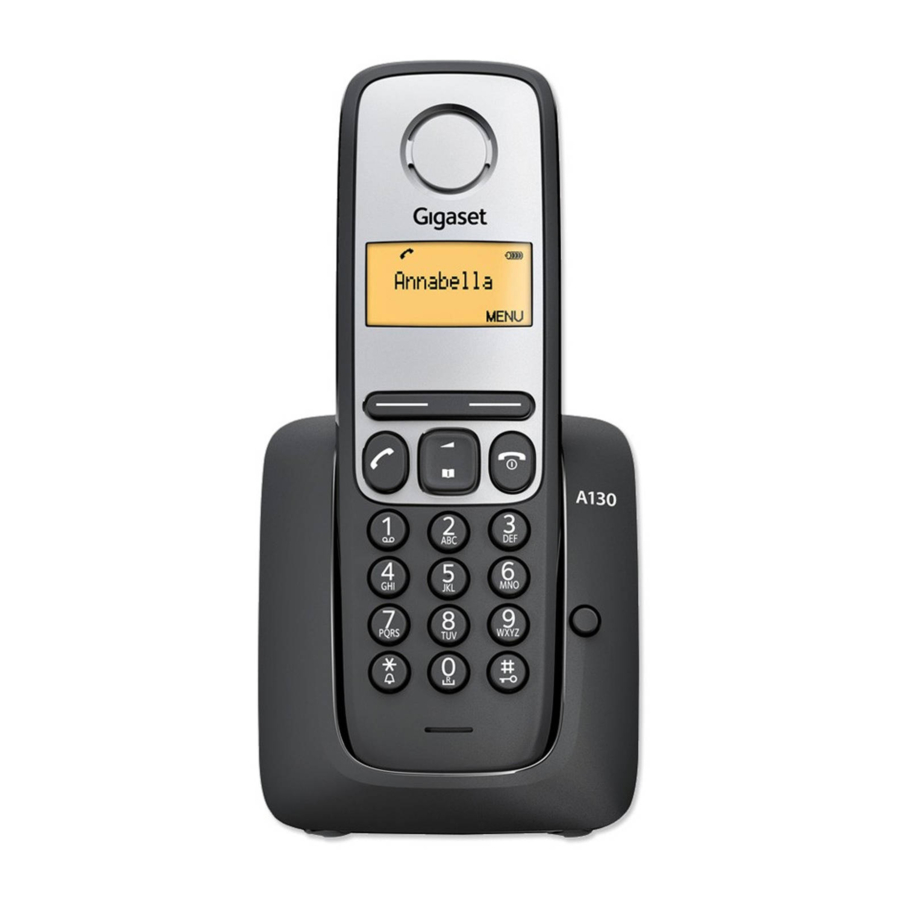
The handset at a glance


- Charge status of the batteries:
![]() (flat to full)
(flat to full)
![]() flashes: batteries almost flat
flashes: batteries almost flat
![]() flashes: charging
flashes: charging - Display keys
- End call key and On/Off key
- Talk key/Handsfree key
(handsfree mode A230only) - Control key (
![]() )
) - Directory key (press down on the control key)
- Key 1
network mailbox - Star key
Ringers on/off (press and hold);
with an open connection: switch from
pulse dialling to tone dialling (press briefly) - Key 0/recall key
Consultation call (flash): press and hold - Hash key
Keypad lock on/off (press and hold);
toggles between upper/lower case
and digits; inserts a dialling pause
(press and hold) - Microphone
 (flat to full)
 flashes: batteries almost flat
 flashes: charging
 )
) Please note
New messages in the calls list/network mailbox list are indicated in the display by the message New messages.
Display keys:
Pressing a key launches the function that appears above that key in the display.
| Display | Function when pressed |
| INT | Call other registered handsets |
| MENU | Open main/submenu (see menu overview). |
 | Go back one menu level. |
 | Scroll up/down or adjust volume with  . . |
 | Move cursor to left/right with . |
 | Backspace deletes one character at a time. |
| OK | Confirm menu function or save entry. |
The base station at a glance

Registration/paging key:
Search for handsets (press briefly, "Paging")
Register handsets (press and hold).
ECO DECT
During a call, the level of the handset's radio signal adjusts automatically according to the distance between the handset and base station: the shorter the distance, the lower the signal strength (radiation). The handset's radio signal is switched off when it is in standby mode. The base station, however, maintains contact with the handset with fewer radio signals. In addition, the base station radio signals are switched off when the No Radiation setting is enabled.
MENU  Settings OK Base OK ECO DECT OK
No Radiation OK (  = radiation switched off, icon E+ in the left-hand corner of the display)
Please note
- All registered handsets must support this feature.
- For quick connection of incoming calls the handset repeatedly switches to reception mode for short periods. This increases energy consumption and therefore reduces the standby and talk times.
Safety precautions

Read the safety precautions and the user guide before use.
Explain their content and the potential hazards associated with using the device to your children.
 | Use only the power adaptor indicated on the device. |
 | Use only rechargeable batteries that correspond to the specification (see "Technical Data"). Never use a conventional (non-rechargeable) battery or other battery types as this could result in significant health risks and personal injury. Rechargeable batteries, which are noticeably damaged, must be replaced. |
 | Using your telephone may affect nearby medical equipment. Be aware of the technical conditions in your particular environment, e.g. doctor's surgery. If you use a medical device (e.g. a pacemaker), please contact the device manufacturer. They will be able to advise you regarding the susceptibility of the device to external sources of high frequency energy (for the specifications of your Gigaset product see "Technical Data"). |
 | Do not hold the rear of the handset to your ear when it is ringing or when speaker mode is activated. Otherwise you risk serious and permanent damage to your hearing. Your Gigaset is compatible with the majority of digital hearing aids on the market. However, perfect function with all hearing aids cannot be guaranteed. The phone may cause interference in analogue hearing aids (humming or whistling) or cause them to overload. If you require assistance, please contact the hearing aid supplier. |
 | The devices are not splashproof. For this reason do not install them in a damp environment such as bathrooms or shower rooms. |
 | Do not use the devices in environments with a potential explosion hazard (e.g. paint shops). |
 | If you give your Gigaset to a third party, make sure you also give them the user guide. |
 | Remove faulty devices from use or have them repaired by our Service team, as these could interfere with other wireless services. |
Please note
- The device cannot be used in the event of a power failure. It is also not possible to transmit emergency calls.
- Emergency numbers cannot be dialled if the keypad lock is activated!
First steps
Check the pack contents
One Gigaset A130/A230 base station, one mains adapter, one Gigaset handset, one phone cord, two batteries, one battery cover, one user guide.
If you have purchased a model with multiple handsets, the package should contain two batteries, a battery cover and a charging cradle with mains adapter for each additional handset.
Setting up the base station and charging cradle (if included)
- Set up the base station at a central location on a flat, non-slip surface in your house or apartment. You can also mount the base station and charging cradle on the wall.
- Pay attention to the range of the base station. This is up to 300 m in unobstructed outdoor areas and up to 50 m inside buildings.
- The base station and charging cradle are designed for use in enclosed dry rooms in a temperature range of +5°C to +45°C.
- Care: Wipe down the base station and handset with a damp cloth (no solvents) or an antistatic cloth. Never use a dry cloth. This can cause static.
- The phone's feet do not usually leave any marks on surfaces. However, due to the multitude of different varnishes and polishes used on today's furnishings, the risk of marks on the surfaces cannot be completely ruled out.
- Never expose the telephone to the influence of heat sources, direct sunlight or other electrical devices.
- Protect your Gigaset from moisture, dust, corrosive liquids and vapours.
Connecting the base station

A130/A230
First connect the mains adapter  .
.
Then connect the telephone jack  and insert the cables into the cable ducts.
Please note:
- The mains adapter must always be connected, as the phone will not operate without mains connection.
- Use only the mains adapter and phone cord supplied. Pin connections on telephone cables can vary.
Connecting the charging cradle (if included)
Connect the flat plug to the power supply .
Plug the mains adapter into the plug socket .

If you need to disconnect the plug from the charging cradle, press the release button  and disconnect the plug
  .
.

Setting up the handset for use
The display is protected by a plastic film. Please remove the protective film!
Inserting the batteries and closing the battery cover
Use only the rechargeable batteries recommended by Gigaset Communications GmbH, i.e. never use conventional (non-rechargeable) batteries as this could result in significant health risks and personal injury. For example, the batteries could explode. The phone could also malfunction or be damaged as a result of using batteries that are not of the recommended type.
Insert the batteries with the polarity in the correct direction.
The polarity is indicated in the battery compartment.

First insert the battery cover at the top  .
.
Then press the cover  until it clicks into place.
To reopen the battery cover, grip into the cavity on the casing, then pull the battery cover in an upward direction.

Initial charging and discharging of the batteries
The correct charge status can only be displayed if the batteries are first fully charged and discharged.
Charge the handset in the base for 6.5 hours.

Please note
The handset must only be placed in the designated Gigaset base or charging cradle.
After charging, remove the handset from the base and only replace it when the batteries are fully discharged.
Please note
- The handset is pre-registered with the base. If you have purchased a model with multiple handsets, all handsets will already be registered with the base. You do not need to register the handset again. The internal handset number appears in the top left of the display, e.g. 1
However, if a handset is not registered with the base (Register HS or Put into base is displayed), please register the handset manually - If you have purchased multiple devices, you can upgrade your Gigaset to a cordless PABX by registering all A130/A230 handsets at the same base.
- After the first battery charge and discharge, you may place your handset in the charger after every call.
- Always repeat the charging and discharging procedure if you remove the batteries from the handset and reinsert them.
- The batteries may warm up during charging. This is not dangerous.
- After a while, the charge capacity of the batteries will decrease for technical reasons.
Setting the date and time
Set the date and time so that the correct date and time can be assigned to incoming calls, and so that the alarm can be used.
MENU Settings OK Date/Time OK Date  (enter the day, month and year in 6-digit format) OK Time (enter hours and minutes in 4-digit format) OK (display message: Saved)
 (press and hold to return to idle status)
When entering the time and date, you can move the position of an entry to the left or right by pressing the control key up or down.
Please note
If your phone receives the date and time during calling line display (e.g., via your network provider, a router or PABXs), you can specify whether this data should be copied to your phone:
Press the key sequence: MENU 
The following is displayed;
the current setting flashes:

Press one of the following keys to specify, when this data should be copied to your phone:
 Never
Never
or  Once, in case the date/time is not set on your phone
or  Always
Your selection is displayed (e.g. 2):

Press the display key OK.
Activating/deactivating the handset
Press and hold the  key to activate or deactivate the handset. If you place a deactivated handset in the base station or charging cradle, it will automatically activate after approx. 30 seconds.
If you remove the handset from the base station/charging cradle, the display turns off briefly.
Making calls
Making external calls and ending calls
External calls are calls using the public telephone network.
 (Enter the phone number)
  .
.
The phone number is dialled. (Or you can first press and hold talk key [dial tone] and then enter the number.) During the call you can adjust the earpiece volume using  and set the volume with .
End the call/cancel dialling: Press the end call key  .
.
You can automatically insert a network provider dialling code before any phone number.
Accepting a call
Press the talk key to accept the call.
When Auto Answer is activated (see menu overview) simply remove the handset from the base station/charging cradle.
Calling Line Identification
When you get a call, the caller's number will be displayed on your handset; the caller's name will be displayed if it is stored in the directory.
Prerequisites:
- You have asked your network provider for the caller's number (CLIP) to be displayed on your handset screen.
- The caller has asked the network provider for his/her number to be identified (CLI).
External call appears in the display if you have not requested CLIP, Withheld appears if the caller has withheld CLI, and Unavailable appears if CLI has not been requested.
Handsfree operation
(Gigaset A230 only)
In handsfree mode, you activate the loudspeaker so that you can hear the caller without having to hold the handset to your ear. During a call activate or deactivate handsfree mode by pressing the handsfree key  .
.
For instructions on adjusting the handsfree mode volume see menu overview
Automatic network provider preselection
You can store a call-by-call number (preselection number), which is automatically placed in front of numbers when you dial them. If, for example, you wish to make international calls via special network providers, you can save the relevant dialling code here.
In the "With Preselect" list, specify the dialling codes or the first digits of the dialling codes that you wish to assign to the preselection number.
In the "Without Presel" list, enter any exceptions to the "With Preselect" list.
Example:
| Presel. Number | 0999 |
| With Preselect | 08 |
| Without Presel | 081 084 |
All numbers that start with 08, except for 081 and 084, are dialled with the preselection number 0999.
| Phone number | Dialled number | |
| 07112345 | | 07112345 |
| 08912345 | | 0999 08912345 |
| 08412345 | | 08412345 |
Enter preselection number via menu
Permanently deactivating preselection: Delete the preselection number with  .
.
Temporarily cancelling preselection:
 (press and hold) MENU Preselect off OK
  (enter number) or
  (use number from directory) The number is dialled without Preselection.
Using the directory and lists
Directory
To open the directory: press control key .
You can save up to 50 (A130) or 80 (A230) phone numbers (max. 22 digits) with corresponding names (max. 14 characters).
Enter letters/characters
Storing the first number in the directory
New Entry? OK (enter number) OK (enter name) OK
Storing further numbers in the directory
MENU New Entry OK (enter number) OK (enter name) OK
Selecting a directory entry
Open the directory with . You have the following options:
- Use
![]() to scroll through the entries until the required name is selected.
to scroll through the entries until the required name is selected. - Enter the first character of the name and scroll to the entry with
![]() , if required.
, if required.
Dialling with the directory
(select entry) 
Using other functions
(select entry) MENU
The following functions can be selected with New Entry/Show Number/Show Name/Edit Entry/Use Number/Delete Entry/Send Entry/Delete List/Send List/ Shortcut
Sending the directory to another handset
Prerequisites:
- The sending and receiving handsets must both be registered to the same base station.
- The other handset and the base station can send and receive directory entries.
(select entry) MENU Send Entry/Send List OK (enter the internal number of the receiving handset) OK
Using shortcut keys
You can assign directory entries to the keys 2–9:
(select entry) MENU Shortcut OK
(select key) OK or (press the key you want to assign the entry to)
To dial, press and hold the required shortcut key.
Last number redial list
This list contains the ten last dialled numbers.
Dialling from the last number redial list
 (press briefly) (select entry)
Managing entries in the last number redial list
(press briefly) (select entry) MENU
The following functions can be selected with : Use Number/Copy to Dir./Delete Entry/Delete List
Calls list/network mailbox list
Press MENU Messages OK, to open the list overview. If you have new messages, only lists with new messages are displayed. Scroll through the lists by pressing .
An advisory tone sounds as soon as a new entry appears in the calls list/network mailbox list. New messages appears in the display.
Please note
If calls are saved in the network mailbox, you will receive a message if the appropriate settings have been made (depending on your network provider).
Calls list
Prerequisites: CLIP
Depending on the type of list set, the calls list contains answered calls and missed calls.
Depending on the type of list set, all numbers of the last 25 incoming calls are saved or just the missed calls are saved.
Open the calls list
MENU Messages OK CallsList
The calls list is displayed as follows:

Number of new entries + number of old, read entries
Press OK to open the list.
The last incoming call is displayed. If necessary, use to select another entry.
Using other functions
(select entry) MENU
The following functions can be selected with : Delete Entry/Copy to Dir./Date/Time/Status/Delete List
Calling back a caller from the calls list
MENU Messages CallsList 01+02 OK (select entry) 
network mailbox list
You can use these lists to listen to messages on the network mailbox
Network mailbox
The network mailbox is the answering machine in your provider's telephone network.
More information is available from your provider. You cannot use the network mailbox unless you have requested it from your provider.
In order to use the network mailbox quickly and easily via the network mailbox list, the menu and to use fast access via key  you will need to enter the number in your phone:
MENU Answer Machine OK Net Mailbox (enter number) OK
Locating a handset (Paging)
You can locate your handset using the base.
Briefly press the registration/paging key on the base
All handsets will ring at the same time ("paging"), even if the ringers are switched off.
Ending paging: Briefly press the registration/paging key on the base or press the talk key  or the end call key
  on the handset.
Registering handsets manually
You can register up to four handsets on your base station. Each additional handset must be registered on the base station in order for it to work properly!
- On the handset
MENU![]() Settings
Settings ![]() OK
OK ![]() Handset
Handset ![]() OK
OK ![]() Register HS
Register HS ![]() Enter the base system PIN (default setting: 0000)
Enter the base system PIN (default setting: 0000) ![]() OK
OK ![]() Registering is displayed.
Registering is displayed. - On the base
Within 60 seconds, press and hold the registration/paging key on the base for approx. 3 seconds.
Registration takes approx. 1 minute. Handsets are assigned the lowest available internal number (1-4). If the internal numbers 1–4 are already assigned to other devices, the number 4 will be overwritten.
De-registering handsets
You can de-register all other registered handsets from each of the registered Gigaset handsets.
MENU Settings OK Handset OK De-register HS OK
Select the internal party you wish to de-register. The handset you are currently using is indicated by <. OK Enter the base system PIN (default setting: 0000) OK
Using multiple handsets
Making internal calls
Internal calls are free calls to other handsets that are registered to the same base station.
2 handsets are registered
Press the display key INT, the other handset is called.
More than 2 handsets are registered
Calling a specific handset
INT  (1...4, enter internal number of the handset) or
INT (Select the internal party) OK or  the handset is called
Calling all handsets ("group call")
INT  or INT Call all OK or all handsets are called
When a participant answers you can speak to them. To end the call, press  .
.
Internal consultation call/connecting a call
You are in conversation with an external participant. Press the INT display key and call one or all handsets. The external participant hears the hold music. When the internal participant answers: If necessary, announce the external call.
Either press the end call key (the call is transferred to the internal participant), or press the display key  . You are reconnected with the external participant.
When transferring a call you can also press the end call key before the internal participant answers.
Listening in to an external call
You are conducting an external call. An internal participant can listen in on this call and take part in the conversation (conference). Prerequisite: The Listening in function must be activated.
Activating/deactivating listening in
MENU Settings OK Base OK Listening in OK (  = on)
= on)
Internal listening in (conference)
You want to listen in to an existing external call. Press and hold the key. You can listen in to the call. All participants hear a signal tone.
To end: press the end call key . All participants hear a signal tone.
If the first internal participant presses the end call key , the handset that has "listened in" remains connected to the external participant.
Setting the alarm clock
Activating/deactivating the alarm clock
MENU Alarm Clock OK Activation OK (  = on)
= on)
When activated:  (Set the wake-up time) OK
When the alarm clock rings, press any key to switch it off for 24 hours. If the alarm clock is set, the wake-up icon  will appear on the screen and the wake-up time will be displayed instead of the date.
Setting the wake-up time
MENU Alarm Clock OK Wake-up time OK
Enter the wake-up time in hours and minutes, then press OK.
Phone settings
For details on how to make audio settings, see menu overview
For details on how to set the system PIN on the base station, see the menu overview
Changing the display language
MENU Settings OK Handset OK Language OK (select language) OK
The current language is indicated by  .
.
If you accidentally choose a language you do not understand:
MENU  (press the keys one after the other) (select language) OK
Activating/deactivating music on hold
You can make it so that your external participant hears music in case of internal recall and during call transfer.
MENU  The number for the current setting flashes:
0 = off; 1 = on enter number OK.
Repeater mode
With a repeater you can increase the range of your base station. You will need to activate repeater mode. Repeater mode and No Radiation mode cancel each other out.
Resetting the handset
You can reset individual settings and changes that you have made. Entries in the directory, the calls list and the handset's registration to the base station will be retained.
MENU Settings OK Handset OK Reset Handset OK Reset? OK
Cancel the reset with  .
.
Restoring the base station
When restoring factory settings the No Radiation mode is deactivated, individual settings are reset and all lists are deleted.
The date and time are retained.
Resetting the base via the menu
Handsets are still registered, the system PIN is not reset.
MENU Settings OK Base OK Base Reset OK Reset? OK
Resetting the base using the key on the base
All handsets are de-registered and the system PIN is reset to the original code 0000.
Carry out the following steps: Remove the mains cable from the base. Hold down the registration/paging key on the base and reconnect the power cable to the base at the same time. Hold the key down for at least 5 seconds.
Operating the base station on the PABX/router
Operating on the router
When operating the Gigaset on an analogue port of a router you can reduce problems with echoes by activating the Echo mode. If you have no problems with echoes, this function should be deactivated.
Operating on the PABX
The following settings are only necessary when your PABX requires them; see the user guide for your PABX.
When entering the digits, enter them slowly one after the other.
Changing the dialling mode
MENU  The number for the set dialling mode flashes:
0 = touch tone dialling (DTMF); 1 = dial pulsing (DP) enter number OK
Setting recall
MENU  The number for the current recall flashes:
0 = 80 ms; 1 = 100 ms; 2 = 120 ms; 3 = 400 ms; 4 = 250 ms; 5 = 300 ms; 6 = 600 ms; 7 = 800 ms enter number OK .
Changing pause after line seizure
You can set the length of the pause inserted between pressing the talk key  and sending the phone number.
MENU  The number for the current pause length flashes: 1 = 1 sec.; 2 = 3 sec.; 3 = 7 sec. enter number OK .
Changing the pause after the recall key
MENU  The number for the current pause length flashes: 1 = 800 ms; 2 = 1600 ms; 3 = 3200 ms enter number OK .
Entering letters/characters
Standard characters
Press the relevant key the number of times indicated.
Briefly press the hash key  to switch from "Abc" to "123" mode, from "123" to "abc" mode and from "abc" to "Abc" mode.

1) Space
Specifications
Batteries
Technology: Nickel-metal-hydride (NiMH); Size: AAA (Micro, HR03); Voltage: 1.2 V; Capacity: 450 - 1000 mAh
General specifications
| DECT standard | is supported |
| GAP standard | is supported |
| Range | up to 300 m outdoors, up to 50 m indoors |
| Base station power supply | 230 V ~/50 Hz |
| Environmental conditions in operation | +5°C to +45°C, 20% to 75% relative humidity |
| Base station power consumption | A130/A230 In standby mode |
Questions and answers
If you have any queries about the use of your telephone, visit our website at www.gigaset.com/service for 24-hour support. The table below contains a list of common problems and possible solutions.
| Problem | Cause | Solution |
Nothing appears in the display | The handset is not switched on. The batteries are flat. | Press the end call key for approx. 5 seconds or place the handset in a the base station. Charge or replace the batteries. |
| No wireless connection to the base station, Base flashes in the display. | The handset is outside the range of the base station. The handset is not registered. The base station is not turned on. | Move the handset closer to the base station. Check the mains connector on the base station. |
| You cannot hear a ringer/ dialling tone from the fixed line network. | The phone cord supplied has not been used or has been replaced by a new cord with the wrong jack connections. | Please always use the phone cord supplied or ensure that the pin connections are correct when purchasing from a retailer: 3-4 assignment of telephone leads/ EURO CTR37. |
Error tone sounds after system PIN promptPIN forgotten | The system PIN you have entered is incorrect. | Reset the system PIN to the default 0000 All handsets are de-registered. All settings are reset. All lists are deleted. |
Contact with liquid
If the device comes into contact with liquid:
- Disconnect the power supply.
- Remove the batteries and leave the battery compartment open.
- Allow the liquid to drain from the device.
- Pat all parts dry.
- Place the device in a dry, warm place for at least 72 hours (not in a microwave, oven etc.) with the battery compartment open and the keypad facing down (if applicable).
- Do not switch on the device again until it is completely dry.
When it has fully dried out, you will normaly be able to use it again.
Customer Service & Assistance
Do you have any questions? As a Gigaset customer, you can find help quickly in this User Manual and in the service section of our Gigaset online portal www.gigaset.com/service.
Please register your phone online right after purchase.
This enables us to provide you with even better service regarding questions or a warranty claim. In order to contact our customer service via email, please use the email contact form from our Gigaset online portal after selecting your home country.
Our representatives are also available on the telephone hotlines for consultation.
| Australia | +61 1300 780 878 | Luxembourg | (+352) 8002 3811 |
| Austria | 0043 1 311 3046 | Malaysia | +603-8076 9696 |
| Bahrain | 31 73 11 173 | Malta | +39 02360 46111 (0,10 €) |
| Belgium | 07815 6679 | Mexico | 01800 999 4442738 (01800 999 GIGASET) |
| Bosnia Herzegovina | 033 276 649 | Netherlands | 0900-3333102 |
| Brazil Grandes Capitais e Regiões Metropolitanas | 4003 3020 | New Zealand | 0800 780 878 |
| Demais localidades | 0800 888 3020 | Norway | +47 2231 0845 |
| Bulgaria | +359 2 9710666 | Oman | +968 70928 Ext. 49/21/75 |
| Canada | 1-866 247-8758 | Poland | 801 140 160 |
| China | 0 21 400 670 6007 (RMB 0.11) | Portugal | .(+351) 808 788 877 (custo de uma chamada local) |
| Croatia | 01 / 2456 555 | Romania | +40 021 204 9130 |
| Czech Republic | 233 032 727 | Russia | 8-800 333 4956 |
| Denmark | +45 43682003 | Serbia | 0800 222 111 |
| Finland | +358 (0)9725 19734 | Singapore | 6735 9100 |
| France | +33 (0)157 324 522 | Slovak Republic | 044 5567 988 alebo 02 59682266 |
| Germany | 01805 333 222 | Slovenija | 01 5466 511 |
| Greece | +30 2111 98 1778 | South Africa | 0800 98 08 42 |
| Hong Kong | 2763 0203 2389 7285 | Spain | 902 103935 |
| Hungary | (06-1) 267 2109 | Sweden | +46 (0)8502 52347 |
| India | Please refer to your local warranty card | Switzerland | 0848 212 000 |
| Indonesia | (62-21) 5673813 (62-21) 888856000 | Taiwan | 02 266 24343 |
| Ireland | +353 818 200 033 | Turkey | +90 216 223 01 57 |
| Italy | 199.15.11.15 | Ukraine | +380-44-451-71-72 |
| Jordan | 00962 6 5625460/1/2 | United Arab Emirates | +97144458255 |
| Kuwait | +965 -22458737/22458738 | United Kingdom | +44 84503 18190 |
| Lebanon | +9611240259/ +9611236110 | USA | 1-866 247-8758 |
Please have your record of purchase ready when calling.
Replacement or repair services are not offered in countries where our product is not sold by authorised dealers.
Authorisation
This device is intended for analogue phone lines in your network.
Country-specific requirements have been taken into consideration.
We, Gigaset Communications GmbH, declare that this device meets the essential requirements and other relevant regulations laid down in Directive 1999/5/EC.
A copy of the Declaration of Conformity is available at this Internet address: www.gigaset.com/docs

Environment
Our environmental statement
We at Gigaset Communications GmbH are aware of our social responsibility. That is why we actively take steps to create a better world. In all areas of our business – from product planning and production to sales and waste of disposal – following our environmental conscience in everything we do is of utmost importance to us.
Learn more about our earth-friendly products and processes online at www.gigaset.com.
Environmental management system
Gigaset Communications GmbH is certified pursuant to the international standards ISO 14001 and ISO 9001.
ISO 14001 (Environment): Certified since September 2007 by TÜV SÜD Management Service GmbH.
ISO 9001 (Quality): Certified since 17/02/1994 by TÜV SÜD Management Service GmbH.

Disposal
Batteries should not be disposed of in general household waste. Observe the local waste disposal regulations, details of which can be obtained from your local authority.
All electrical and electronic equipment must be disposed of separately from general household waste using the sites designated by local authorities.

If a product displays this symbol of a crossed-out rubbish bin, the product is subject to European Directive 2002/96/EC.
The appropriate disposal and separate collection of used equipment serve to prevent potential harm to the environment and to health. They are a precondition for the re-use and recycling of used electrical and electronic equipment.
For further information on disposing of your used equipment, please contact your local authority or your refuse collection service.
Menu overview
Your phone has an extensive range of features. These are offered in the form of menus.
To select a function while the phone is in idle status, press MENU (open menu), use the control key to scroll to the function you require and press OK to confirm.
To return to idle status: press and hold the  key.
key.
Not all of the functions described in this user guide are available in all countries.


All rights reserved. Rights of modification reserved.
References
![www.gigaset.com]() Service-Portal | Gigaset
Service-Portal | GigasetDeclarations of Conformity | Gigaset
Gigaset Telephone, Smartphone & Smart Home Solutions


Download manual
Here you can download full pdf version of manual, it may contain additional safety instructions, warranty information, FCC rules, etc.
Download Gigaset A130/A230 - Telephone Manual


