Apple AirPods Pro 3: How to Answer or Hang Up Calls
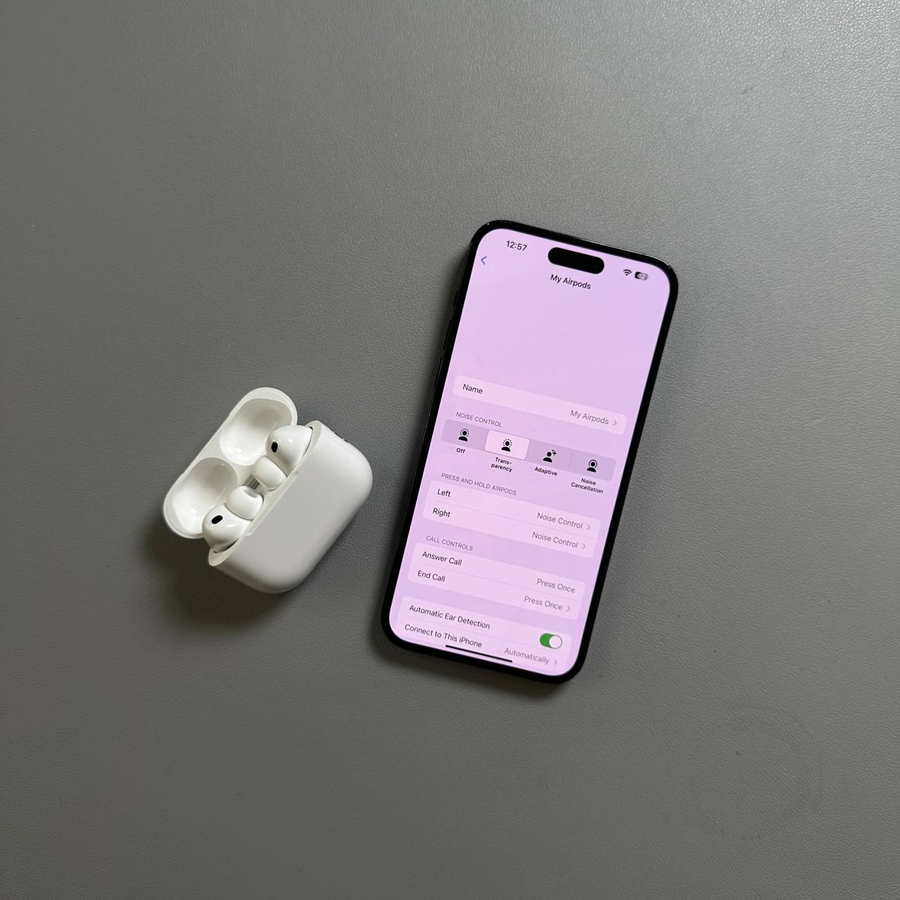
With Apple AirPods Pro 3, managing calls is a breeze. You have several options, including using the stem buttons, Siri voice commands, or even head gestures. Let's get started!
Using the AirPods Pro Stem for Call Control
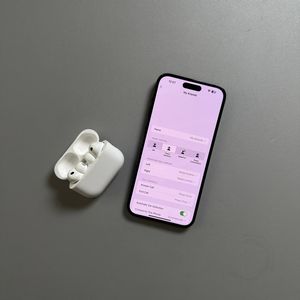
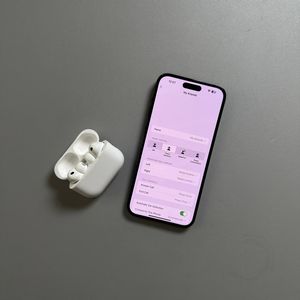
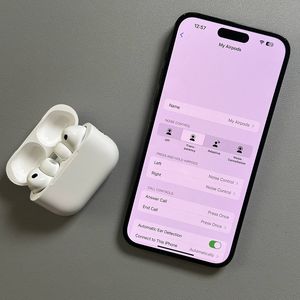
The primary method for handling calls on your AirPods Pro 3 is via the stem buttons. When a call comes in, press the stem once on either earbud to answer it. To mute or unmute during a call, press once again. If the call's over, double-press the stem to hang up. For rejecting incoming calls, simply double-press on either sensor, and the call will be declined or sent to voicemail.

Answering and Declining Calls with Siri
If you're busy, let Siri assist you. Enable Siri to announce calls by going to the Settings app, then 'Apple Intelligence', 'Siri', and selecting 'Announce Calls'. Choose either 'Always' or 'Headphones Only'. Siri will announce incoming calls, and you can respond by saying "yes" to answer or "no" to decline.


Using Head Gestures to Manage Calls
You can also control calls using head gestures with your AirPods Pro 3. Access the AirPods Pro settings, scroll to Head Gesture, and activate it. A nod will answer a call, while shaking your head will reject it. This hands-free option is both futuristic and practical.


With these handy features, answering and managing calls on your Apple AirPods Pro 3 becomes effortless.