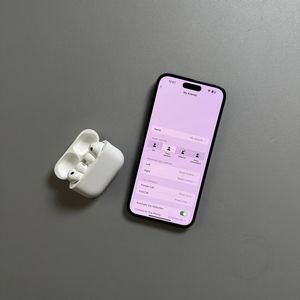
How to Fix One AirPod Louder on Apple AirPods Pro 3
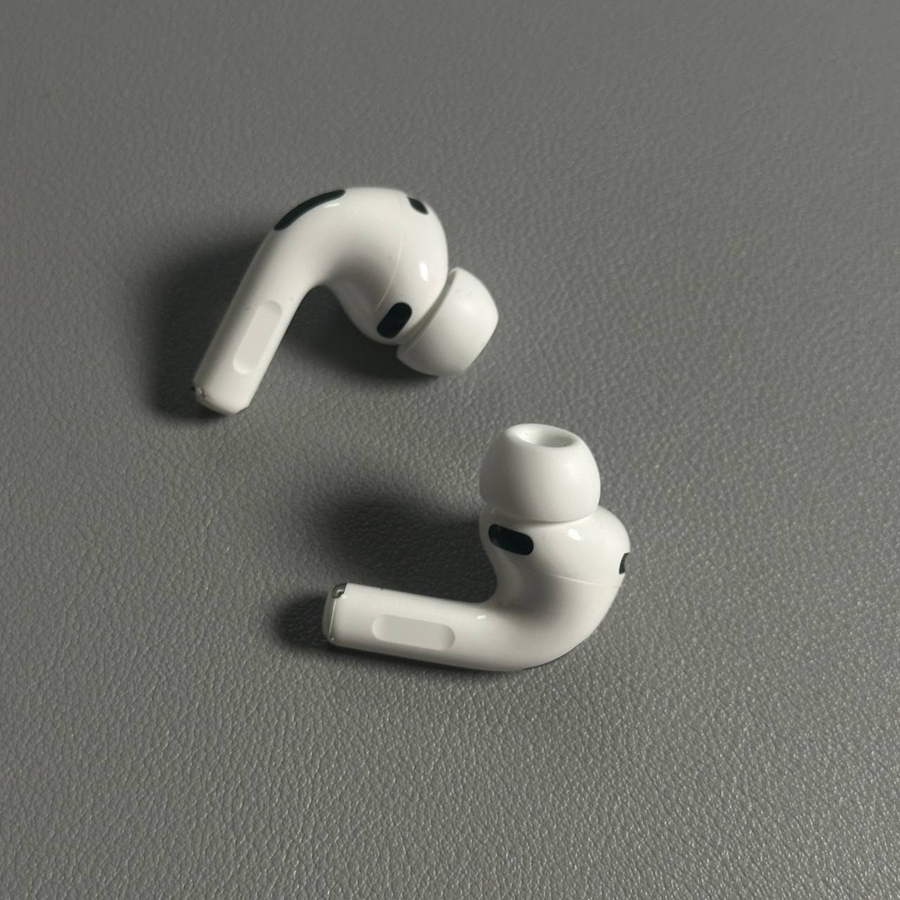
If you are experiencing an imbalance in sound volume between the left and right AirPods on your Apple AirPods Pro 3, you're not alone. This common issue can be frustrating, especially when one AirPod sounds significantly louder than the other. Fortunately, you can try a few simple steps to resolve this issue and bring your listening experience back to normal.
Checking and Adjusting Audio Balance Settings
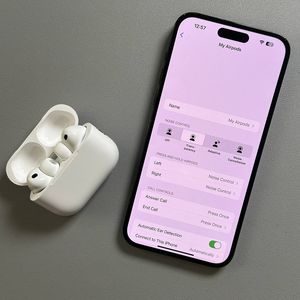
To get started, ensure your AirPods are connected to your iPhone. Once connected, unlock your iPhone and navigate to the 'Settings' app, which is represented by a gear-shaped icon on your home screen. From there, scroll down and tap on 'Accessibility'. As you scroll down within the Accessibility menu, locate and select 'Audio and Visual'. Now, scroll down again to find 'Balanca'. If the balance slider is not centered, it may be causing your audio imbalance. Adjust the slider to be in the middle, and then exit 'Settings' to test if this resolves the issue.


Resetting Your AirPods
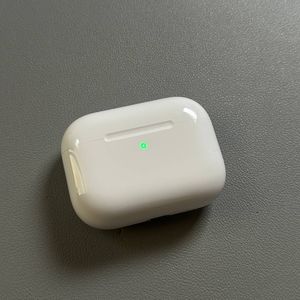
If adjusting the audio balance settings doesn't solve the problem, try resetting your AirPods. First, place your AirPods back into their charging case, close the lid, and wait for about 30 seconds. Then, open the lid again. At the back of the AirPods case, locate the small setup button. Triple tap or hold this button until the status light flashes orange and then white, indicating the AirPods have reset. Now, reconnect your AirPods to your device and check if the audio balance issue is resolved.