Apple AirPods Pro 3: Connect and Use with Multiple Devices
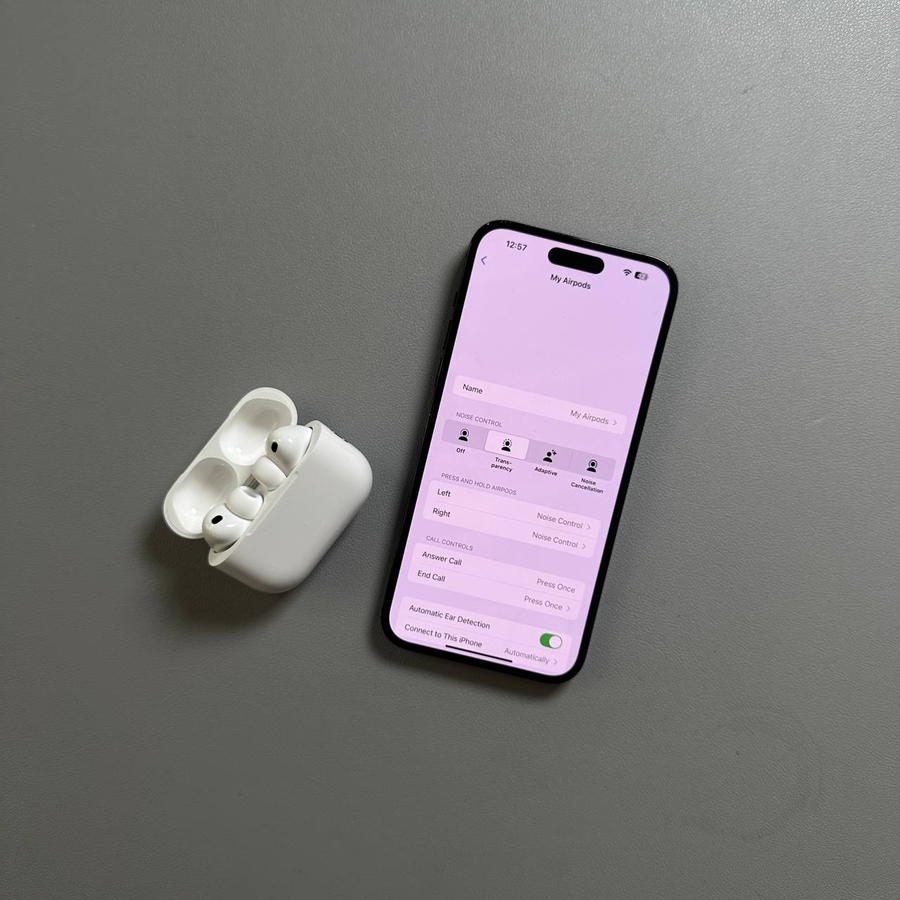
Learn how to connect your Apple AirPods Pro 3 to both an iPhone and an Android phone. We'll guide you through switching audio seamlessly between the two devices for an optimal experience.
Connecting AirPods Pro 3 to Your iPhone
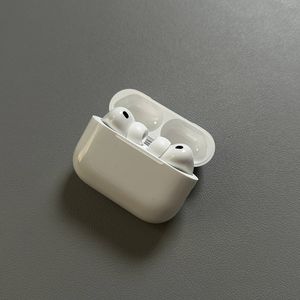
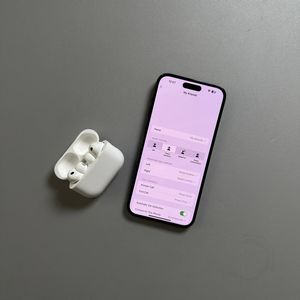
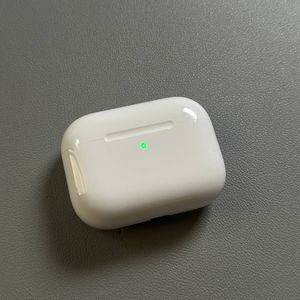
Begin by ensuring your iPhone's Bluetooth is active. Access this by selecting 'Settings' (settings) and then 'Bluetooth.' Open your AirPods case near the iPhone. A pairing prompt will appear—select 'Connect' (connect). If the window doesn't pop up, close and reopen the case lid.


Switching AirPods Pro 3 to an Android Phone
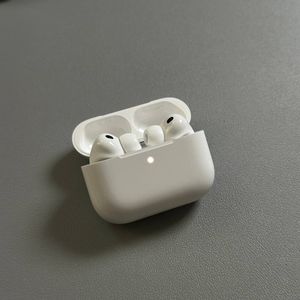
Go into the 'Settings' (settings) on your Android phone, then open Bluetooth Settings and confirm it is switched on. Double-tap the case's invisible front button, ensuring the light blinks white to enter pairing mode. Your AirPods will appear in the 'Available Devices' (available devices) list—connect them.


Using AirPods Pro 3 with Two Devices
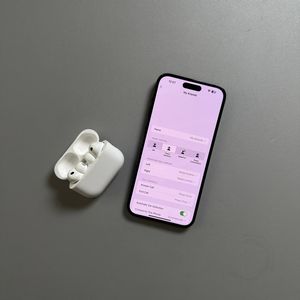
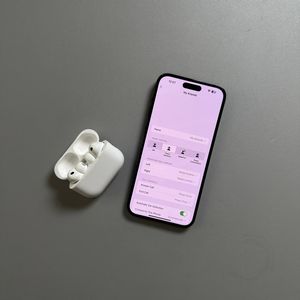
Once connected to both an iPhone and an Android phone, you can easily switch between them. Start using the AirPods with one device simply by playing audio from it. If you wish to switch to the other device, stop the audio on the current device and play audio on the other. The AirPods will automatically pick up the new source. Ensure your devices are within range and Bluetooth is on for seamless transitions.