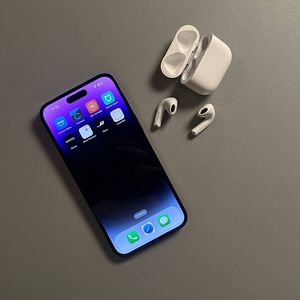
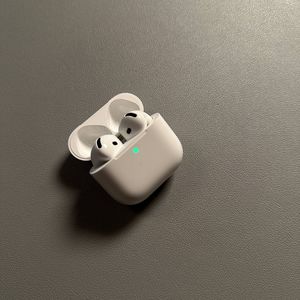
How to Connect Apple AirPods 4 to Your iPhone with ANC
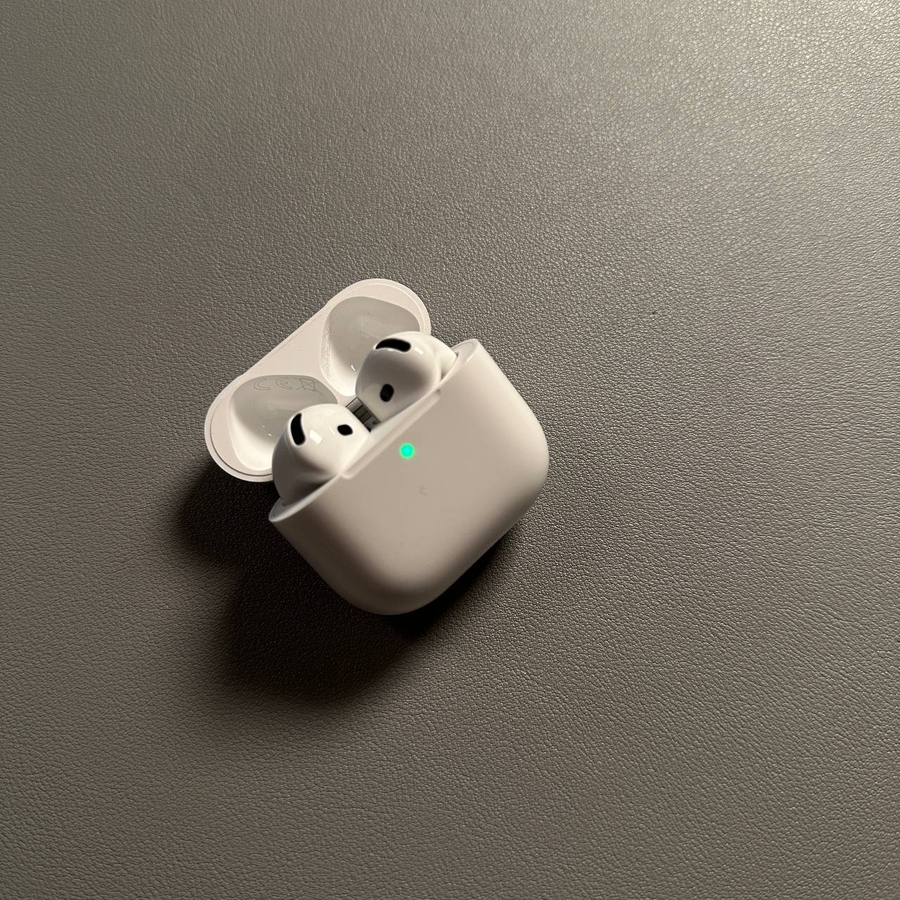
In this guide, we'll walk you through the simple steps required to connect your Apple AirPods 4, complete with Active Noise Cancellation (ANC), to your iPhone. Whether you're new to Apple products or simply upgrading to the latest model, follow these directions to enjoy seamless audio with your AirPods.
Step 1: Ensure Your iPhone is Up to Date
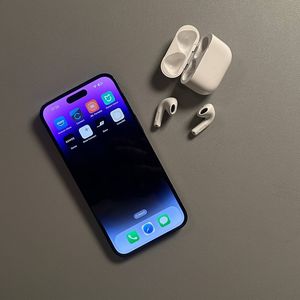
To begin, ensure your iPhone has the latest software updates. Unlock your iPhone and navigate to the Settings app. Within Settings, select 'General' and then 'Software Update' to make sure your device is current. Keeping your software up to date is essential for compatibility with your new AirPods 4.
Step 2: Prepare Your AirPods 4
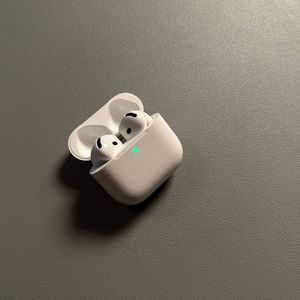
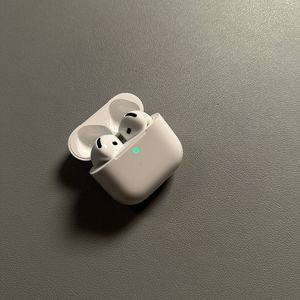
Next, prepare your Apple AirPods 4. Ensure they are securely placed in their charging case and that the case itself has sufficient battery life. Opening the case nearby your iPhone typically initiates pairing mode automatically. If not, make sure the Bluetooth on your iPhone is turned on. Check this by going back to the Settings app, selecting 'Bluetooth', and toggling it on if necessary.
Step 3: Enter Pairing Mode
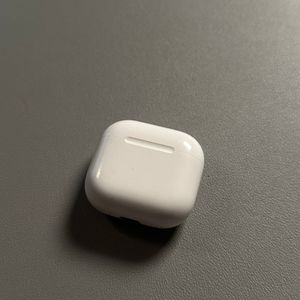
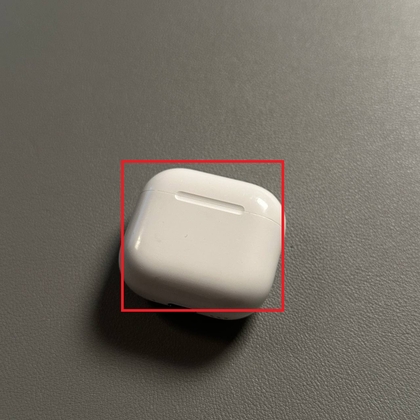
Unlike previous models, the AirPods 4 do not feature a physical button. Instead, double tap the front of the case and listen for a noise indicating they're ready to pair. Once your AirPods appear on your iPhone screen, tap 'Connect' (connect) to pair them.
 Step 4: Customise Your AirPods Settings
 After successfully connecting, you'll be presented with several customisation options for your AirPods. You can enable features such as Spatial Audio for a 3D listening experience, and Personalise Volume, which adjusts sound based on your environment. You'll also have the option to set up Siri for hands-free control, and to toggle announcement of calls and notifications. If preferred, these settings can be adjusted at a later time.

Bonus Tip: Automatic Reconnection
One handy feature of the Apple AirPods 4 is their ability to automatically reconnect to your iPhone. After turning the AirPods off by closing their case, simply open the case again when you want to use them, and they will reconnect effortlessly.