How to Connect Apple AirPods 4 with ANC to an Android Device
Welcome to our easy-to-follow guide on connecting your Apple AirPods 4 with active noise cancellation to an Android device. Whether you're using a Samsung, Google Pixel, or any other Android phone, this guide will walk you through each step to ensure a seamless connection. So, let's get started and enjoy your favourite tunes wirelessly!
Step 1: Access Bluetooth Settings on Your Android Device
To connect your AirPods 4 to your Android phone, begin by unlocking your device. Swipe down from the top of your screen twice to access the quick settings menu. Here, press and hold the Bluetooth icon until it opens the full Bluetooth settings. Make sure your Bluetooth is toggled on; if it's off, simply tap the switch to enable it.

Step 2: Enter Pairing Mode on Your AirPods 4
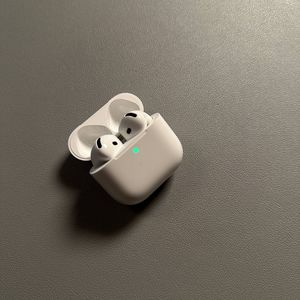
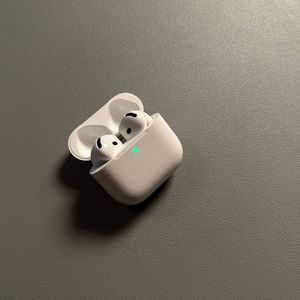
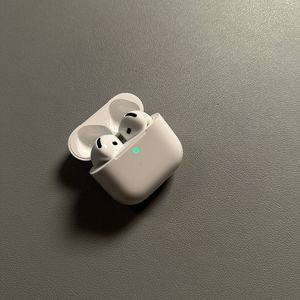
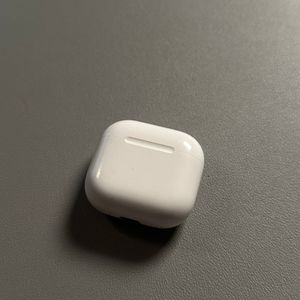
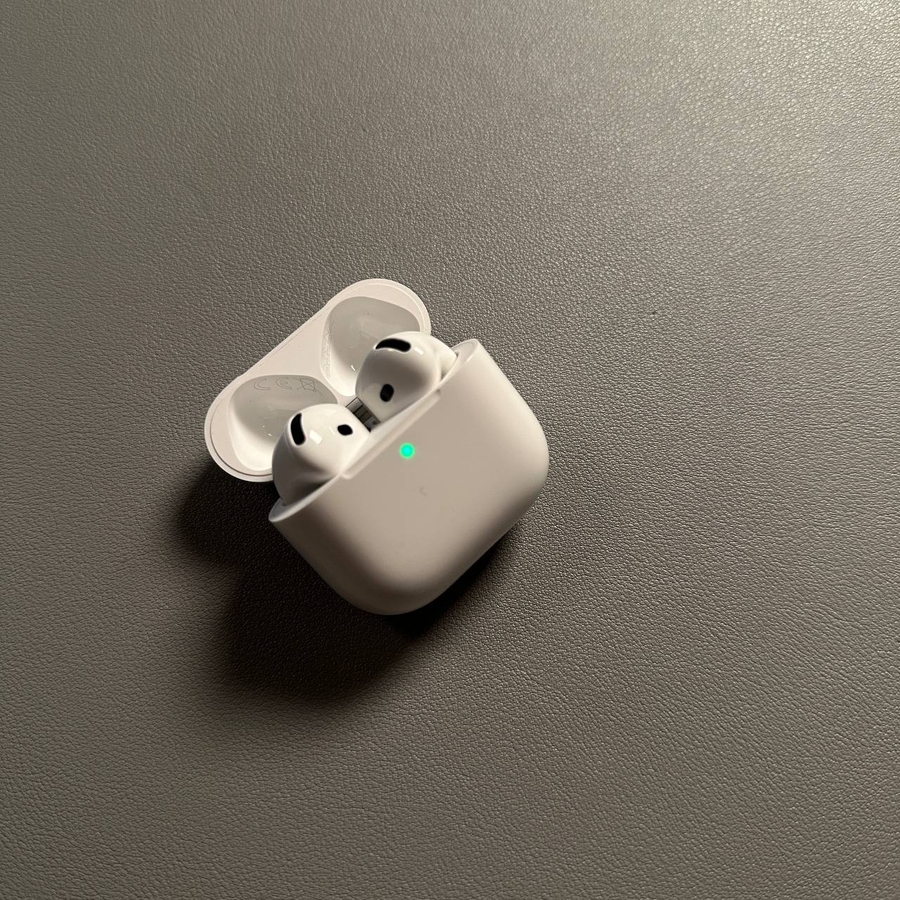
Unlike older versions of AirPods, the AirPods 4 does not have a button to initiate pairing mode. Instead, open the AirPods case and double-tap on the front of the case to activate pairing mode. You should see a light indicating that it's ready to pair. If you encounter any issues, close the case and reopen it, then attempt the double-tap again until you hear the pairing sound.

Step 3: Connect AirPods 4 to Your Android Device
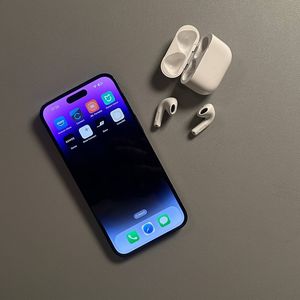
Return to your Android device's Bluetooth settings. Your AirPods should appear on the list of available devices. If you don't see them, refresh the list by scanning for devices again. Once you see "AirPods 4" on the list, tap on it and then select 'Pair' (pair). A successful connection message will confirm that you are ready to use your AirPods.


Step 4: Managing AirPods 4 Connection
Once connected, you can enjoy the high-quality sound and active noise cancellation feature of your AirPods 4. An important tip to remember is that closing the AirPods case will disconnect them from your phone. However, reopening the case will automatically reconnect them, ensuring a hassle-free experience whenever you're ready to use them again.

And there you have it! You've successfully connected your Apple AirPods 4 with ANC to your Android device.