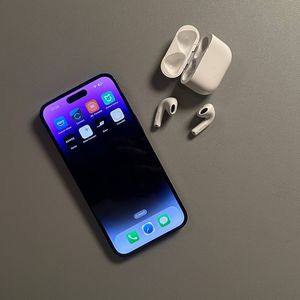
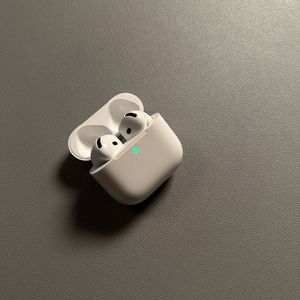
How to Share Audio with Apple AirPods 4 using Active Noise Cancellation
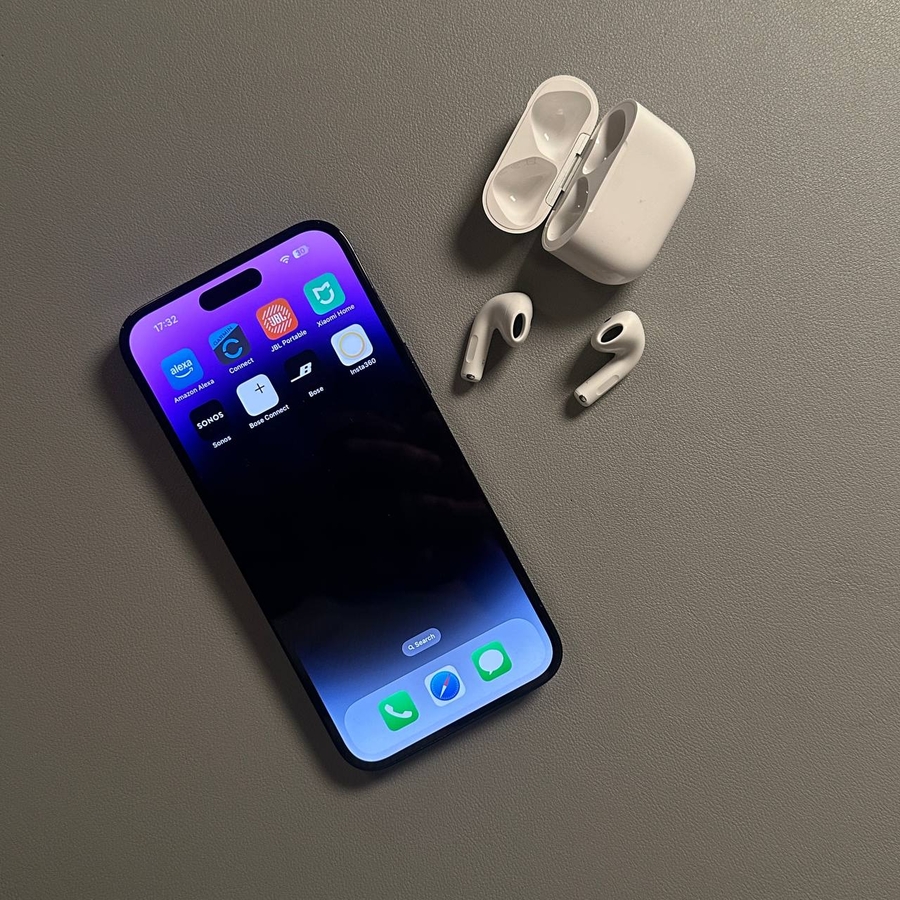
Discover how easy it is to share audio with friends using Apple AirPods 4 with Active Noise Cancellation and compatible Beats headphones.
Step 1: Ensure Compatibility
Before diving into audio sharing, it's crucial to confirm that your devices and earphones are compatible. For this feature to work, you must have an iPhone 8 or later, or an iPad released in the last three years. Additionally, your headphones should be equipped with the Apple chip, covering most AirPods models, including AirPods Max, as well as several Beats models like Powerbeats Pro, Beats Flex, Beats X, and more.
Step 2: Pair Your Earphones
First and foremost, ensure that your AirPods or Beats headphones are already paired with your iPhone or iPad. You don't need to pair each earphone to your own device; a friend or family member's devices will work just as effectively. As long as you have one pair connected, you're set to begin sharing your audio experience.

Step 3: Start Playing Music
Pop in your AirPods or Beats, connect them to your iPhone or iPad, and start playing your chosen music or audio. This will prepare your device for sharing, making the following steps straightforward and seamless.

Step 4: Locate the Share Audio Option
While your music is playing, locate the Share Audio button. You'll find this icon on your iPhone's lock screen, within the control centre's music controls, or at the bottom of the screen in the Apple Music app. Look for the icon resembling three rings behind a triangle. Tap it, and in the pop-up window, select 'Share Audio' (share audio).

Step 5: Connect Another Pair
Bring the second pair of AirPods or Beats close, ensuring they remain in their case. A pop-up message will appear on the screen, showing the nearby earphones. Select 'Share Audio' (share audio) from this window. If these earphones are not already paired with your device, you may need to hold the pairing button on the earphone case to connect successfully.

Step 6: Adjust Volumes Individually
Once the audio sharing is underway, you have the ability to adjust the volume for each pair of headphones individually. Use the sliders in the sharing window or within the control centre by pressing and holding the volume slider to ensure optimal listening for both users.

Step 7: Stop Sharing Audio
To stop audio sharing, simply access the recently connected Device for Audio Sharing in the Bluetooth Settings. And when there-disconnect them.

Thanks for reading, and happy listening!