How to Connect Apple AirPods 4 with ANC to a Windows Laptop or PC
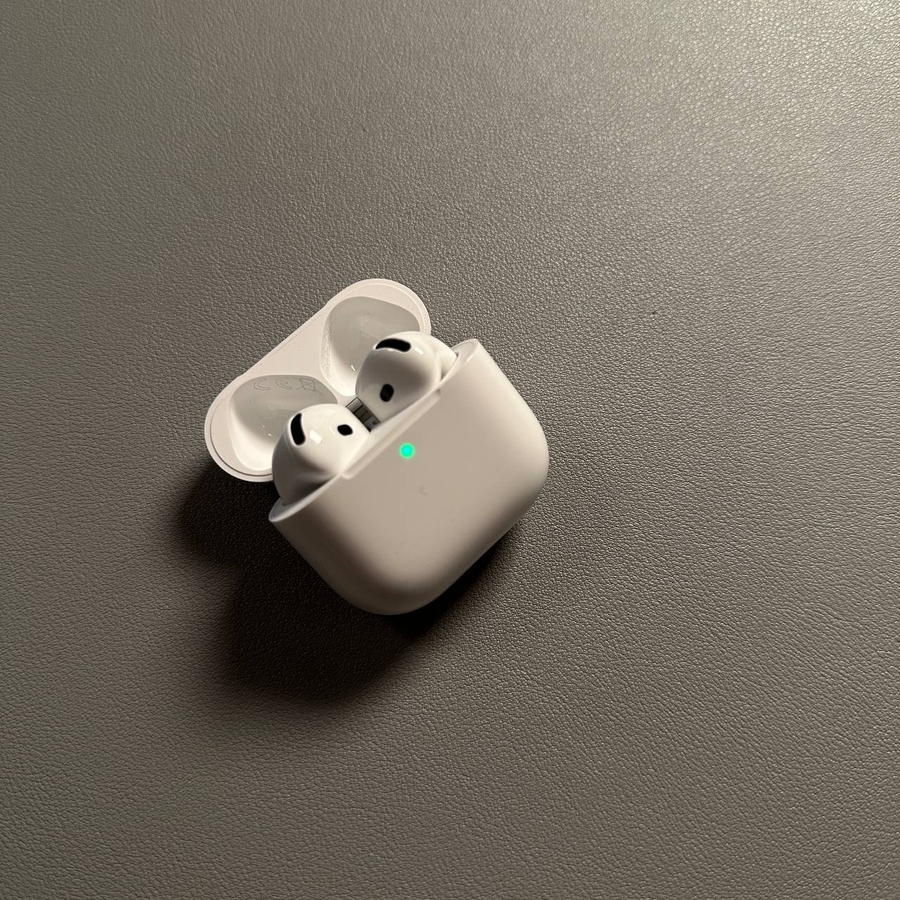
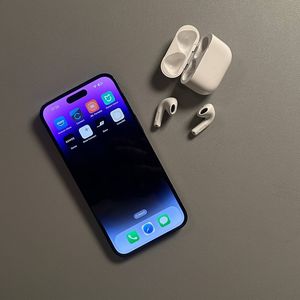
Ready to use your Apple AirPods 4 with your Windows PC? Follow these steps for a seamless Bluetooth connection and enjoy high-quality sound.
Prepare Your AirPods for Pairing
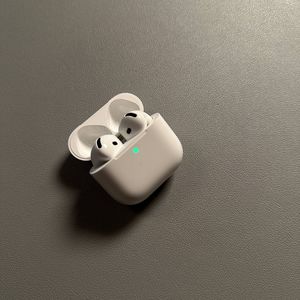
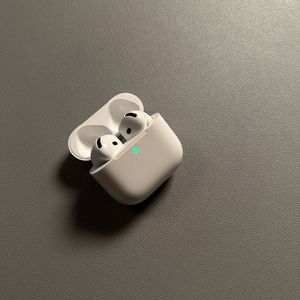
To begin the pairing process, first make sure that your AirPods are in their charging case. Open the lid of the case, then double-tap the small button located on the back of the case until you see a white light flashing. This indicates that your AirPods are now in pairing mode, ready to connect to your Windows device.

Access Bluetooth Settings on Your Windows Computer
Next, proceed to your Windows computer. Click on the Wifi bar at the bottom right. From there, select the Bluetooth settings.

Turn on Bluetooth and Add a New Device
In the Bluetooth settings menu, ensure that Bluetooth is turned on. If it is not already activated, toggle the switch to turn it on.

Pair Your AirPods with the Windows Device
While your computer is searching for nearby Bluetooth devices, ensure your AirPods are still in pairing mode with the white light blinking. Once your AirPods appear in the list of available devices, click on "AirPods" to initiate the connection. You should hear a small chime in your AirPods, and your computer will display a message confirming the connection.

If you encounter any issues during the pairing process, you may need to reset your AirPods.