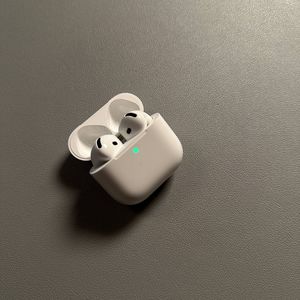
How to Unpair Apple AirPods 4 from Your Android Device with Ease
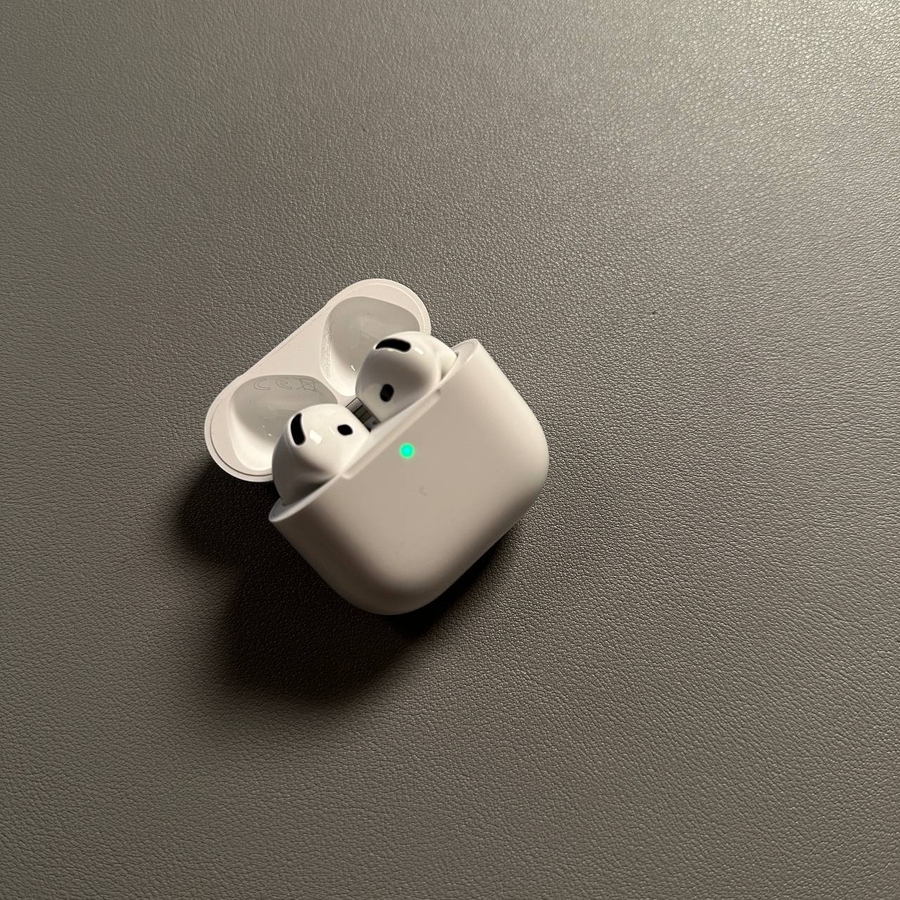
Welcome to this easy guide on unpairing your Apple AirPods 4 from an Android device. Whether you are transitioning to another audio device or just need a fresh start, our detailed instructions will walk you through the process. Let's get started.
Access the Control Panel
First, you need to open the control panel on your Android device. Unlock your phone and pull down the quick settings menu from the top of your screen by swiping downwards. This panel provides quick access to various settings.

Hold on Bluetooth to Access More Options
Once you have the control panel open, locate the Bluetooth icon, which is typically a small stylized 'B' on a blue background. Press and hold this icon to access more options related to your Bluetooth settings.

Navigate to the Device Details
In the Bluetooth settings, find the list of devices currently paired with your phone. Look for your Apple AirPods 4 in this list, and tap on the gear icon next to it. This icon will give you access to the device's details and additional options.

Unpair the Apple AirPods 4
Now, you have reached the final step. Within the device details, look for the 'Unpair' (Unpair) or 'Forget' (Forget) option. Tap this option, and when a pop-up appears to confirm, choose 'Unpair' (Unpair). Your Apple AirPods 4 are now successfully unpaired from your Android device.