Apple AirPods 4 with ANC - How to Set Up Spatial Audio
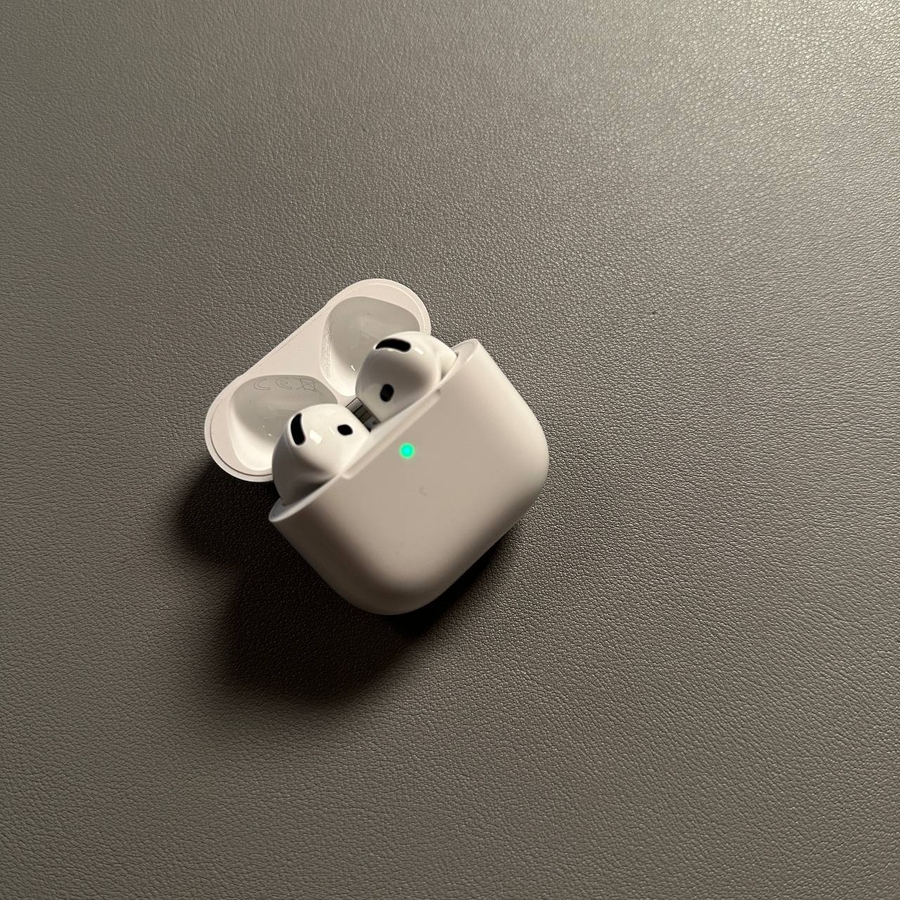
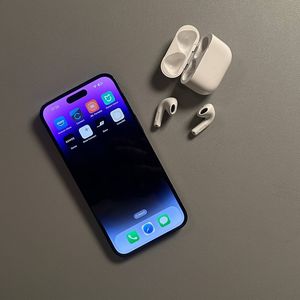
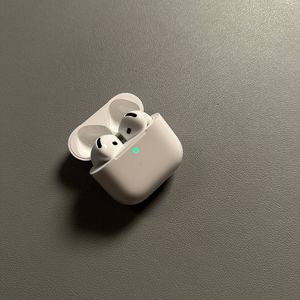
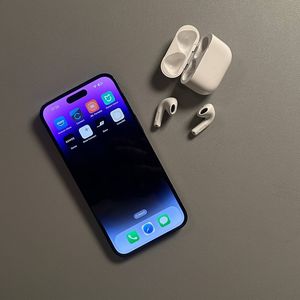
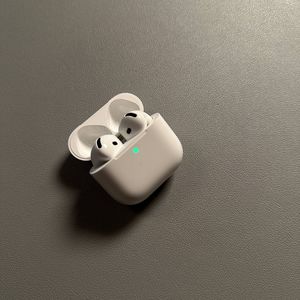
If you've just got your new pair of Apple AirPods 4 equipped with Active Noise Cancellation (ANC), you're in for an incredible audio experience. One of the key features these AirPods offer is Spatial Audio, which delivers immersive surround sound. This guide will walk you through setting it up.
Step 1: Accessing Settings on Your Device
To start the process, unlock your iPhone and look for the Settings app, which has an icon resembling a gear. Tap to open it. Once in the Settings menu, scroll down and find the Bluetooth option, then tap on it. This will show the list of all paired devices.

Step 2: Select Your AirPods
In the Bluetooth section, locate your AirPods 4 from the list of connected devices. They should appear as "AirPods" followed by your name or a similar identifier. Tap on the informational symbol (i) next to your AirPods to access more options.


Step 3: Personalising Spatial Audio
On the next screen, you will see an option labelled "Personalized Spatial Audio" (Personalised Spatial Audio). Tap on this option. When prompted, put on your AirPods. You'll be guided through a few setup steps. Start by pressing "Continue" to begin the front view capture. Follow the instructions to scan your front face, and then proceed to scan your left and right ears. This ensures that Spatial Audio is perfectly tuned for your ears.


Step 4: Enjoy Your Enhanced Listening Experience
Once you complete the scanning process, Spatial Audio will be activated and personalised just for you. Now, you can enjoy a theatre-like sound experience with your Apple AirPods 4. Whether you're watching a film or listening to your favourite music, Spatial Audio will elevate your listening experience to new heights.