Samsung Galaxy A17 5G - How to Set a Custom Ringtone
Welcome to our guide on setting a custom ringtone on your Samsung Galaxy A17 5G. It's always fun to personalise your device, and choosing a ringtone that reflects your taste is a great way to start. Follow the detailed steps below to set your favourite tune as your ringtone, making sure your phone stands out in your pocket or bag with every call.
Step 1: Open the Settings App
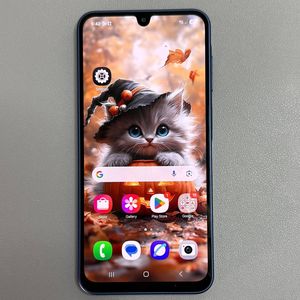
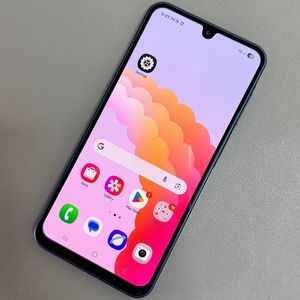
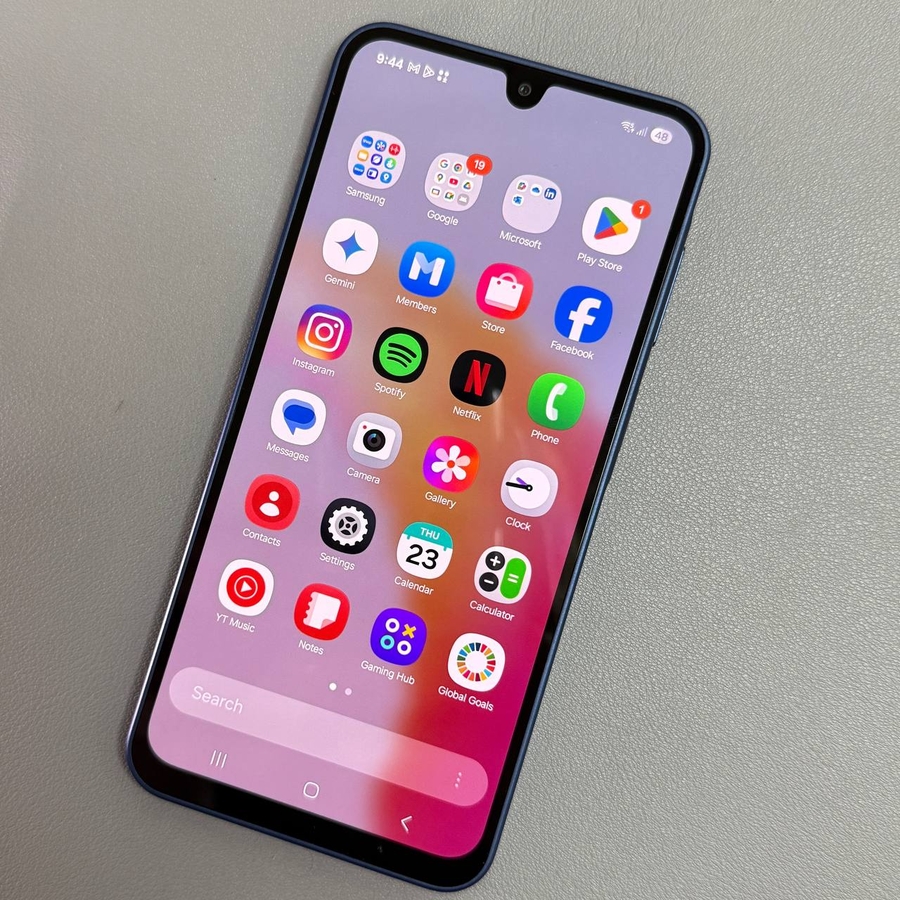
To begin, unlock your Samsung Galaxy A17 5G and navigate to the main screen. From here, locate the Settings app, which is represented by a gear-shaped icon. You can find it either on your home screen or within the app drawer. Tap on the icon to open the app.

Step 2: Access Sounds and Vibration
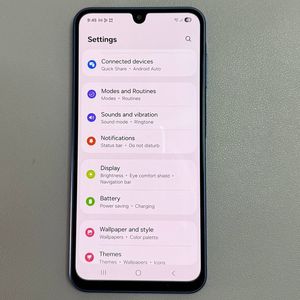
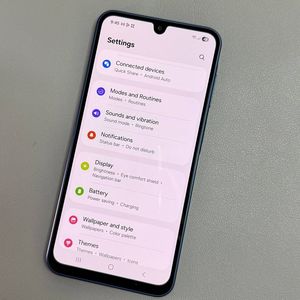
Once you're in the settings menu, scroll down to find the Sounds and Vibration option. Tap on it to enter the next menu, where you can manage all sound settings of your phone.

Step 3: Select Ringtone
In the Sounds and Vibration menu, tap on Ringtone. This will display a list of default ringtones available on your Samsung Galaxy A17 5G.

Step 4: Choose a Default or Add a Custom Ringtone
You now have the option to select a predefined ringtone from the displayed list. If you prefer to set a custom ringtone, look for the plus icon in the top right corner of the screen. Tap this icon to browse audio files stored on your phone.

Step 5: Select an Audio File
A new list will show you the audio files stored on your device. Browse through this list and tap on any file to preview the sound. If you find a file you like, hit the Done (done) button to save it as your ringtone.

Optional: Revert to a Previous Ringtone
If you decide you want to change back to a previous ringtone, simply return to the Sounds and Vibration menu, tap on Ringtone, then select either a default ringtone or a custom one from your list to revert the changes.

Congratulations! You have successfully set a custom ringtone on your Samsung Galaxy A17 5G.