How to Power Off Samsung Galaxy A17 5G
In this guide, we will walk you through the steps necessary to power off your Samsung Galaxy A17 5G phone using various methods, from physical button combinations to settings adjustments.
Step 1: Powering Off using the Buttons
To turn off your Samsung Galaxy A17 5G using the physical buttons, you need to use a combination of the power button along with the volume down button. Press and hold both the power and volume down buttons simultaneously. This action will take you to the power-off menu. Once there, tap on the 'Power Off' (power off) option twice to confirm, and your phone will shut down.

Step 2: Powering Off from the Control Centre
If you prefer another method, you can also access the power-off functionality through the Control Centre. Swipe down from the top of the screen below the battery symbol to reveal the Control Centre. Look for the power symbol and tap it to bring up the power-off menu. As before, confirm by selecting 'Power Off' (power off) twice.


Step 3: Setting Up the Power Button for Direct Power Menu Access
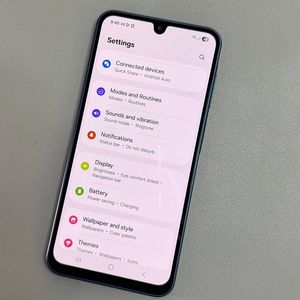
If you wish to simplify the process of powering off your phone by using the power button alone, here's how to set that up. Start by swiping down the screen below the battery symbol and tapping on the Settings gear icon located in the top corner. Once in the Settings menu, scroll down and select 'Advanced Features' (advanced features). Next, tap on 'Side Button' (side button). Here, you have the option to customise the long press action. Change the setting from waking up the digital assistant to showing the power menu. Now, holding the power button will directly open the power menu, allowing you to power off your phone easily.


With these options, you can now power off your device swiftly without invoking unnecessary functions.