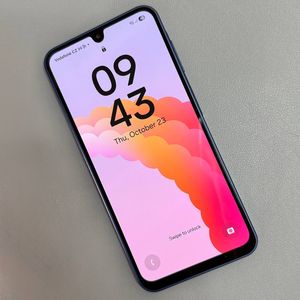
How to Enable or Disable Auto Blocker on Samsung Galaxy A17 5G
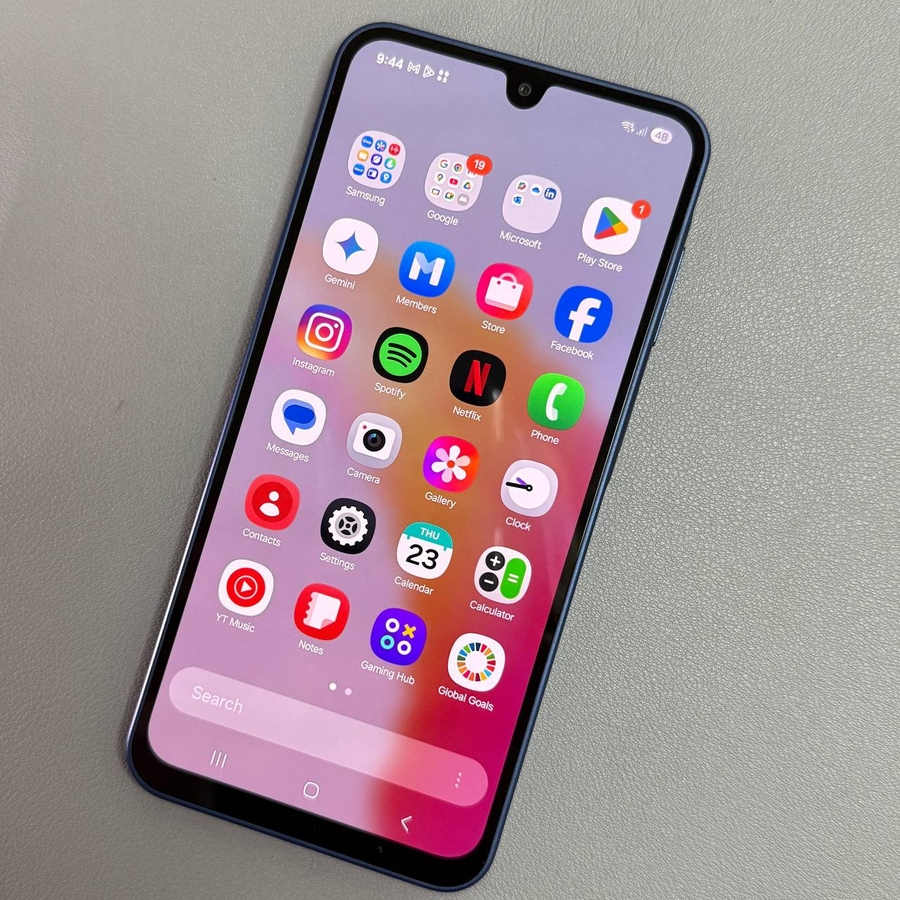
Welcome to our guided walkthrough on managing the Auto Blocker feature on your Samsung Galaxy A17 5G. This practical feature can help you control what apps and features are allowed to operate on your device. However, if you find yourself needing to disable it, perhaps to enable USB debugging or to install apps from unknown sources freely, follow the steps outlined below.
Step 1: Accessing the Settings
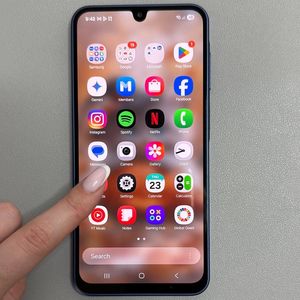
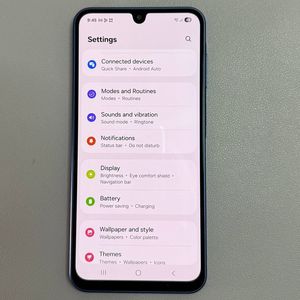
To begin, ensure your Samsung Galaxy A17 5G is powered on and unlocked. Locate the "Settings" app on your device, which is typically identified by a gear-shaped icon. You can find it either on your home screen or in your app drawer.

Step 2: Navigating to Security and Privacy
Once the "Settings" app is open, scroll through the options until you see "Security and Privacy." Tap on this to access more detailed settings related to your device's protection and data handling.

Step 3: Finding and Adjusting Auto Blocker
Within the "Security and Privacy" settings, scroll down to locate the "Auto Blocker" option. This is a crucial step for managing your phone's automated security actions. Tap on the toggle switch next to "Auto Blocker" to turn it off. You may need to confirm your decision by tapping "Confirm" (confirm) or "Yes" (yes) when prompted, ensuring that the feature is fully disabled.

Step 4: Verify and Resolve Issues
With "Auto Blocker" disabled, you should now notice improvements, especially if you previously encountered restrictions with actions such as enabling USB debugging or installing applications from unknown sources. Your device is now set to allow these functions without interference from "Auto Blocker."