Samsung Galaxy A17 5G - How to Set 5G Only Network Mode
Maximise your Samsung Galaxy A17 5G's performance by configuring it to '5G Only' mode. Use the following detailed steps to make this adjustment seamlessly.
Step 1: Access the Settings App
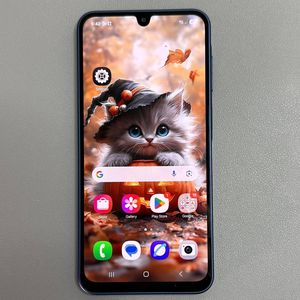
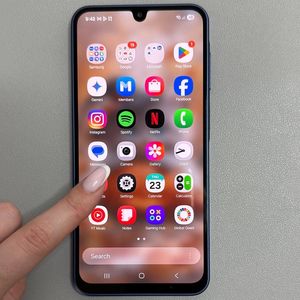
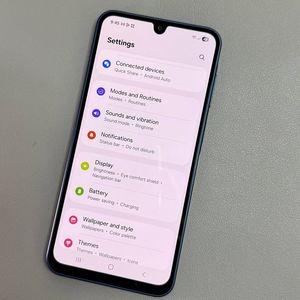
Begin by unlocking your Samsung Galaxy A17 5G. Locate the Settings app on your home screen, depicted by a gear icon, and open it.

Step 2: Reset Your Mobile Network Settings
In the Settings menu, scroll down to select 'General Management'. Tap on 'Reset', then choose 'Reset Mobile Network Settings'. Confirm by tapping 'Reset Settings' (reset settings), and then 'Reset' (reset). Rest assured, this will not affect your personal data.


Step 3: Navigate to Network Preferences
Return to the main Settings menu. Tap on 'Connections', then proceed to 'Mobile Networks'. Within this menu, select 'Network Mode' to continue.

Step 4: Select 5G Mode and Options
In the 'Network Mode' options, tap '5G Preferred'. If needed, enable 'Data Roaming' for connectivity outside your usual area. For voice over 5G, ensure that this option is turned on. Under 'Data Usage', activate 'Mobile Data'.


Step 5: Install Net Monster to Set 5G Only
Open Google Play Store and download 'Net Monster'. After installing, open it and access 'Phone Info' by tapping the three-line menu. Scroll to 'Set Preferred Network Type' and select 'NR Only' or '5G Only'. Return to confirm the settings are applied.


Step 6: Verify and Revert Changes if Needed
Confirm the network mode is '5G Only' by revisiting 'Mobile Networks' in the Settings. If you wish to revert, change the Network Mode back to '5G Preferred'. Adjusting settings is easy if required later.