How to Hide or Unhide Apps on Samsung Galaxy A17 5G
Managing apps on your Samsung Galaxy A17 5G can be made easy with the built-in feature to hide or unhide apps. This guide walks you through each step to help you keep your home and app screens tidy by controlling the visibility of your apps.
Hiding Apps on Samsung Galaxy A17 5G
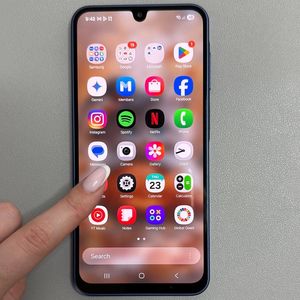
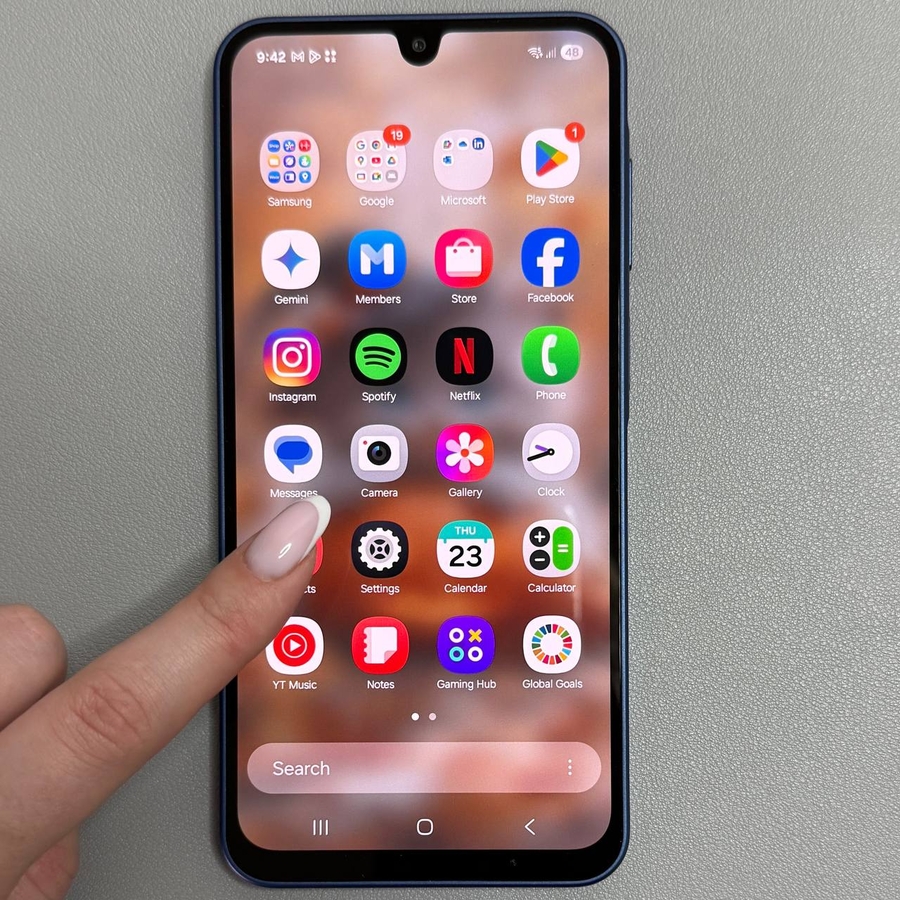
To begin hiding apps on your Samsung Galaxy A17 5G, unlock your phone and navigate to the home screen. Once there, tap and hold on a blank space until some options appear, including a gear-shaped settings icon usually positioned at one of the corners.

Accessing the Home and App Screen Settings
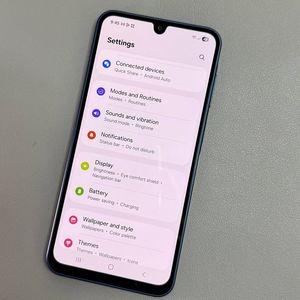
Next, tap on the settings icon. In the subsequent menu, scroll down to find the option labelled 'Hide apps on Home and Apps screens.' Tap on this option to proceed.

Selecting Apps to Hide
You will now see a list of all the apps installed on your device. Select the apps you wish to hide by tapping on them. To confirm your selection, tap the 'Done' (done) button at the bottom. Your chosen apps will now be hidden from both the home and app screens.

Unhiding the Apps
To unhide any apps that you've previously hidden, return to the home screen and touch and hold on to a blank area again. Tap the settings icon once more, and select 'Hide apps on Home and Apps screens.'
Restoring Hidden Apps
You'll encounter a list showing the apps currently hidden at the top. Tap the minus icon (-) next to any app you want to unhide. After making your changes, tap 'Done' (done), and the apps will be restored to their previous visibility.