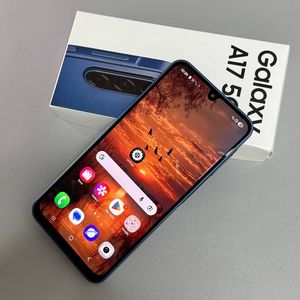
Samsung Galaxy A17 5G - How to Take Screenshots (All Methods)
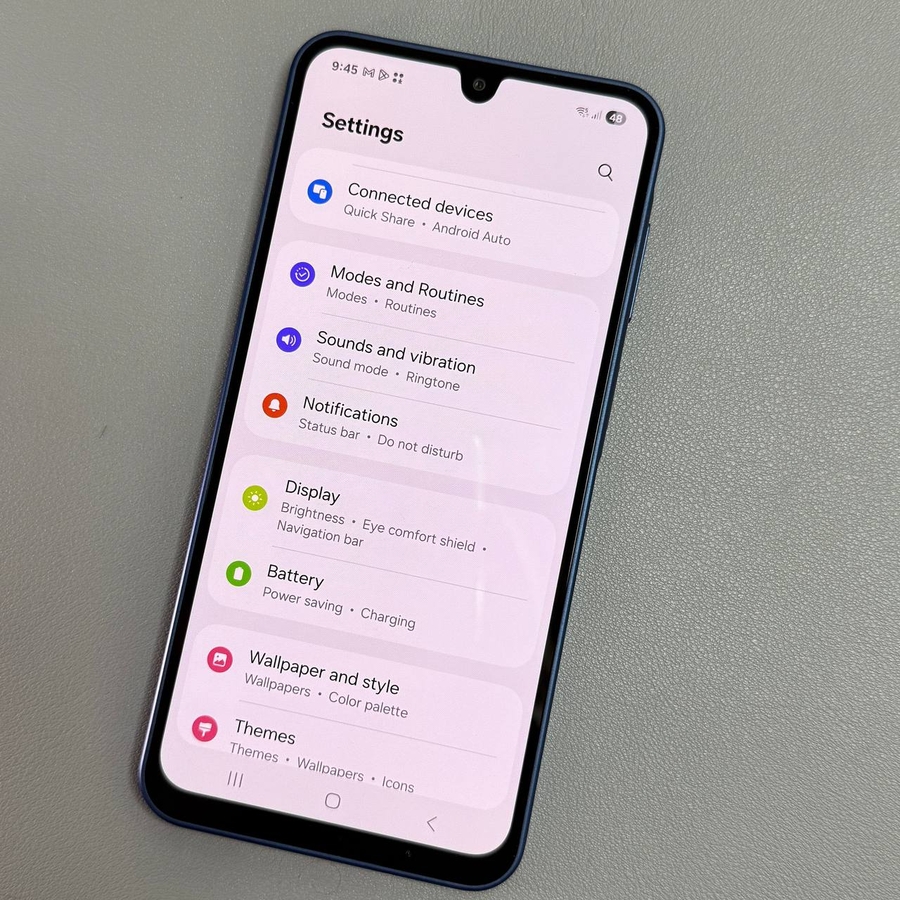
Explore simple and effective methods to capture screenshots on your Samsung Galaxy A17 5G, including using Bixby voice commands for a hands-free experience. Let's dive into these accessible options!
Method 1: Button Combination
Press the Power and Volume Down buttons simultaneously. The screen will flash, confirming a screenshot.

Method 2: Palm Swipe
Enable 'Palm swipe to capture' (enable 'Palm swipe to capture') in Settings. Then swipe your hand across the screen to capture an image.


Method 3: Notification Panel
Swipe down the notification panel twice and tap 'Take Screenshot' (tap 'Take Screenshot'). If the button is missing, add it using the panel's edit function.

Method 4: Edge Panel
Open the Edge Panel, navigate to 'Tasks' (navigate to 'Tasks'), and tap 'Take Screenshot' (tap 'Take Screenshot'). Set up the panel through Settings if it's not visible.

Method 5: Google Assistant
Activate Google Assistant by holding the Side button or using a voice command like "Hey, Google" ("Hey, Google"). Once activated, simply say "Take a screenshot" ("Take a screenshot"). Your device will capture the current screen.

Bonus: Long Screenshots
To capture extended content, take a screenshot and tap the scrolling arrow in the toolbar. Continue tapping to capture more content.


All screenshots you take are conveniently stored in the 'Screenshots' ( 'Screenshots') album in your Gallery app.