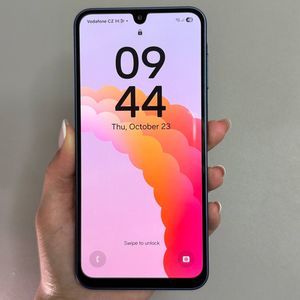
How to Change Wallpaper on Samsung Galaxy A17 5G
Welcome! In this guide, we're going to learn how to change the wallpaper on your Samsung Galaxy A17 5G. Changing the wallpaper is a fantastic way to personalise your phone and make it truly yours. Follow the detailed steps below to discover how easy it is to refresh your phone's appearance.
Step 1: Open the Settings App
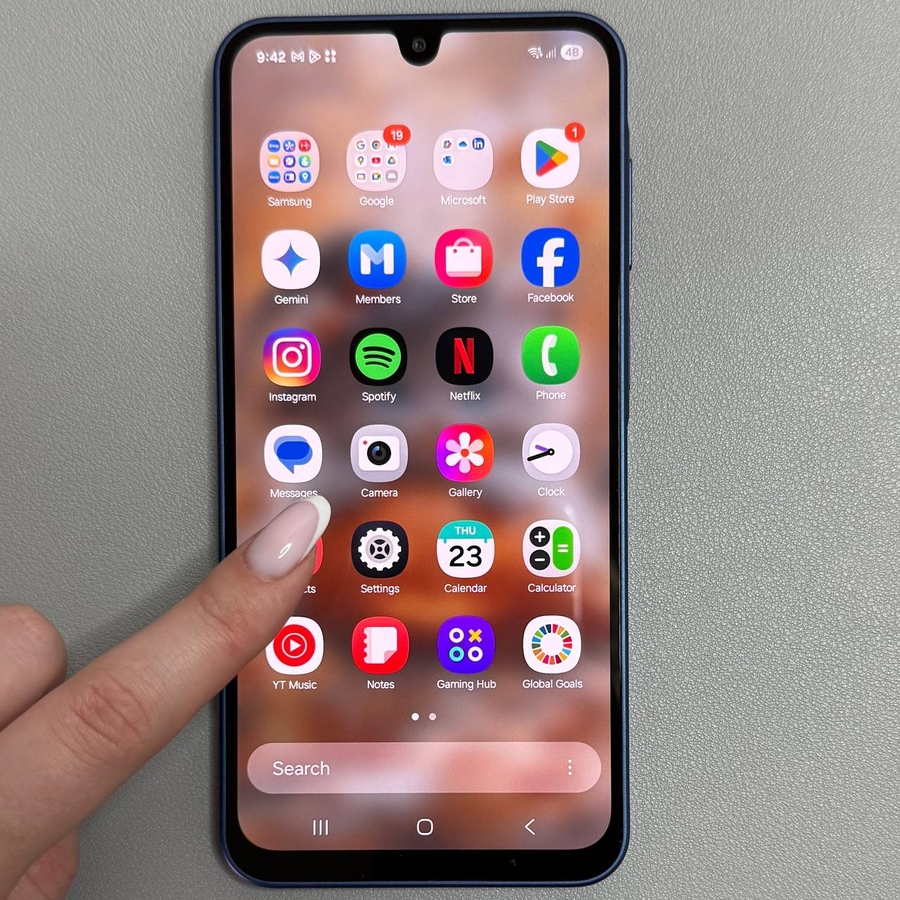
To get started, unlock your Samsung Galaxy A17 5G and navigate to the main settings menu. You can usually find this app by looking for its gear-shaped icon on the home screen or within the app drawer.

Step 2: Navigate to Wallpaper and Style
Once you're in the settings menu, scroll down until you see the option labelled "Wallpaper and Style." Tap on it to access the wallpaper settings. This section allows you to select from various wallpaper categories and styles.

Step 3: Choose a Wallpaper Category
In the "Wallpaper and Style" section, you have multiple options to choose from. Tap on "Change Wallpaper" (change wallpaper) to explore the available categories like Features, Graphical, Gallery, and Colors. Each offers different types of images and styles.


Step 4: Download More Wallpapers
If you'd like even more wallpaper options, you can download additional ones from Galaxy Themes. In the "Wallpaper and Style" menu, tap on the option to get more wallpapers, which will open the Galaxy Themes store. From there, you can browse and download free wallpapers by selecting the "Top" (top) and "Free" (free) tabs.

Step 5: Apply Your Chosen Wallpaper
Once you've selected your desired wallpaper, you can choose to apply it to your home screen, lock screen, or both. Tap on "Apply" (apply) and then follow the prompts to confirm your selection. Voilà! Your Samsung Galaxy A17 5G now displays the new wallpaper.