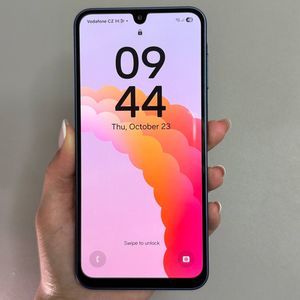
Samsung Galaxy A17 5G Overheating: Detailed Step-by-Step Guide
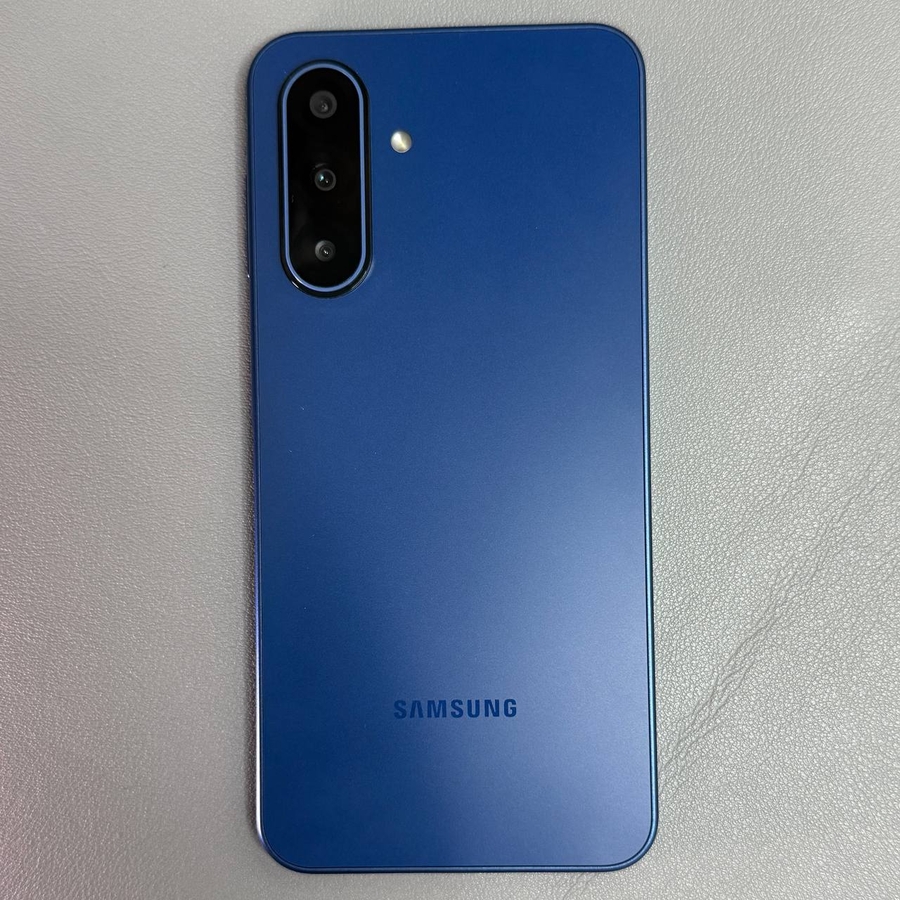
Tackling overheating issues on your Samsung Galaxy A17 5G can enhance performance and longevity. Follow these detailed steps and accompanying images to effectively manage your device's heat production through settings adjustments.
Step 1: Reduce Screen Brightness
1.1 Open Quick Settings
Swipe down from the top of the screen to access the Quick Settings on your Samsung Galaxy A17 5G.

1.2 Adjust Brightness Slider
Locate the brightness slider and move it to the left to decrease brightness.

Step 2: Turn Off Unused Features
2.1 Go back to Quick Settings
Swipe down again to open the quick settings menu on your Samsung Galaxy A17 5G.
2.2 Disable Unnecessary Features
Tap the icons for Wi-Fi, GPS, or Bluetooth to turn them off if they're not needed.

Step 3: Use the Optimize Now Feature
3.1 Open Device Care Settings
Launch the Settings app, then go to Device care on your Galaxy A17 5G.

3.2 Optimize Device Performance
Select Optimize now to improve overall device performance and manage excess power usage.

Step 4: Enable Power Saving Mode
4.1 Navigate to Battery Settings
Under Battery and device care, tap on Battery settings on your Galaxy A17 5G.

4.2 Turn On Power Saving Mode
Toggle on Power Saving Mode to help reduce CPU load and heat output.

Step 5: Set Background Usage Limits
5.1 Access Background Usage Limits
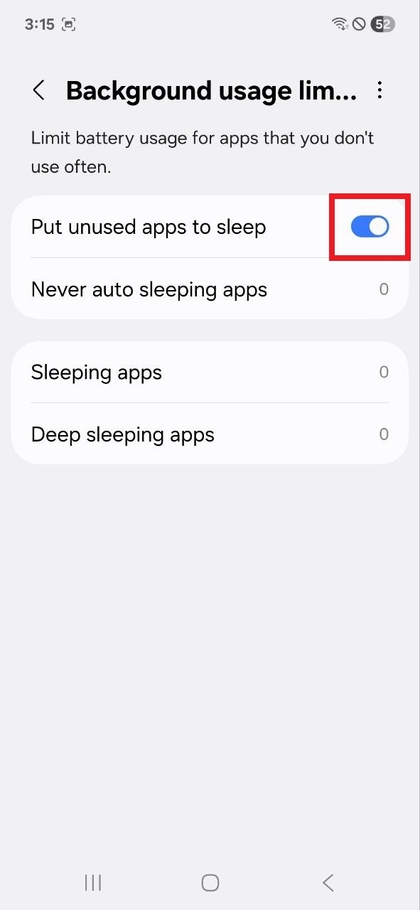
In the Battery menu, choose Background usage limits to set restrictions.

5.2 Activate Sleep Mode for Unused Apps
Turn on the option to Put unused apps to sleep to prevent them from wasting resources.