How to Enable and Use Voice Typing on Samsung Galaxy A17 5G
Unlock the powerful feature of voice typing on your Samsung Galaxy A17 5G with ease. This guide will walk you through the simple steps to enable and start using voice typing, making communication faster and more convenient.
Step 1: Access the Keyboard
To start using voice typing, first, launch the keyboard on your Samsung Galaxy A17 5G. Open any app where you can input text, such as Messages or your web browser. Usually, you will see a small microphone icon at the bottom left corner of the keyboard. If you can't find it, don't worry! You can enable it through the settings.

Step 2: Enable Voice Typing in Settings
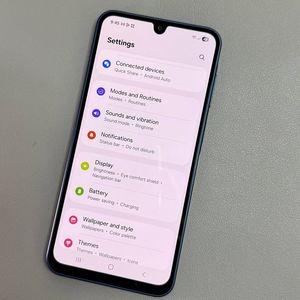
If the microphone icon is not visible on your keyboard, press the back button to exit the keyboard, and navigate to Settings (settings). Scroll down to find the General Management (general management) option, and tap on it. Next, select Samsung Keyboard Settings (Samsung keyboard settings) and then tap on the Voice Input (voice input) section to proceed.


Step 3: Choose Your Voice Input Option
Your device provides two options for voice typing: Samsung Voice Input and Google Voice Input. Select your preferred option. For demonstration, we will start with the Samsung Voice Input. Tap on it, review the options to adjust settings according to your preference, and return to the keyboard screen.


Step 4: Start Using Voice Typing
Now, with the keyboard open, tap on the visible microphone icon. If prompted, select While Using the App (while using the app) and agree to any terms to activate voice typing. Begin speaking, and watch your words appear on the screen! To stop, just tap the microphone again.

Step 5: Explore More Voice Typing Options
If you wish to try Google Voice Input, select this option from the settings, then return to your keyboard and tap the microphone icon to start. While using voice typing, you can manage punctuation by saying commands like "comma" or "period." To pause voice typing, either stop speaking or click the microphone button. For additional options, tap the gear icon that appears on the screen.

Step 6: Returning to Standard Typing
If you need to switch back to regular text input, simply click the arrow on the top left corner of the keyboard. This will revert the keyboard back to its standard layout for typing manually.

Congratulations! You've successfully set up voice typing on your Samsung Galaxy A17 5G. Enjoy a more efficient communication experience with this easy-to-use feature.