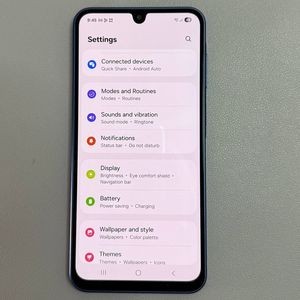
How to Force Restart Your Samsung Galaxy A17 5G

If you're facing unresponsive behaviour on your Samsung Galaxy A17 5G, performing a force restart may help resolve the issue. It's a simple yet effective technique to reboot your device without accessing the settings menu. Follow this step-by-step guide to learn how to force restart your phone safely.
Step 1: Initiate the Restart Process
To begin the force restart on your Samsung Galaxy A17 5G, locate the side button and the volume down button on your device. Press and hold both buttons simultaneously. You'll need to keep them pressed until the screen goes off.

Step 2: Ignore the Power Off Menu
While holding the buttons, the power off menu might appear on the screen. Don't worry; this is expected. Continue pressing both the side and volume down buttons, disregarding the menu options.

Step 3: Transition to Volume Up
Once the screen turns black, release the volume down button and quickly press and hold the volume up button while keeping the side button pressed. Do this until the Samsung logo appears on the screen.

Step 4: Wait for the Samsung Logo
As the Samsung logo appears, release all the buttons. This indicates that your Galaxy A17 5G is rebooting. Now, patiently wait as your phone completes the restart process.

Step 5: Successful Force Restart
Congratulations! You have successfully completed a force restart on your Samsung Galaxy A17 5G. Your device should now be functioning normally. If you have any questions or need further assistance, feel free to reach out for support.