How to Change the Default Keyboard on Samsung Galaxy A17 5G
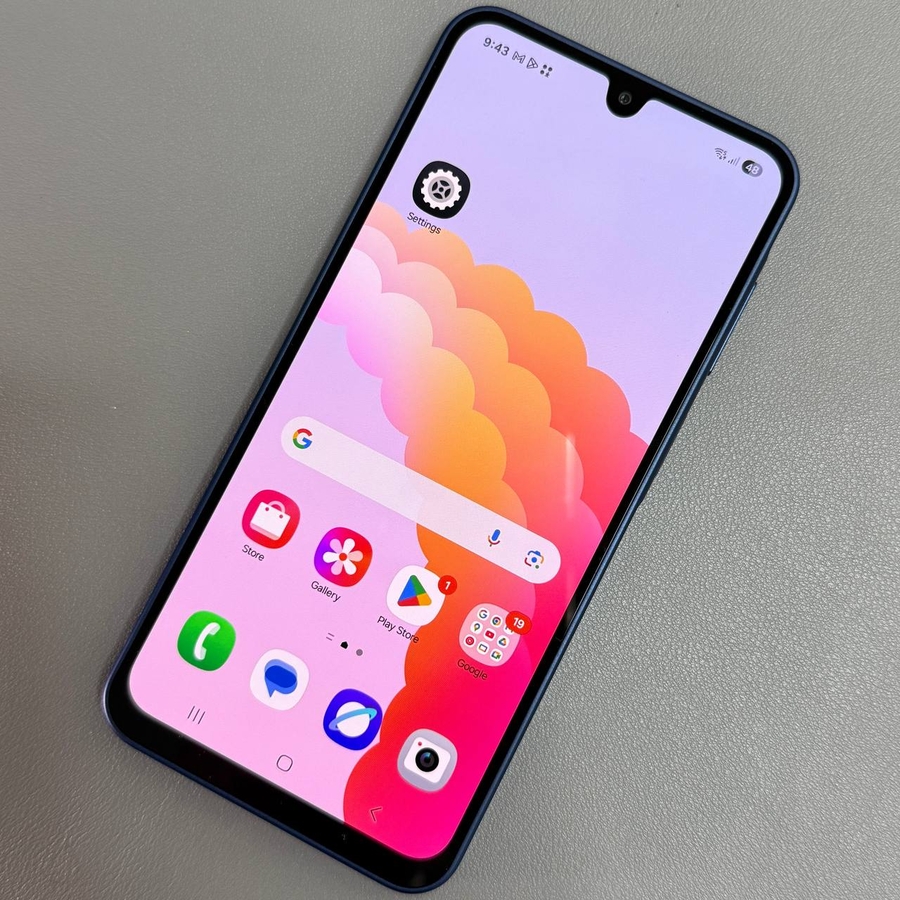
If you recently switched to the Samsung Galaxy A17 5G, you might want to personalise your typing experience by changing the default keyboard. Whether you've downloaded a new keyboard app or prefer to switch back to the Samsung keyboard, this guide will walk you through each step of the process, ensuring you have complete control over your device's keyboard settings.
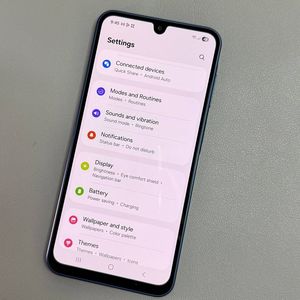
Step 1: Open Settings
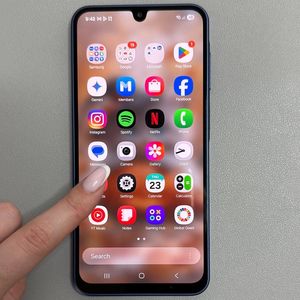
First, unlock your Samsung Galaxy A17 5G and access the main Settings app. Look for the gear-shaped icon on your home screen or in the app drawer and tap on it to open Settings.

Step 2: Navigate to General Management
Within the Settings menu, scroll down until you locate the option labelled 'General Management.' This section allows you to adjust various system settings related to languages, input, and more. Tap on 'General Management' to proceed.

Step 3: Access Keyboard Settings
In the General Management section, find and select the option called 'Keyboard List and Default.' This will take you to the area where you can manage both the keyboards installed on your device and the default keyboard setting.

Step 4: Choose Your Default Keyboard
Under 'Keyboard List and Default,' you will see a section labelled 'Default Keyboard.' Tap on this option to view the available keyboards on your Samsung Galaxy A17 5G. Simply select the keyboard you wish to set as default. For instance, you might prefer to switch back to the Samsung Keyboard if you've been using another one.