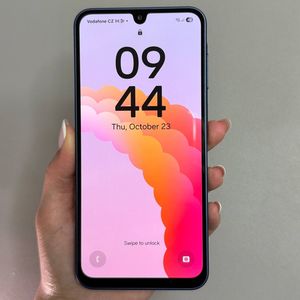
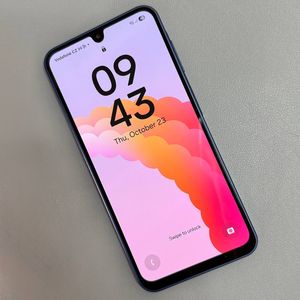
How to Revert Default Clock Style on Samsung Galaxy A17 5G
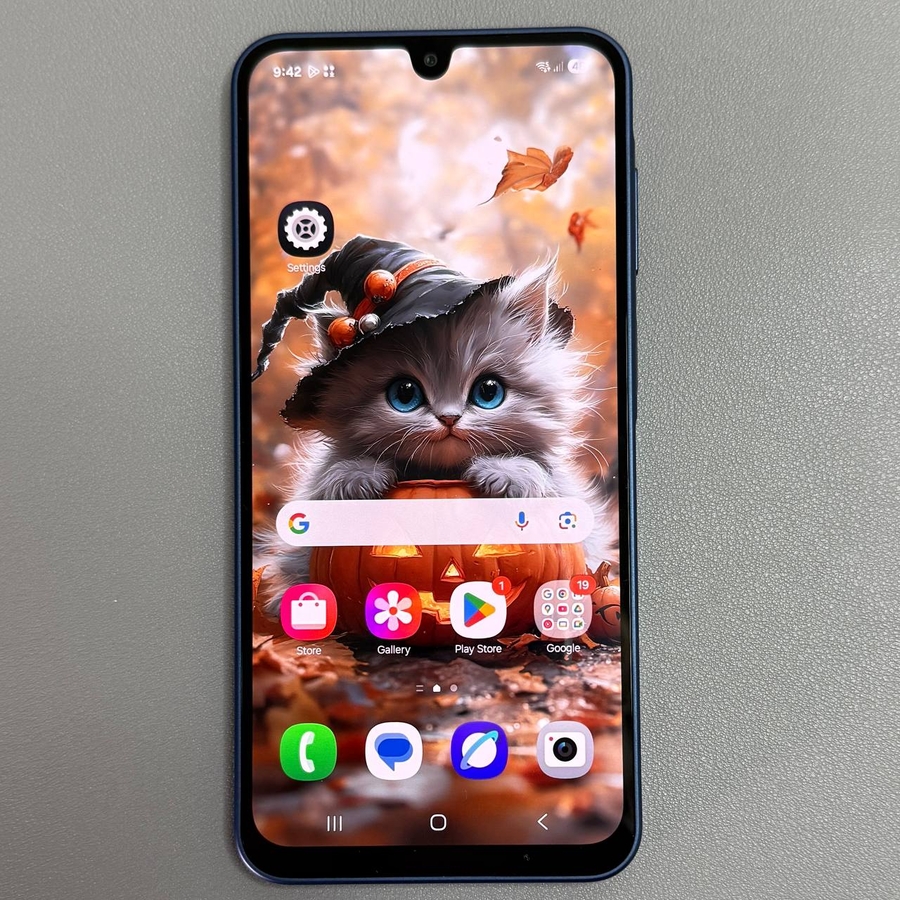
Your Samsung Galaxy A17 5G offers a wide range of customisation features, including the ability to change the clock style on your lock screen. While experimenting with different designs can be fun, sometimes you might want to revert back to the clean, default clock look. This guide will walk you through the steps to accomplish just that. Follow these instructions to restore the default clock style on your Galaxy A17 5G lock screen with ease.
Step 1: Access the Lock Screen Editor
To begin, unlock your Samsung Galaxy A17 5G if it's locked. Then, press and hold on the lock screen until you are prompted to enter your passcode. This will grant you access to the lock screen editor, where you can adjust various settings of your lock screen.

Step 2: Select the Clock
In the lock screen editor interface, tap on the clock. This action will open the clock customisation menu, allowing you to see all the clock style options available.

Step 3: Choose the Default Clock Style
Navigate to the style section. Here, you'll find various clock style options you've previously explored. Simply scroll to the very first clock style option in the list, which usually represents the default design. Selecting this will revert your lock screen clock to its original appearance.

Step 4: Adjust Font and Colour
Next, ensure your clock font and colour are also set to default. To do this, select black as the font colour. Alternatively, you can use the 'A' option, which adapts to your wallpaper design. This will complete the changes needed to make your lock screen clock revert to its default settings.


Step 5: Finalise Your Changes
After making your clock style, font, and colour selections, tap on 'Done' (done) to apply the changes. Congratulations! You have successfully reverted your Samsung Galaxy A17 5G lock screen clock to its default style.

By following these steps, you can easily transition your Samsung Galaxy A17 5G lock screen back to the default clock style.