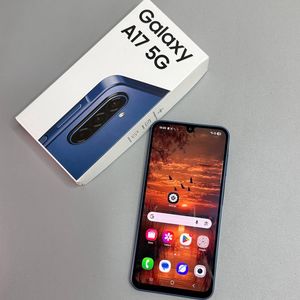
How to Set Up Secure Folder on Samsung Galaxy A17 5G
Welcome to our comprehensive guide on how to create and use a Secure Folder on your Samsung Galaxy A17 5G. This feature provides an extra layer of security for your photos, videos and applications, keeping them safe from prying eyes. In this guide, we will walk you through the steps to set up and use the Secure Folder efficiently so that your private files remain well-protected.
Step 1: Access Your Gallery
To begin, unlock your Samsung Galaxy A17 5G and tap to open the Gallery app. You can usually find this app among your phone's main icons or by scrolling through your app menu. Once inside, if you have previously locked your gallery, enter the required password to unlock it and access your photos.

Step 2: Select the Photos or Videos to Hide
Now, browse through your gallery and select the photos or videos you wish to hide. Tap and hold on a photo to initiate selection mode, then tap additional items to select them. Once you have chosen the files, you're ready to proceed to the next step.

Step 3: Move to Secure Folder
With your files chosen, look for the three-dot menu icon located in the top-right corner of the screen. Tap it, and from the drop-down menu, select 'Move to Secure Folder' (move to secure folder). A prompt titled 'Welcome to Secure Folder' (welcome to secure folder) will appear, guiding you through the setup process.

Step 4: Set Up Your Secure Folder
Follow the on-screen instructions to continue setting up your Secure Folder. You may be asked to verify your identity using your Google account or phone number. Select 'Sign in with Google' (sign in with Google) and use your email address for verification. Continue to proceed, as the system sets up your Secure Folder environment.

Step 5: Finalise Setup
Proceed with the setup, agreeing to terms and conditions when prompted. Enter your Samsung account details or create a new account if necessary. The system may request a security pin or pattern as an additional precaution. Complete these steps, and your Secure Folder will now be ready and secured.


You have now successfully set up a Secure Folder on your Samsung Galaxy A17 5G. This safe space ensures that your personal data, such as photos and videos, are protected.