How to Add a Dual Clock Widget on Samsung Galaxy A17 5G
If you often keep track of different time zones, having a dual clock widget on your Samsung Galaxy A17 5G can be immensely helpful. This guide will walk you through the steps of adding and customising a dual clock widget, so you can view two time zones right from your home screen.
Access the Home Screen Editor
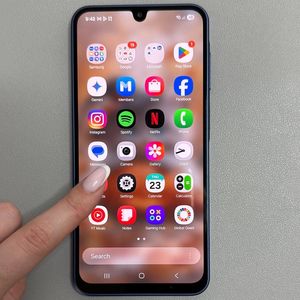
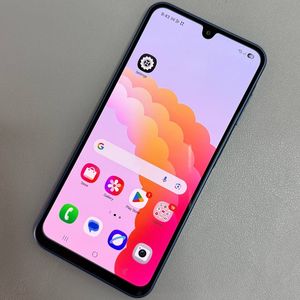
To begin, make sure your Samsung Galaxy A17 5G is unlocked and on the home screen. Tap and hold on an empty space on the home screen until it transitions into the home screen editor mode. This is where you can make changes to your home screen layout and add widgets.

Locate and Add the Dual Clock Widget
Within the home screen editor, find and tap on the 'Widgets' option. Once inside the widgets menu, search for the 'Clock' section to view the available clock styles. Navigate through the styles until you find the 'Dual Clock' option. Tap on 'Dual Clock' and then select 'Add' (add) to place the widget on your home screen.

Position the Dual Clock Widget
After adding the widget, you can adjust its placement. Simply tap and hold the widget and drag it to your preferred location on the home screen. To move the widget across different home screen pages, drag it to the screen's edge until it transitions to the adjacent page. Release the widget to set it in its new position.

Customize the Cities Displayed on the Widget
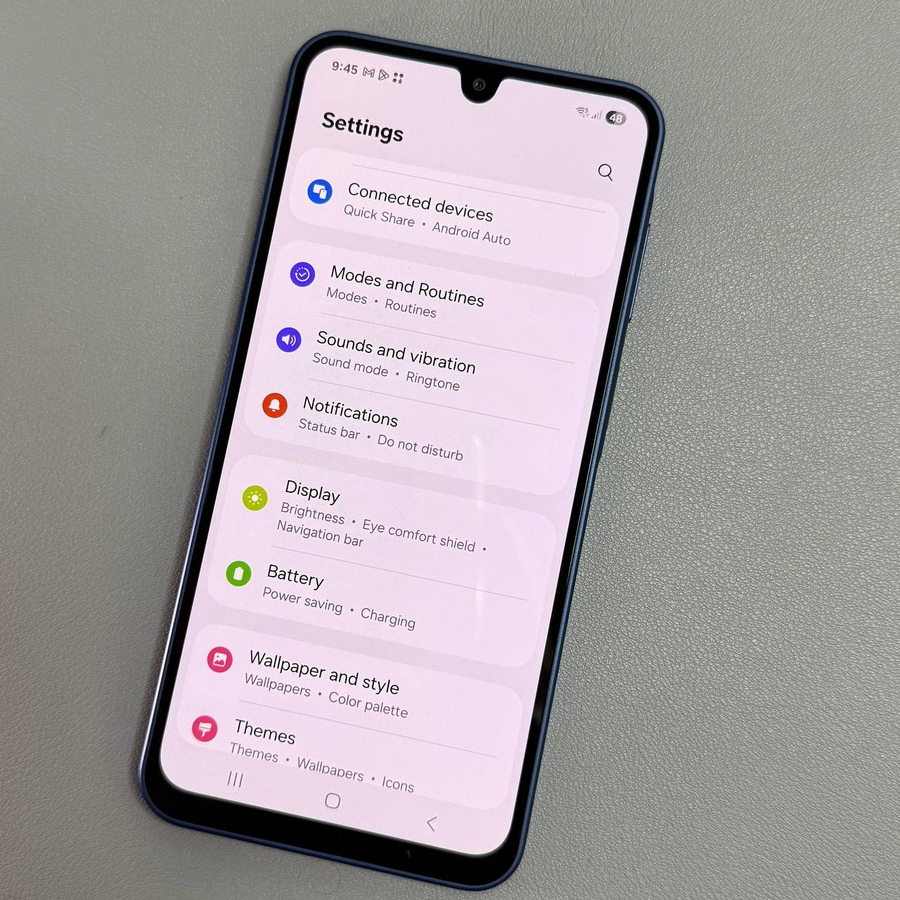
To personalise the dual clock widget, tap and hold the widget again and select 'Settings' (settings). In the settings menu, you can change the cities being displayed. For each city slot, tap the existing city name, and use the globe symbol or search function to find and select your desired city. Once selected, confirm the change.

Adjust Widget Colour and Opacity
In the same settings menu, you can adjust the widget's appearance by changing its colour scheme and opacity. By default, the widget utilises day and night colours based on the cities' time zones. If desired, disable day and night colours to select from black or white themes and modify opacity. Apply these settings to match your phone's dark mode, if preferred.


Finalise Your Settings
Once you've made all your desired customisations, be sure to tap 'Save' (save) within the settings to apply the changes. Now, your dual clock widget should showcase the time in your chosen cities with the appearance and settings that best suit your preferences.