Samsung Galaxy A17 5G - How to Enable or Disable Auto Rotate
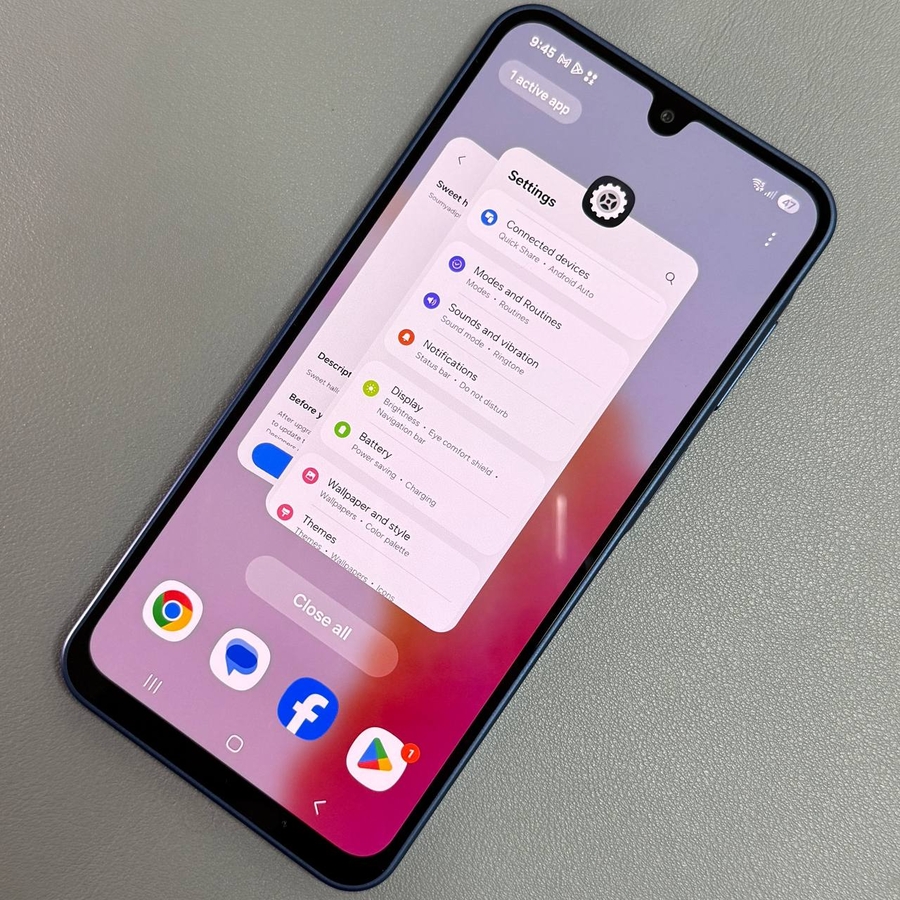
If you've just unpacked your Samsung Galaxy A17 5G and are excited to explore its features, one essential aspect you might want to configure is the auto rotate function. Whether you're looking to enable or disable it, we've got you covered with an easy-to-follow guide.
Step 1: Access the Quick Settings Panel
To begin with, you'll need to access the Quick Settings panel on your Samsung Galaxy A17 5G. This is where the shortcut for the auto rotate feature is located. Simply swipe down from the top of your screen to reveal the Quick Settings menu. This action will work from almost any screen on your device, providing swift access to a range of settings.

Step 2: Locate the Auto Rotate Icon
Once you have the Quick Settings panel in view, look for the auto rotate icon. On Samsung devices, the icon might display either "Auto Rotate" (auto rotate) or "Portrait" (portrait), depending on its current status. In its disabled state, the text "Portrait" (portrait) will appear next to a greyed-out icon. This indicates that your screen orientation is locked.

Step 3: Enable or Disable Auto Rotate
To change the auto rotation setting, simply tap on the auto rotate icon. If it currently reads "Portrait" (portrait), tapping it will switch the setting to auto rotate, and the icon will become highlighted, usually white, indicating that the feature is now active. Conversely, if you wish to disable it, tap again until it displays "Portrait" (portrait) and turns grey.

And there you have it! By following these simple steps, you can effortlessly toggle the auto rotation feature on your Samsung Galaxy A17 5G to suit your preference.