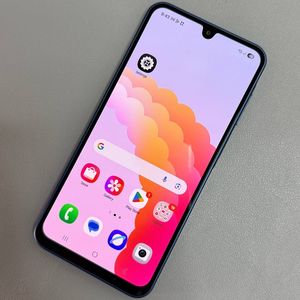
How to Reset Camera Settings on Samsung Galaxy A17 5G
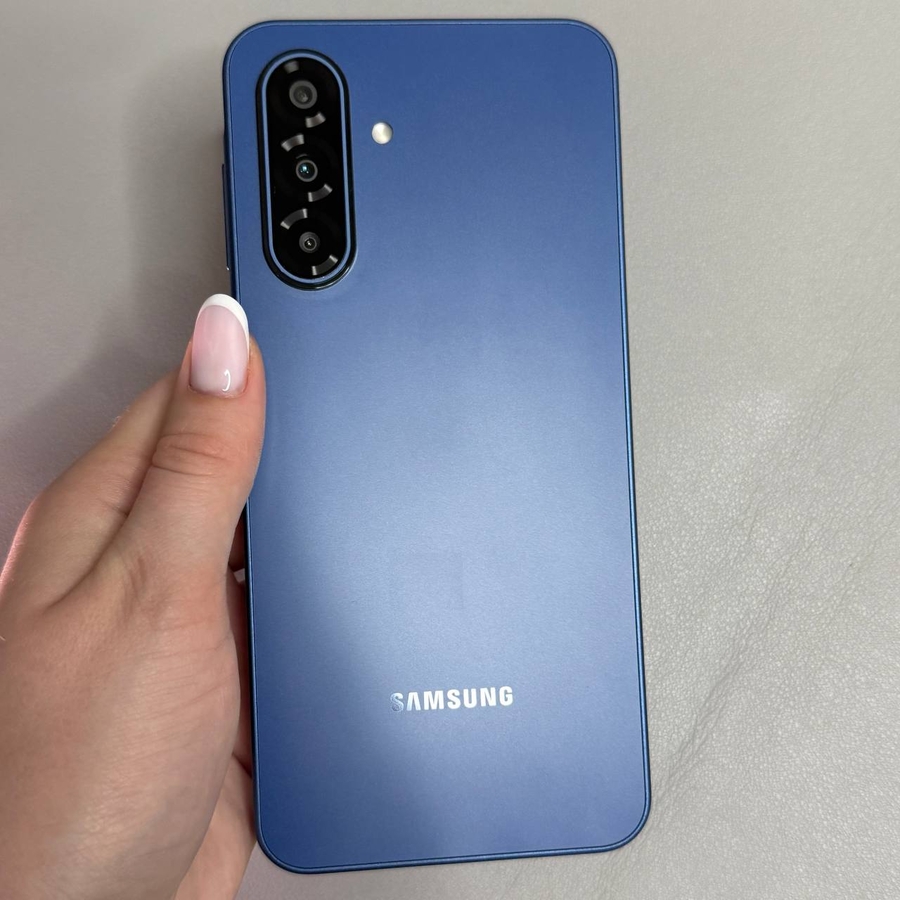
If you have been adjusting your camera settings on the Samsung Galaxy A17 5G and wish to start fresh, resetting the camera settings is a simple process. This guide will walk you through how to reset your camera to its default settings quickly and easily.
Step 1: Open the Camera App
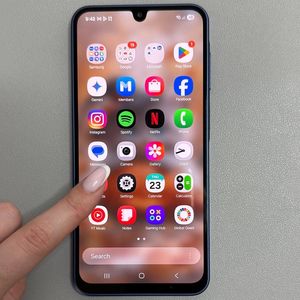
To begin, unlock your Samsung Galaxy A17 5G and locate the camera application. You can usually find its icon, which resembles a camera, on the home screen or within the app drawer. Tap on the icon to open the camera app.

Step 2: Access Camera Settings
Once the camera app is open, look for the settings icon, often depicted as a gear, which can typically be found in the upper-right corner of the screen. Tap on this gear icon to enter the camera settings menu.

Step 3: Reset Camera Settings
In the camera settings menu, scroll through the options until you see the 'Reset Settings' (reset settings) option. Tap on it once. A confirmation prompt will appear on your screen, asking if you are sure you want to proceed. Confirm your decision, and the camera settings will reset to their default configurations.