How to Scan QR Codes on Samsung Galaxy A17 5G
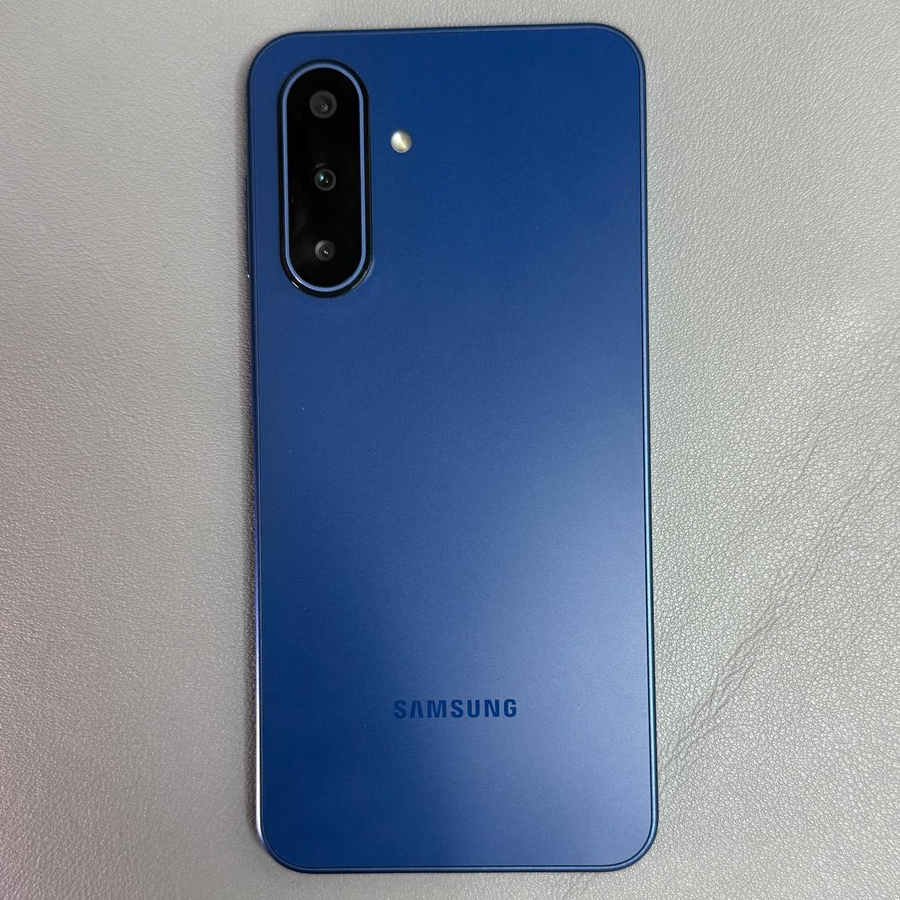
QR codes are more prevalent than ever, often used to share information quickly and conveniently. If you own a Samsung Galaxy A17 5G, you have a powerful tool in your hands. This guide will walk you through the simple steps required to scan a QR code using your device's camera. Let's get started on this easy and practical feature on your phone.
Step 1: Open the Camera App
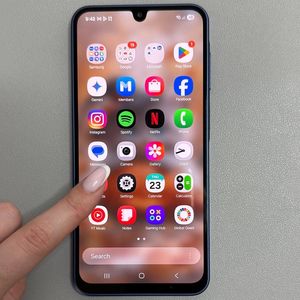
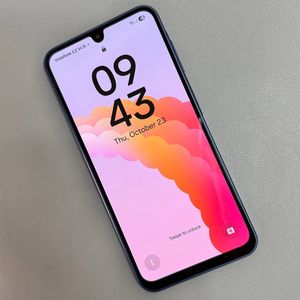
To begin, unlock your Samsung Galaxy A17 5G and find your camera app. The camera icon usually resembles a small camera and should be easily found on your home screen or within your app drawer. Tap on the icon to open your camera view.

Step 2: Access Camera Settings
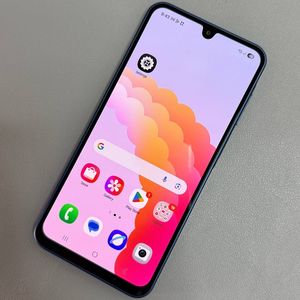
Once the camera app is open, look for the settings icon, which typically looks like a gear. It is located either at the top or bottom of your screen. By tapping it, you will access the camera settings menu, where you can adjust various features.

Step 3: Enable QR Code Scanning
In the camera settings, scroll through the options until you find "Scan QR codes" (scan QR codes). Make sure this feature is toggled on. If it is not enabled, simply tap the toggle switch, and it will turn on, ready for you to scan any QR codes.

Step 4: Scan the QR Code
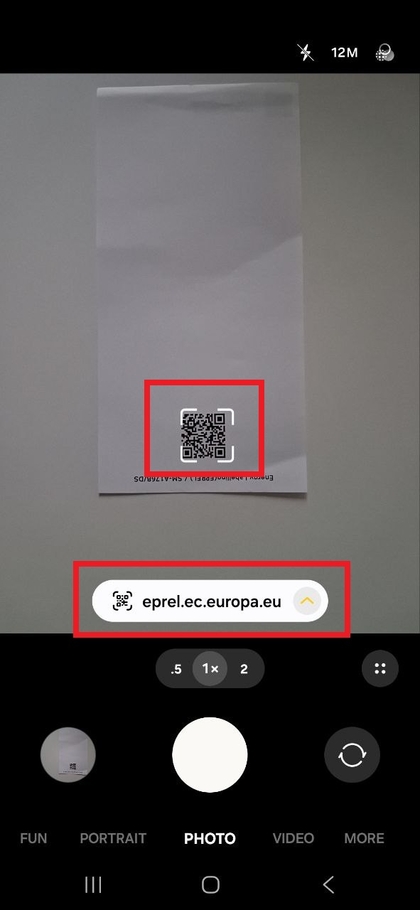
With your camera settings ready, return to the main camera view. Hold your device's camera over the QR code you wish to scan. Your Samsung Galaxy A17 5G will automatically recognise and scan the code, displaying a link on your screen. Once the QR code is scanned, you will see a notification or a link on your camera screen. Tap this link to be redirected to the website or view the information provided by the QR code. This easy access makes connecting with digital content simpler than ever.