How to Set Screen Lock Type on Samsung Galaxy A17 5G
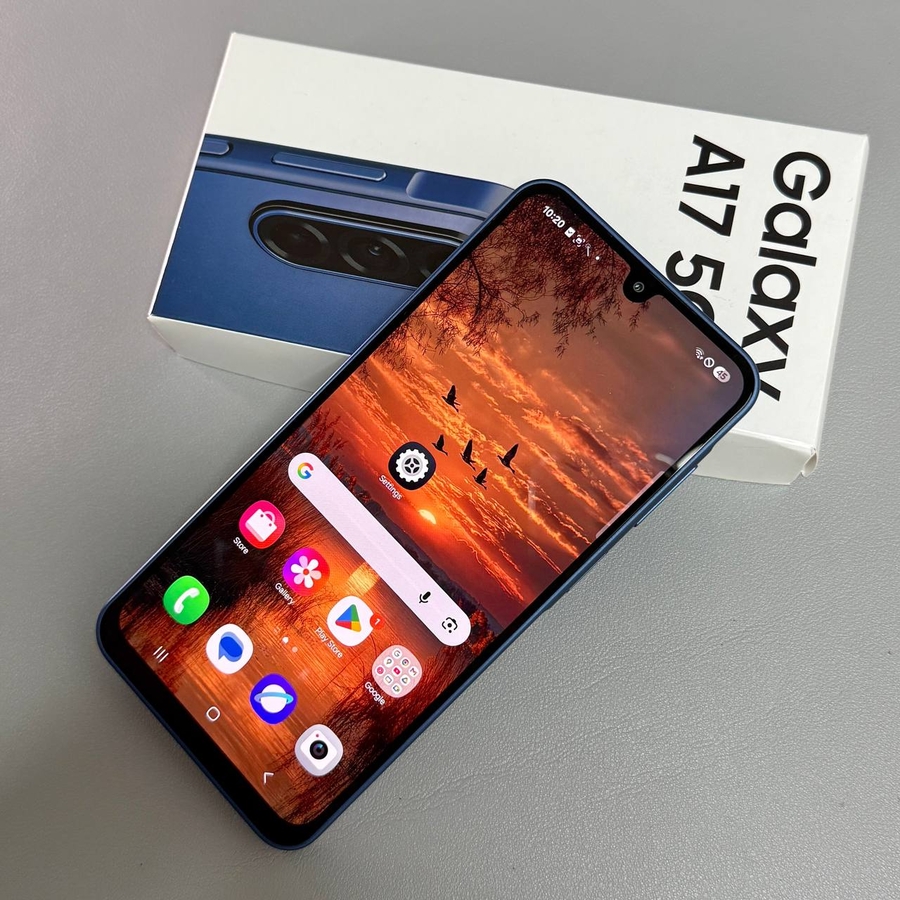
Securing your Samsung Galaxy A17 5G with a screen lock is an essential step to protect your personal information and keep your activities private. In this guide, we will walk you through the straightforward process of setting up a screen lock on your device, whether you prefer using a PIN, password, or pattern.
Step 1: Open the Settings App
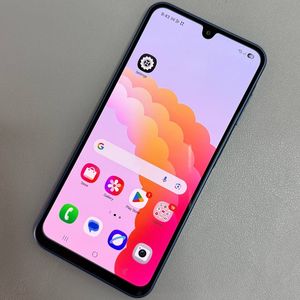
To begin the process, unlock your Samsung Galaxy A17 5G and locate the Settings app. This app can typically be found on your home screen or within your app drawer, represented by a gear-shaped icon. Tap on the icon to open your device's settings.

Step 2: Navigate to Lock Screen Options
Once you're in the Settings app, scroll down to find the 'Lock Screen' option. This section contains all the settings related to your device's screen lock features. Tap on 'Lock Screen' to proceed.

Step 3: Choose Screen Lock and Biometrics
Within the 'Lock Screen' settings, locate and select 'Screen Lock and Biometrics'. This is where you can choose how you'd like to secure your device. Tap on this option to explore the available screen lock types.

Step 4: Select Your Preferred Lock Type
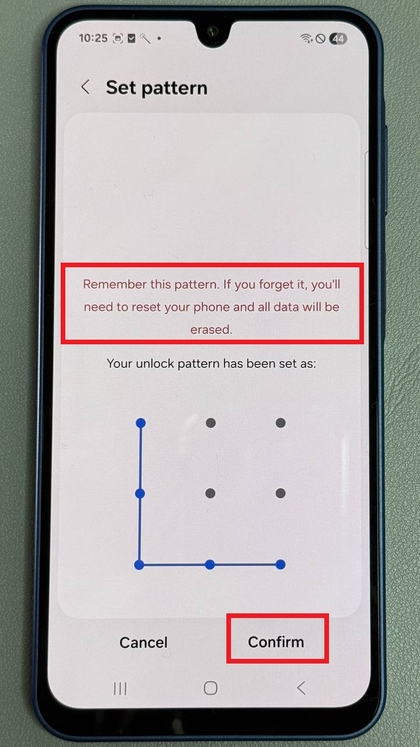
After you access the 'Screen Lock and Biometrics' section, you will see various options such as PIN, Password, or Pattern. Choose the lock type that you find most convenient and secure by tapping on it.

Step 5: Enter and Confirm Your Choice
Once you select your preferred lock type, your phone will prompt you to enter the required information, such as a PIN or password. Carefully input your selected lock and tap on 'Continue' (continue). You will need to enter it again to confirm your choice, ensuring there are no errors.