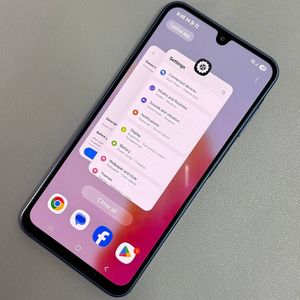
How to Clone Apps on Samsung Galaxy A17 5G
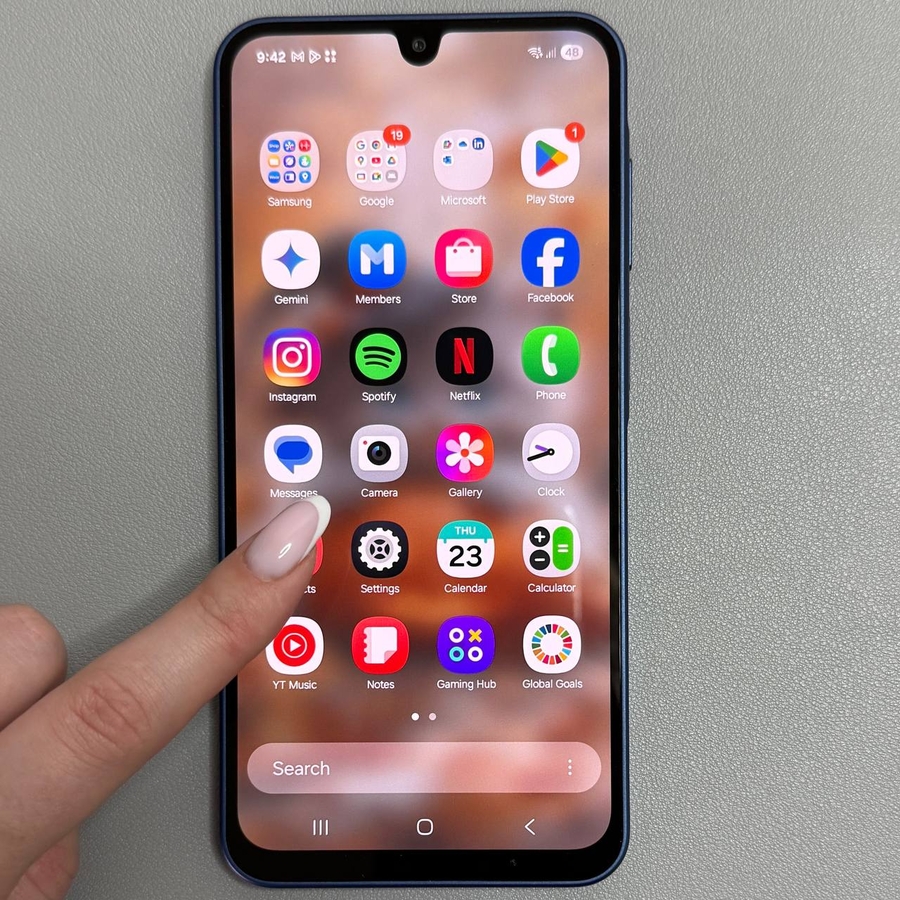
In today's guide, we will walk you through the steps to clone apps on your Samsung Galaxy A17 5G. Fortunately, this Samsung smartphone makes it quite easy to clone applications without the need for third-party downloads or complex tricks. By utilising the built-in Dual Messenger feature, you can effortlessly replicate apps and enjoy using multiple accounts on your device.
Step 1: Access the Settings
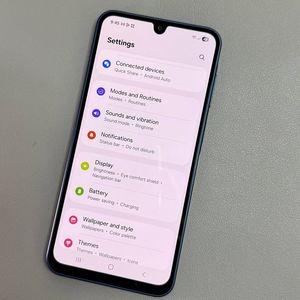
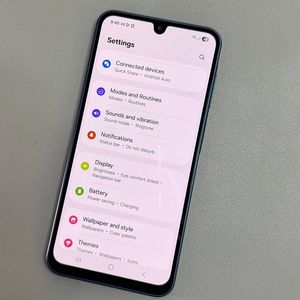
To start the app cloning process, unlock your Samsung Galaxy A17 5G and head over to the Settings app. You can typically find the Settings icon appearing as a grey gear on your home screen or within the app drawer.

Step 2: Navigate to Advanced Features
Once you have opened Settings, scroll through the menu until you find the option labelled 'Advanced Features'. Tap on it to proceed to the next stage of the app cloning process.

Step 3: Enable Dual Messenger
In the 'Advanced Features' section, scroll down to locate and tap on 'Dual Messenger'. This option allows you to enable a second instance of compatible apps, perfect for managing multiple accounts.

Step 4: Select the App to Clone
Under the Dual Messenger settings, you will see a list of apps available for cloning. Simply tap the grey toggle switch next to the app you wish to clone. A pop-up screen will appear; click 'Install' (install) to confirm your decision. Wait a moment for the process to complete, and you'll see your app cloned successfully.

Step 5: Manage Contacts
If you wish to keep a separate contact list for the cloned app, you can enable this feature. Activate it by switching the toggle at the upper right corner labelled 'Use separate contact list'. Then, tap 'Select contacts' (select contacts) to choose which contacts to include. Once finished, press 'Done' (done) and go back to the previous screen.


Step 6: Deleting a Cloned App
If you decide to remove the cloned app for any reason, you can easily do so. Simply return to the Dual Messenger settings, tap the blue toggle switch next to the app you wish to delete, and select 'Uninstall' (uninstall) in the pop-up menu.

By following these straightforward steps, you can manage multiple accounts on your favourite apps by cloning them directly on your Samsung Galaxy A17 5G. This versatile feature enables you to keep your professional and personal lives separate with ease.