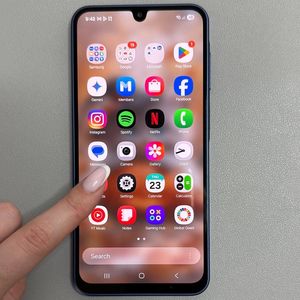
How to Add a Google Account on Samsung Galaxy A17 5G
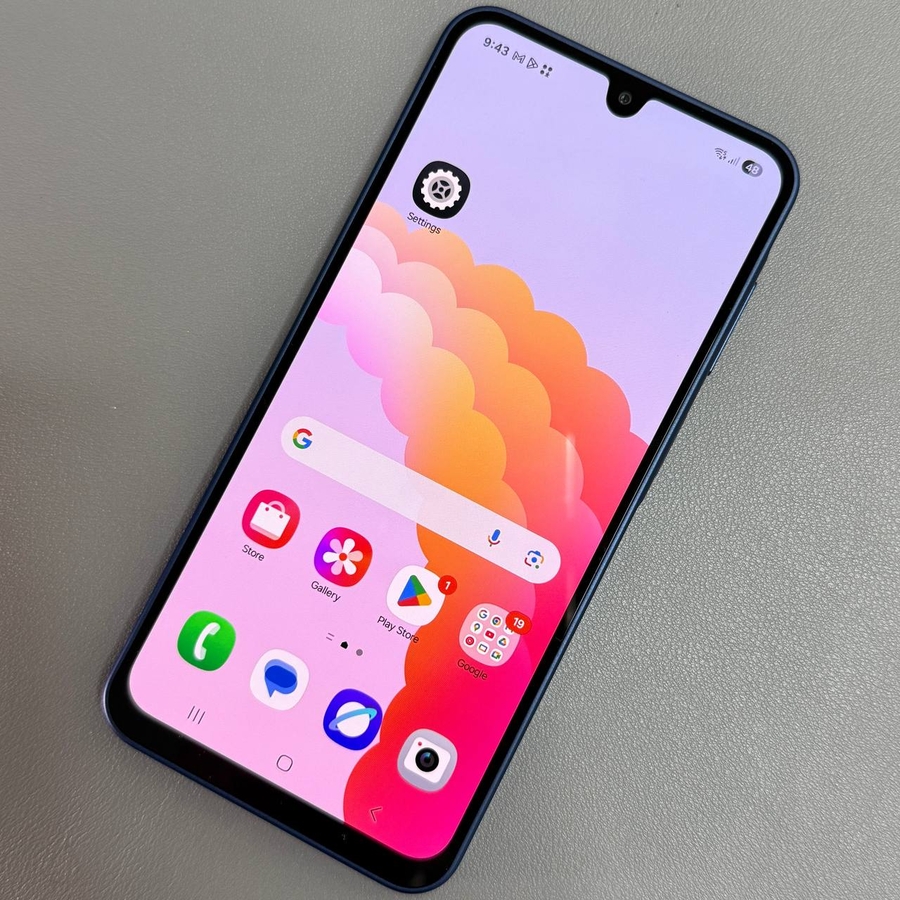
Welcome to our guide on adding a Google Account to your Samsung Galaxy A17 5G smartphone. This step-by-step tutorial is designed to assist you in seamlessly integrating your Google services with your device, providing you with access to a host of features, from email to the Google Play Store. Let's dive into the process!
Accessing Settings
To kick things off, unlock your Samsung Galaxy A17 5G and locate the Settings application. This app is typically represented by a gear icon and can be found on your home screen or within the app drawer. Once you've opened the Settings, scroll down near the bottom to find the option labelled "Accounts and Backup."

Choosing the Account Setup Method
Now, you have two possible routes to add your Google account. You can either select "Google" directly and tap "Sign In" (sign in), or you can opt for "Manage Accounts" (manage accounts), followed by "Add Account" (add account), and then choose "Google." Both options are valid, but the second approach requires a couple more taps. The images below illustrate these options, making it easier for you to follow along.


Entering Your Security Credentials
You will be prompted to enter your device security credentials to proceed. Whether it's a PIN, pattern, or password, make sure to input it correctly to access the account setup interface.

Signing In with Your Google Account
Next, enter the email address or phone number associated with your Google account. You don't need to manually add "@gmail.com"—the setup process will handle this for you. Enter your password and, after ensuring it's correct, tap "Next" (next) to continue.

Agreeing to Terms and Enabling Backup
Make sure to carefully read the Google Play Terms of Service and Google Privacy Policy. Tap "I Agree" (I agree) to proceed. Enabling Google Backup is crucial for safeguarding your data, so it's highly recommended to keep this option activated.


Finalizing the Setup
After tapping "Accept" (accept), your Google account should be successfully added to your Samsung Galaxy A17 5G. You can now enjoy the full array of Google services, such as browsing the Play Store and accessing Gmail. Explore these features to get the most out of your device!