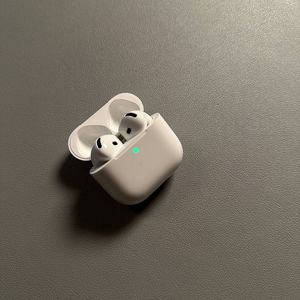
How to Unpair Apple AirPods 4 with ANC from iPhone
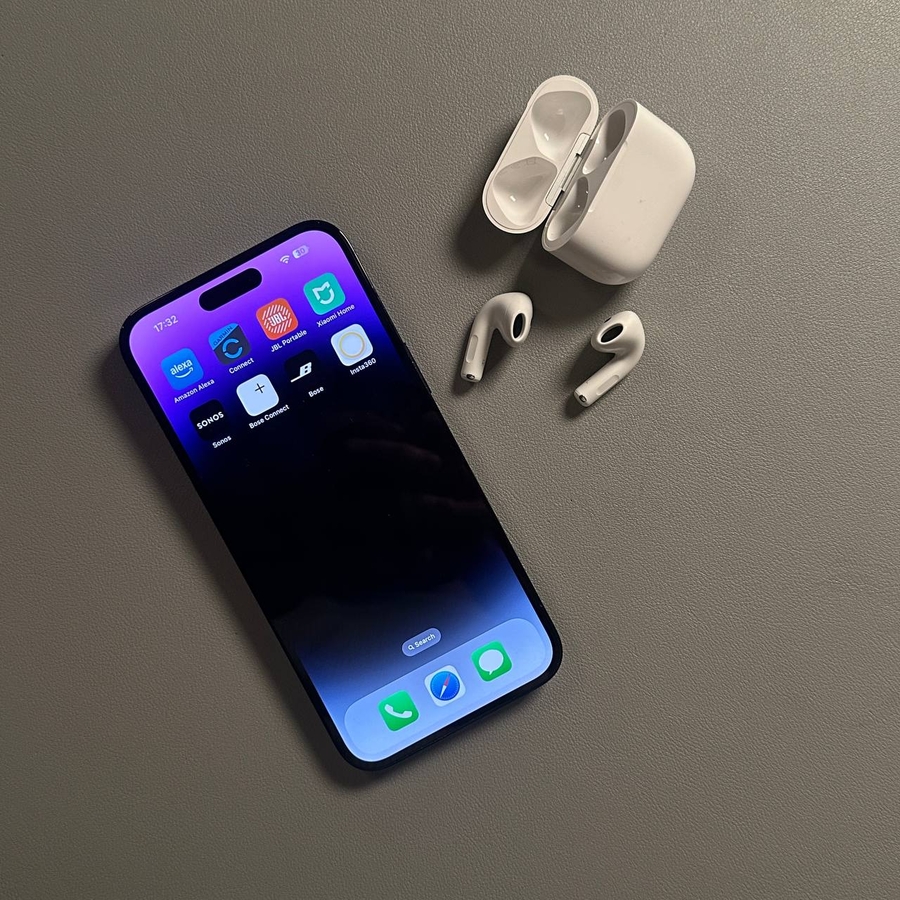
Unpairing your Apple AirPods 4 from your iPhone is simple enough for anyone to do. Follow these easy steps to disconnect and forget your AirPods from your iPhone effortlessly.
Step 1: Open Your iPhone Settings
To begin, unlock your iPhone and locate the Settings app. This is usually represented by a gear icon and can be found on your home screen or within your app library. Tap on it to open the menu with all your device's configuration options.

Step 2: Navigate to Bluetooth Settings
Within the Settings menu, scroll down until you find the option labeled 'Bluetooth'. Tap on it to view a list of all Bluetooth devices currently connected or paired with your iPhone, including your AirPods.

Step 3: Select Your AirPods
Locate your AirPods 4 from the list of devices. This should be easy if they are connected as they will appear with a label like 'AirPods' followed by your name or a generic identifier. Tap the information icon, often found next to your AirPods name. It's usually represented by a small 'i' inside a circle.

Step 4: Disconnect Your AirPods
Once on the AirPods settings page, find the 'Disconnect' button. Tapping this will break the active connection between your iPhone and your AirPods, but it will not unpair them completely from your device.

Step 5: Forget This Device
After disconnecting, you will want to remove the AirPods from your iPhone's memory. To do this, tap on 'Forget This Device'. You might need to confirm this action, so go ahead and approve any prompts asking for confirmation.

Step 6: Remove from iCloud
For users who utilize iCloud, it's wise to ensure your AirPods are also removed from any iCloud device lists. If prompted, confirm that you want to remove this device from your iCloud account to prevent it from pairing with other devices tied to your account.