Samsung Galaxy S25 FE - How to Set Up Power Button
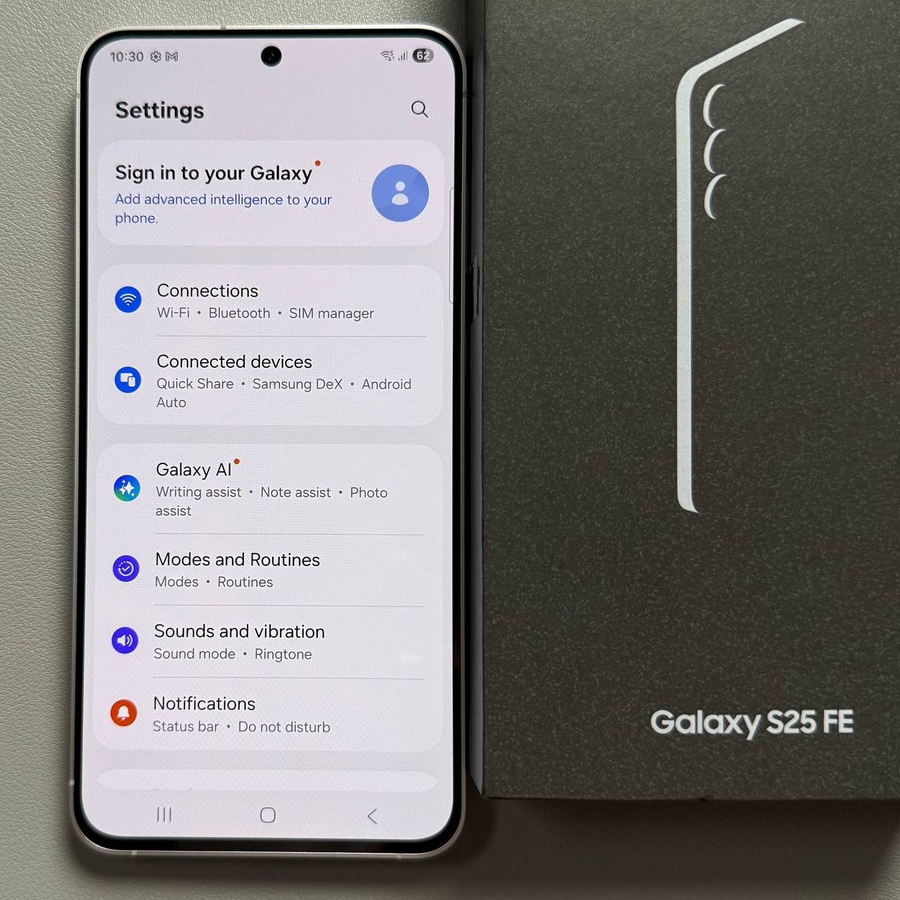
Recently got a Samsung Galaxy S25 FE? By default, long-pressing the power button launches Google Assistant. This guide will show you how to adjust it to bring up the power menu, making device shutdown quick and easy.
Step 1: Access the Settings App
First, to start customising the power button, you will need to open the main Settings app on your Samsung Galaxy S25 FE. You can locate it by swiping down from the top of your screen to reveal the notification shade and then tapping the gear-shaped icon in the upper-right corner.

Step 2: Navigate to Advanced Features
Within the Settings menu, scroll down until you see the option labelled 'Advanced Features.' This section contains a variety of controls and customisations for enhancing your phone usage experience.

Step 3: Select the Side Button Option
Once in the Advanced Features, find and select the option called 'Side Button.' Here, you can adjust how the power button - also referred to as the side button - functions when you long press it.

Step 4: Choose the Power Off Menu
Finally, in the Side Button settings, you will see different options for what occurs when you long press the side button. Select the option that says 'Power Off Menu' (power off menu). After making this selection, exiting the settings will now allow you to bring up the power menu directly with a long press of the power button.


Alternative Way to Power Off Your Phone
In addition to configuring the power button, you can also power off your Samsung Galaxy S25 FE through the quick settings panel. Simply swipe down twice from the top of the screen to fully open the control centre (center), and look for the power icon near the battery percentage. Tap it to access the power menu, then choose 'Power Off' (power off) to turn off your device.


You're all set! Now, powering off your device is faster with the new settings.