Samsung Galaxy S25 FE: How to Revert Back to Default Theme
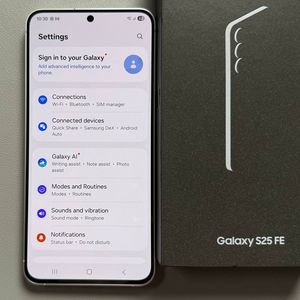
Want to know how to change back to the default theme on your Samsung Galaxy S25 FE? Whether you're looking to undo a theme change, or you'd just prefer the original look, this guide will walk you through the simple steps to restore your phone's default theme settings.
Access the Galaxy Theme Store
Start by opening the Galaxy Theme Store on your Samsung Galaxy S25 FE. There are two ways to do this: you can either long press an empty area on your home screen and select "Themes" (themes) from the popup menu, or you can open your app drawer, tap on the "Settings" (settings) app, scroll down, and select "Themes" (themes). Either method will lead you directly to the Galaxy Theme Store.


Navigate to My Themes
Once inside the Galaxy Theme Store, look to the bottom right corner of your screen and tap on the "Menu" (menu) option. From the list that appears, select "My Stuff" (my stuff). This section contains all the themes you own. Ensure you're on the "Themes" (themes) tab to proceed with reverting your settings.

Apply the Default Theme
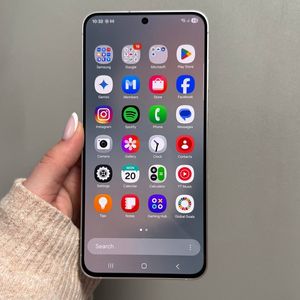
In the "My Stuff" (my stuff) section under the "Themes" (themes) tab, you'll find the "Default" (default) theme listed. Tap on it, and then select "Apply" (apply). This will change your phone's appearance back to its original theme, just like when you first got your Samsung Galaxy S25 FE. By doing this, all changes from any other theme packs you have used will be removed and your device will revert back to its default settings.

Final Steps
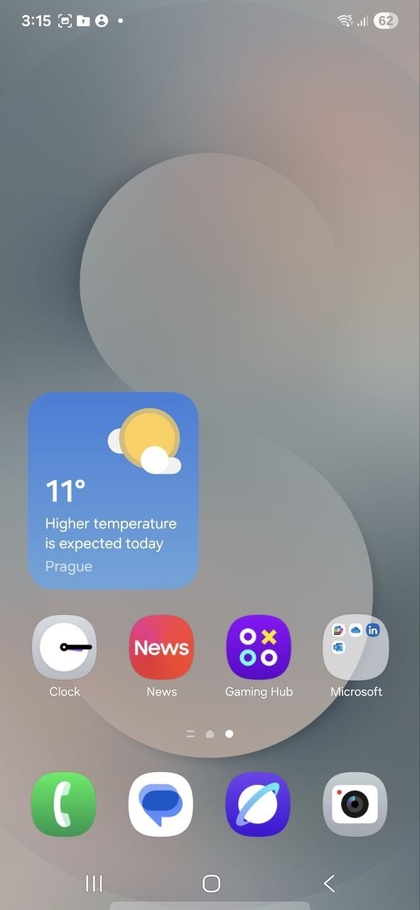
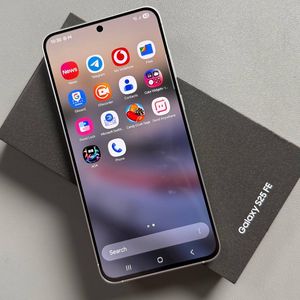
After applying the default theme, take a moment to glance through your home screen and settings. You should notice that everything has reverted to the familiar layout and colours you were initially used to.