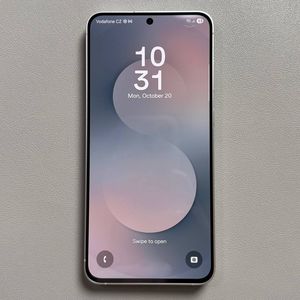
How to Remove Forgotten Password, PIN, or Pattern on Samsung Galaxy S25 FE
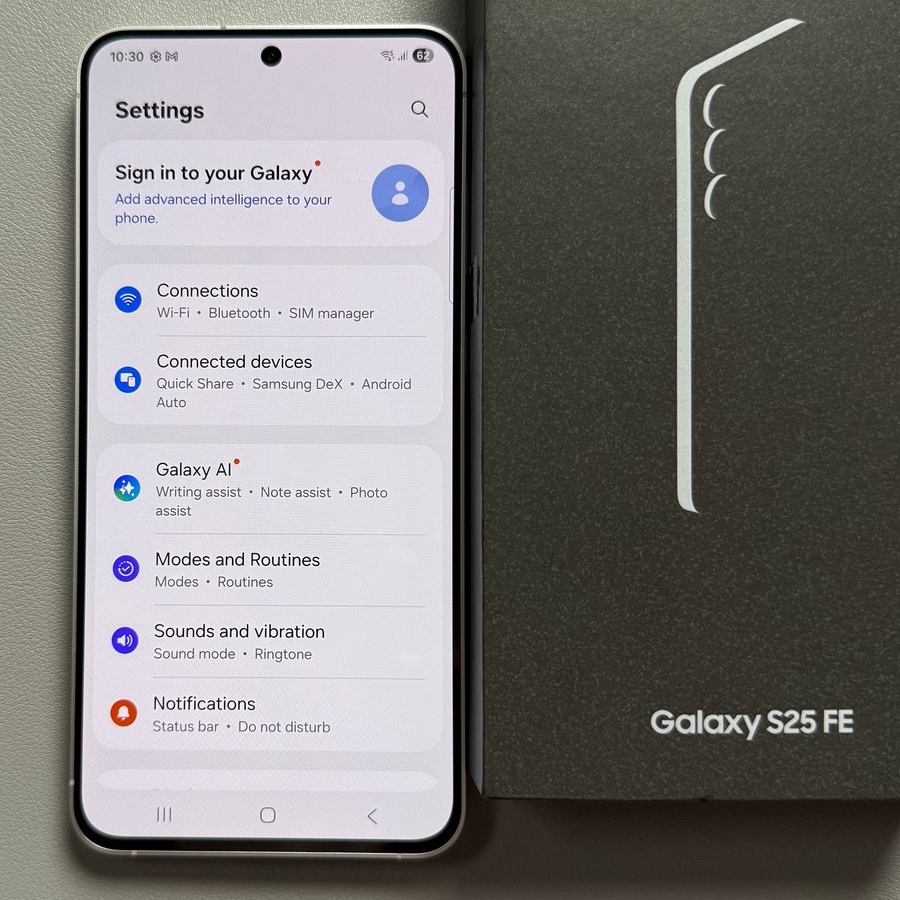
If you have forgotten the screen lock on your Samsung Galaxy S25 FE, performing a factory reset might be the solution. This process erases all data, so back up your information if possible before proceeding. You will also need access to the Google account linked to your device. Here's how you can reset your phone step-by-step.
Step 1: Prepare for Factory Reset
First, ensure your Samsung Galaxy S25 FE is connected to a computer or another Samsung phone using a USB-C cable. It's best to use the cable that originally came with your phone. This connection does not involve transferring files but prepares your device for subsequent steps.

Step 2: Enter Recovery Mode
Since your phone is locked, you can't power it off through regular means. Press and hold the Volume Down and Power buttons at the same time until the screen turns black. Immediately after, switch to holding the Volume Up button while still pressing the Power button. Release both buttons when the Samsung logo appears. This manoeuvre will boot your phone into Android Recovery Mode.

Step 3: Navigate to Wipe Data/Factory Reset
In Android Recovery Mode, use the Volume Down button to scroll through the options and highlight 'Wipe Data/Factory Reset.' Select this option by pressing the Side button. You'll be prompted with a warning message stating that all data will be erased. Confirm your action using the Volume Down button to choose 'Factory Data Reset' and press the Side button to proceed.

Step 4: Complete the Factory Reset Process
After the reset process concludes, 'Reboot System Now' should be the default selection. Press the Side button to restart your phone. Upon reboot, the initial setup screen will appear. Tap on 'Start' (start) and follow the on-screen instructions.

Step 5: Verify Device Ownership
During the setup, you might encounter a message indicating an unauthorised reset attempt was made. To continue, connect your device to a Wi-Fi or mobile network. If prompted to enter your screen lock credentials, tap 'Use Google Account Instead.' (use Google account instead). Log in with the Google account previously linked to the device. You might be asked to update your account details or be given the option to use a new or already-used account. Choose according to your preference and proceed with the setup.


Congratulations! You have successfully performed a factory reset on your Samsung Galaxy S25 FE. Remember, this should remain your last option in case of forgotten screen locks. Always consider backing up your data before performing a factory reset.