How to Switch Between Navigation Gestures and Buttons on Samsung Galaxy S25 FE
In this guide, we'll walk you through how to easily switch between navigation gestures and buttons on your Samsung Galaxy S25 FE. Whether you prefer using intuitive swipe gestures or the traditional button navigation, customising these settings can greatly enhance your smartphone experience. Let's dive into the steps!
Step 1: Open the Settings App
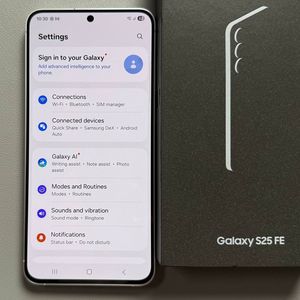
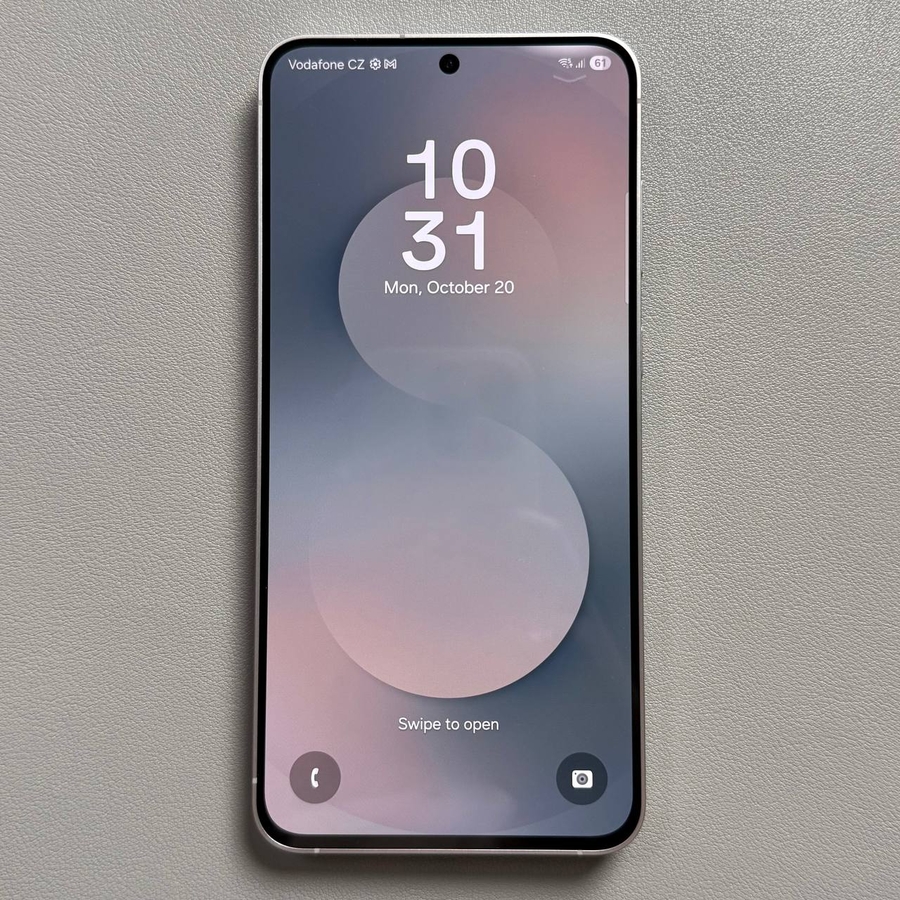
To get started, unlock your Samsung Galaxy S25 FE. Locate and open the Settings app, which is typically represented by a gear icon on your home screen or in your app drawer.

Step 2: Select the Display Option
Once you are in the Settings menu, scroll down until you see the option labelled 'Display'. Tap on 'Display' to view more options related to your screen settings.

Step 3: Access the Navigation Bar Settings
In the Display settings, look for 'Navigation bar'. When you find it, tap on it to access different options for configuring your device's navigation style.

Step 4: Choose Your Preferred Navigation Style
Within the Navigation Bar menu, you will see two options: 'Buttons' and 'Swipe gestures'. To switch to swipe gestures, simply tap on 'Swipe gestures'. You'll notice that the navigation bar at the bottom of the screen will change, indicating that you've successfully switched navigation types.


Step 5: Customise Additional Options
Once you've selected your preferred navigation style, consider exploring the 'More options' section. If you choose 'Buttons', you can rearrange their order to your liking. For 'Swipe gestures', you can adjust the sensitivity of gestures or make them further customisable as per your usage habits.

Exiting Settings
When you're satisfied with your navigation settings, simply exit the Settings app.