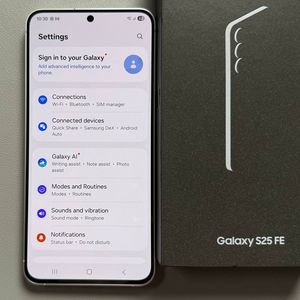
How to Set Up Fingerprint Unlock on Samsung Galaxy S25 FE

Elevate the security of your Samsung Galaxy S25 FE by setting up fingerprint unlock. Follow these steps to quickly and easily enable this convenient feature.
Step 1: Accessing the Settings
To initiate the process, begin by unlocking your Samsung Galaxy S25 FE. Once unlocked, look for the Settings app. This app commonly features a gear-shaped icon and is typically found on your home screen or within your app drawer. Tap to open it.

Step 2: Navigating to Lock Screen and AOD
Inside the Settings menu, scroll until you find the option labelled "Lock Screen and AOD" (Lock Screen and Always On Display). This section contains settings related to how your device appears when locked and how it can be unlocked. Tap to proceed.

Step 3: Selecting Screen Lock and Biometrics
Now, look towards the top area of the Lock Screen and AOD settings where you will see an option named "Screen Lock and Biometrics". This is where you can manage the methods used to unlock your device. Select this option to continue.

Step 4: Finding Fingerprints
Within the Screen Lock and Biometrics settings, you should see a variety of unlocking options. Find and select the "Fingerprints" option. This will direct you to the fingerprint setup interface.

Step 5: Registering Your Fingerprint
After selecting Fingerprints, it's time to register your fingerprint. You'll need to touch the designated sensor area on the bottom side of your screen. It's important to cover multiple angles and directions with your finger to ensure a thorough reading. Continue this process until your fingerprint is fully recorded.

Step 6: Completing the Setup
Once your fingerprint setup reaches 100%, you have successfully registered your fingerprint. Congratulations, your device is now more protected!