How to Back Up Your Samsung Galaxy S25 FE
Backing up your Samsung Galaxy S25 FE is a crucial step in safeguarding your valuable data. Whether you're looking to prevent data loss or simply want to switch devices, creating a backup ensures that all your important information is stored safely. In this guide, we'll walk you through easy steps to use Samsung Cloud, Google Drive, and an external storage device for backing up your device.
Method 1: Samsung Cloud Backup
Step 1: Access the Settings Menu
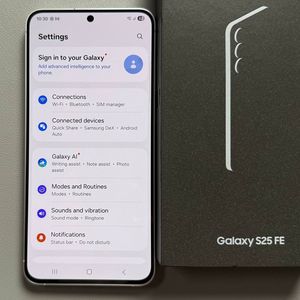
Begin by unlocking your Samsung Galaxy S25 FE and opening the main Settings app. You can find it by looking for the gear-shaped icon, either on your home screen or in the app drawer.

Step 2: Log Into Samsung Account and Select Data
You need to be logged in to your Samsung account. If you don't have one, you can create it here. Once logged in, you'll need to choose the types of data you want to back up, such as contacts, messages, and app data.


Step 3: Start Backup
Press the "Back Up Now" button to start the backup. The procedure should only take a few moments, and your data will be securely stored in the Samsung Cloud.

Method 2: Google Drive Backup
Step 1: Open Settings and Access Backup Options
Start by accessing the Settings app from your home screen. Once there, find "Accounts and Backup," and proceed to tap on "Backup Data" under Google Drive options.


Step 2: Enable Data Types for Backup
Make sure to enable all the categories of data you wish to back up, such as photos, videos, and app data. You'll also need to be logged into your Google account, as your backup will be stored here.

Step 3: Initiate the Backup Process
Once you've enabled all necessary data types, tap the "Back Up Now" button. A progress circle will indicate that the backup is underway. When it disappears, the process is complete.

With just a few simple steps, you can keep your important data on the Samsung S25 FE safe and secure. Don't wait for a problem to happen—back up today and stay protected.