How to Reset Network Settings on Samsung Galaxy S25 FE
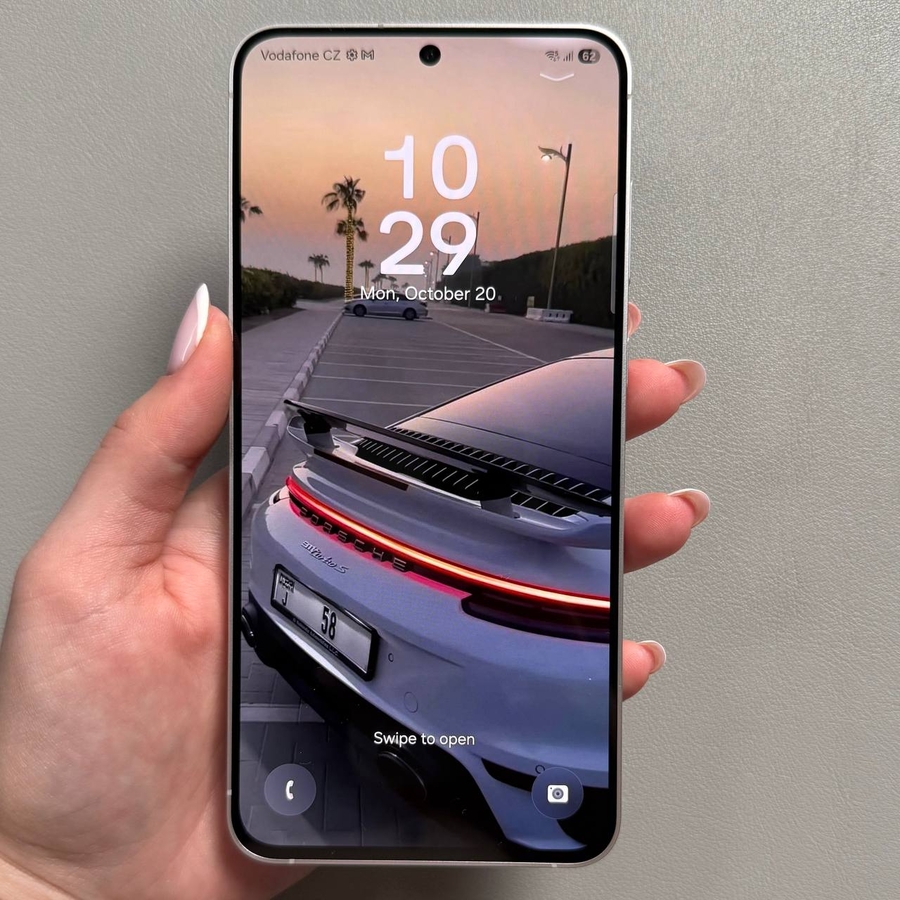
If you're having trouble with your Wi-Fi or Bluetooth connections on your Samsung Galaxy S25 FE, resetting your network settings can often resolve these issues. This guide will walk you through each step of the process, ensuring that even those new to technology can follow along easily.
Step 1: Access the Settings Menu
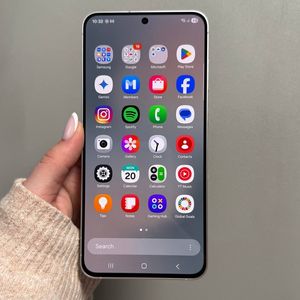
To begin, unlock your Samsung Galaxy S25 FE and navigate to the 'Apps' menu. You'll want to locate the Settings application, which typically looks like a gear icon. Tap on this icon to open the Settings menu.

Step 2: Select General Management
Once you are in the Settings menu, scroll down to find and select the option labelled 'General Management'. This is where you can find various system settings, including reset options.

Step 3: Navigate to Reset Options
In the General Management section, you will see the 'Reset' (reset) option. Tap on this to access the various reset settings available on your device.

Step 4: Choose to Reset Network Settings
From the reset options, look for and select 'Reset Mobile Network Settings' or 'Reset Wi-Fi and Bluetooth Settings'. This will allow you to reset your Wi-Fi, mobile data, and Bluetooth settings. Once selected, you'll need to confirm your choice. The process is quick and will reset all network-related settings.

Step 5: Confirmation
After confirming your choice, the device will immediately proceed with resetting the network settings. This should resolve any connectivity issues you were experiencing with Wi-Fi or Bluetooth.