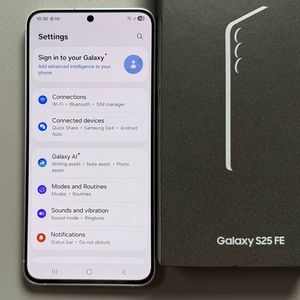
How to Enable or Disable TalkBack on Samsung Galaxy S25 FE
Welcome to this comprehensive guide on how to enable or disable the TalkBack feature on your Samsung Galaxy S25 FE. It audibly reads out the content you touch on your screen, helping users navigate their device without needing to see it.
Step 1: Access Settings on Your Samsung Galaxy S25 FE
To begin, unlock your Samsung Galaxy S25 FE and open the Settings app. You can locate it by looking for the gear-shaped icon on your home screen or within your app drawer.

Step 2: Locate the Accessibility Menu
Once in the Settings app, scroll down using two fingers if TalkBack is on. Scroll downwards to find and select 'Accessibility'. Make sure to double-tap to enter this menu.

Step 3: Find and Select TalkBack
In the Accessibility menu, look for the 'TalkBack' option. This is where you can control the feature. Double-tap to open the TalkBack settings.

Step 4: Enable or Disable TalkBack
You will see a toggle switch to either enable or disable TalkBack. If you want to turn it off, select the toggle and double-tap it. To confirm your action, select and double-tap the 'Turn off' (turn off) button. If you wish to enable it, simply repeat this step to toggle it on.


Congratulations! You have successfully enabled or disabled TalkBack on your Samsung Galaxy S25 FE.