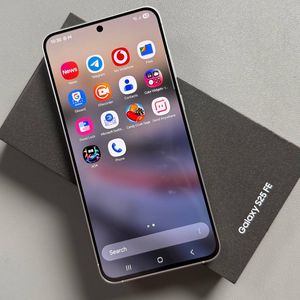
Samsung Galaxy S25 FE - How to Set Up OTG Connection
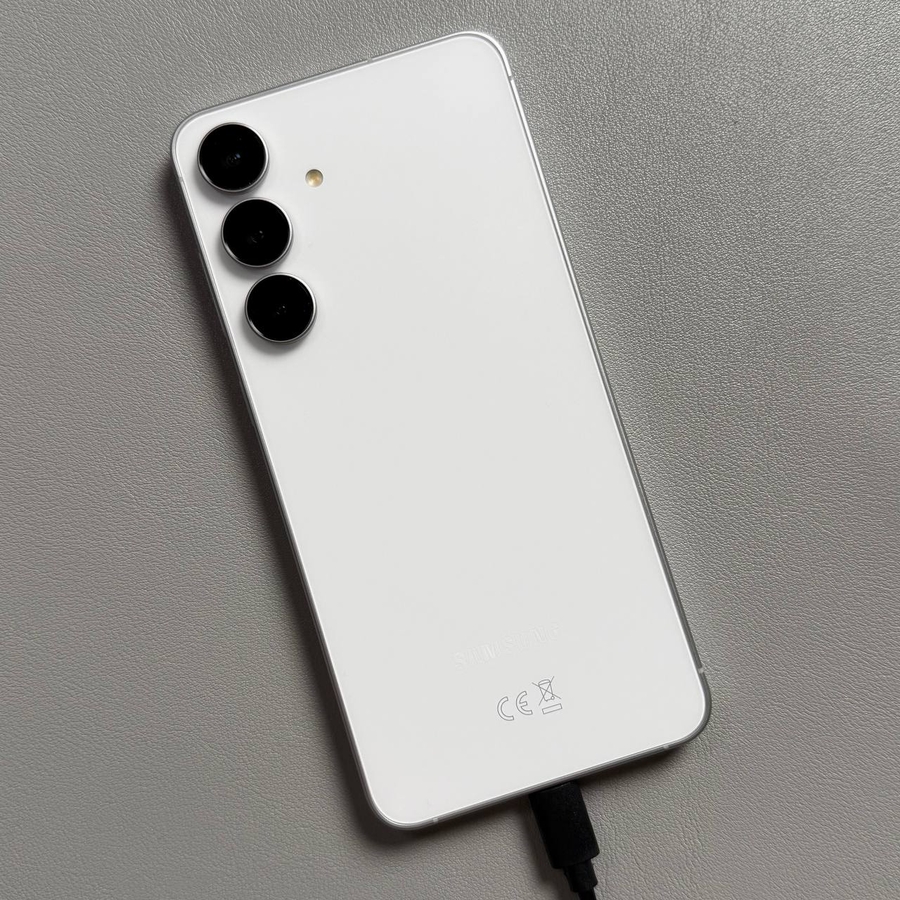
In this guide, we will walk you through the process of setting up OTG (On-The-Go) connectivity on your Samsung Galaxy S25 FE. This feature is incredibly handy when you want to connect a USB flash drive or other USB devices directly to your phone via its USB Type-C port. Let's get started with the setup process.
1. Activate Developer Options
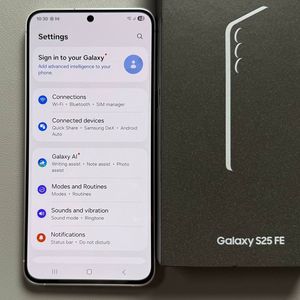
To begin, unlock your Samsung Galaxy S25 FE and open the Settings app, which you can usually find on your home screen or in the app drawer. Next, scroll down to find the "About phone" section and tap on it. Within this menu, locate and select "Software information." Now, look for the "Build number" entry. You need to tap on it seven times in quick succession. You will then see a notification indicating that "Developer mode" has been activated.


2. Set Default USB Configuration
After activating Developer Options, navigate back to the main settings menu. Scroll to the bottom, where you'll find "Developer options," (developer options) and tap to enter. Within this section, scroll down to locate the "Networking" category. Find the "Default USB configuration" option and tap on it. Here, you will want to select "Transferring files." This setting will ensure that your phone is ready to transfer data when you connect a USB device.


3. Enable USB Debugging
Another method to enhance your OTG experience is to enable USB debugging. Again, go to "Developer options" (developer options) and scroll down until you find "USB debugging." (USB debugging). Toggle the switch to the "On" (on) position, and a prompt will appear. Confirm by selecting "OK." (OK). Enabling this option will allow for greater flexibility when using USB-connected devices.

4. Verify MTP Settings
Lastly, to ensure everything is set up correctly, open your phone's dialer application and enter the code: *#0808#. This will bring up the MTP settings menu. Verify that "MTP" (Media Transfer Protocol) is selected, then press "OK" (OK) to confirm. This step finalises your phone's readiness for OTG connections.

Congratulations! Your Samsung Galaxy S25 FE is now configured to support OTG connections, allowing you to easily connect USB devices and transfer data with ease.