How to Clone Apps on Samsung Galaxy S25 FE
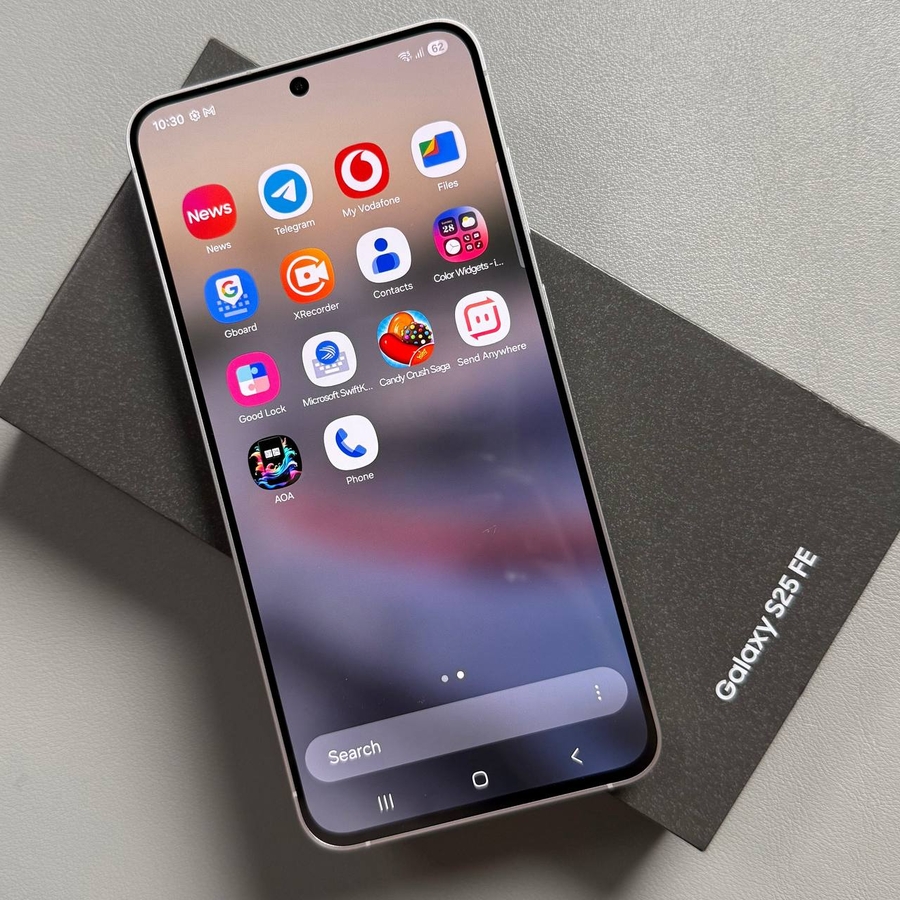
Cloning apps on your Samsung Galaxy S25 FE is simple and doesn't require third-party apps. Just use the built-in settings feature. Here's a step-by-step guide on how to get it done.
Step 1: Access the Settings Menu
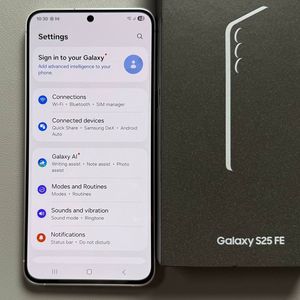
To begin, unlock your Samsung Galaxy S25 FE and locate the main Settings app. The icon typically resembles a gear and can be found on your home screen or app drawer. Tap on it to open the Settings (settings).

Step 2: Navigate to Advanced Features
Once in the Settings (settings) menu, scroll through the list and tap on 'Advanced Features.' This section contains various useful options, including the one we need for cloning apps.

Step 3: Open the Dual Messenger Option
Within the Advanced Features menu, continue to scroll down until you find 'Dual Messenger.' Tap on it to proceed to the app cloning section.

Step 4: Select the App to Clone
In the Dual Messenger menu, you'll see a list of apps that are eligible for cloning. Look for the grey switch next to the app you wish to duplicate and simply tap it.

Step 5: Install the Cloned App
After tapping the grey switch, a popup will prompt you to install the cloned app. Confirm by hitting 'Install' (install). Wait a moment for the installation to complete. Upon returning to your home screen, the newly cloned app should be visible.

Step 6: Manage Cloned App Settings
If at any point you want to remove the cloned app, navigate back to the Dual Messenger settings. Tap the blue switch next to the app to uninstall it, confirming your choice in the popup. Additionally, you can enable 'Use Separate Contact List' for your cloned app, which allows you to manage contacts independently. Select your desired contacts by tapping 'Add' (add) in the top right corner. Should you decide to disable this option later, use the same blue switch and confirm your action in the popup.