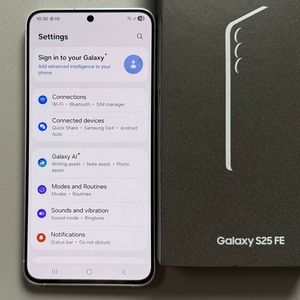
How to Factory Reset Your Samsung Galaxy S25 FE

Performing a factory reset on your Samsung Galaxy S25 FE can be necessary for a variety of reasons. Whether you're preparing to sell your phone, experiencing performance issues, or needing to erase all data because of a forgotten password, this guide will walk you through the step-by-step process. We will review two methods to help you reset your device efficiently and safely.
Method 1: Reset Through Settings
Step 1: Access the Settings Menu
To get started with resetting through your phone's settings, first unlock your Samsung Galaxy S25 FE and open the Settings app. Look for its gear-shaped icon on your home screen or within the app drawer.

Step 2: Navigate to General Management
Scroll through the settings menu until you find the General Management option. Once found, tap on it to access more options.

Step 3: Select Reset
Under General Management, scroll down and select the Reset option. This section provides various reset options for your device.

Step 4: Perform Factory Data Reset
In the Reset menu, choose the Factory Data Reset option. A new screen will inform you about the data that will be erased from your device. If you wish to keep any important data, make sure to back it up before proceeding. Once you're ready, confirm by tapping 'Reset' (reset), enter your PIN or password, and finalise the process by confirming again.

Method 2: Reset Using Hardware Buttons
Step 1: Prepare to Power Off
If you're unable to access settings and need to reset using hardware buttons, begin by pressing and holding the Volume Down and Power Lock buttons at the same time. Hold these until the screen goes dark.

Step 2: Access Android Recovery
Once the screen is off, release the buttons, then press and hold the Volume Up and Power Lock buttons simultaneously until you see the Android Recovery Menu appear on the screen.

Step 3: Navigate the Recovery Menu
In the Android Recovery Menu, use the volume buttons to move through the options and highlight Wipe data/factory reset. Confirm your selection by pressing the Power Button.
Step 4: Complete the Factory Reset


When prompted, confirm once more by selecting Factory Data Reset. Await the completion message indicating "Data wipe complete" ("Data wipe complete"). Once done, choose Reboot System Now to restart your phone. Your device will boot up as if it is brand new, leading you through the initial setup routine.