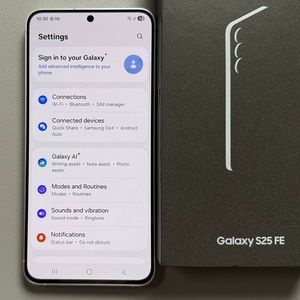
How to Set Up a Secure Folder on Samsung Galaxy S25 FE
- 1 Step 1: Open Settings
- 2 Step 2: Access Security and Privacy
- 3 Step 3: Navigate to More Security Settings
- 4 Step 4: Set Up Your Secure Folder
- 5 Step 5: Choose Security Features
- 6 Step 6: Optional Fingerprint and Lock Reset
- 7 Step 7: Customise and Access Your Secure Folder
- 8 Step 8: Finalise Setup
- 9 In Other Languages
With the Samsung Galaxy S25 FE, you have the ability to create a secure folder to keep your apps, files, documents, and other personal data private. This guide will walk you through the process of setting up a secure folder, which hides your content behind a lock type of your choice. Follow these steps to secure your important information with ease.
Step 1: Open Settings
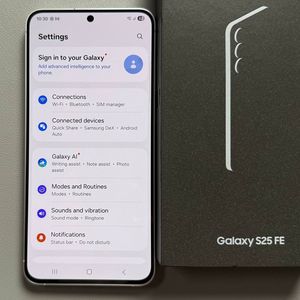
To begin, unlock your Samsung Galaxy S25 FE and navigate to the main Settings app. You can recognise the Settings app by its gear-shaped icon typically found on your home screen or app drawer.

Step 2: Access Security and Privacy
Once in the Settings menu, scroll down and locate the "Security and Privacy" option. Tap on it to view more security features.

Step 3: Navigate to More Security Settings
In the Security and Privacy section, find the "More Security Settings" option and tap on it to proceed to additional security configurations.

Step 4: Set Up Your Secure Folder
Under More Security Settings, locate "Secure Folder" and tap on it. Then, select "Continue" (continue) to initiate the setup process for the secure folder. You will be required to allow access to your calendar, contacts, photos, and other data to configure the folder properly.

Step 5: Choose Security Features
You will be prompted to select a security option for your Secure Folder, such as a PIN, password, or pattern. You also have the choice to use your existing lock screen security. For this guide, we will select a pattern lock. Enter your chosen pattern and confirm it.

Step 6: Optional Fingerprint and Lock Reset
Consider enabling fingerprint recognition for added convenience and security. You may also allow a lock reset option via your Samsung account in case you forget your lock. Enable these features according to your preference and then tap "Next" (next).

Step 7: Customise and Access Your Secure Folder
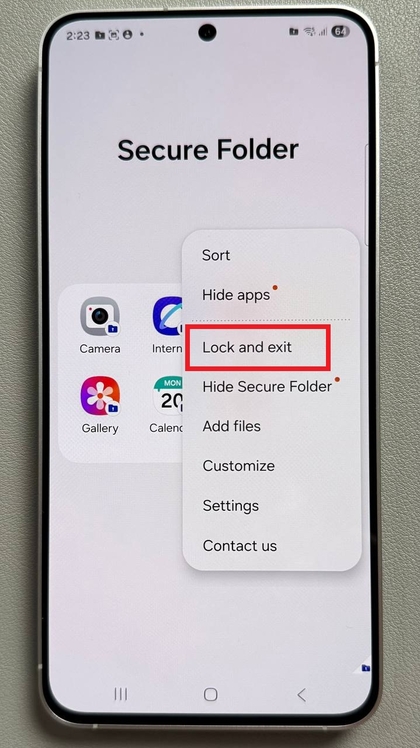
Once your secure folder is set up, you can customise its appearance and name. Use the provided options to change the icon colour or rename it for personal discretion. Add apps or files by tapping the "plus" (plus) icon or choosing the "Add Files" (add files) option from the menu for enhanced privacy.


Step 8: Finalise Setup
After adding your desired apps and customisation, you can lock and exit by tapping on the three-dot menu at the top right corner of the screen. Select "Lock and Exit" (lock and exit) to save your settings and ensure your secure folder operates correctly. On your home screen, you will now see your newly created secure folder, keeping your information secure and private.